
Going to the Extremes - Intel X58 Motherboards Roundup
Intel's Core i7 has been released and despite its merits, we doubt enthusiasts would go for Intel's reference version. Instead, they will turn to their favorite vendors so we have gathered three of the top models from the top three and presented them here.
The Extremes
Those who are familiar with Intel's recent chipsets would know that the chip giant has kept to a certain naming convention when it comes to these products. Namely, the 'X' in X38, X48 and now the X58 all represent the highest end chipsets for its processors. These are enthusiast class chipsets, designed right from the start with features like multi-GPU support and a higher front side bus (FSB) than the norm. The latest incarnation, the X58 was in fact introduced together with Intel's newest architecture, codenamed Nehalem and designed to work together with the just released Core i7 processors.
As befits a new architecture, what you'll find on the new X58 chipset is quite a departure from the previous X48. Physically, it's now using a new socket, LGA 1366 to fit the larger Core i7 processors, which has almost twice the number of contact points as the LGA 775 versions. Multi-GPU support has been enhanced, with NVIDIA joining the fray by allowing SLI support on these Intel motherboards, adding to the native CrossFireX support. In short, this chipset is truly for the enthusiast who likes to keep all their options open (and who may change between ATI and NVIDIA more often than most people buying a graphics card).
The most important change in the X58 however has to be the shift of the memory controller from the motherboard to the Core i7 CPU and this is a triple channel controller too. Hence, the old FSB is gone. What you'll find are quite a few inter-dependent clocks and multipliers not unlike that on the AMD platform. One familiar name would be the ICH10R Southbridge that's also found on the Intel P45 chipset, giving X58 motherboards a minimum of six SATA 3.0Gbps ports. For more details about the chipset, you can check our Core i7 article in the related links below.
For now, our focus is on the top motherboards conjured up by the major vendors to appeal to the enthusiasts. And from what we have seen, the big three featured here, ASUS, Gigabyte and MSI have certainly outdone themselves. Unsurprisingly, two of the three boards here have used 'Extreme' in their names (for once, that's not a marketing exaggeration). The only vendor to break that trend, MSI, came up with a new 'Eclipse' name for its top X58 board, so there's no doubting the importance of these high-end enthusiast boards in the eyes of the vendors, even if they are unlikely to sell as many as their mainstream boards. After all, street cred is at stake here.
That all three motherboards here have the standard features of an Intel X58 chipset with the ICH10R Southbridge is a given. To differentiate themselves however, there are differences in the storage, audio, expansion slot options and of course the layout. Each vendor also has its own long list of proprietary technologies and utilities that enhance the performance, power efficiency or user experience. Most of these features should be familiar to enthusiasts and we have listed them below:-
ASUS Rampage 2 Extreme | MSI Eclipse SLI | Gigabyte EX58-EXTREME | |
CPU Support | Intel Core i7 using LGA 1366 package | ||
Chipset | Intel X58 + ICH10R | ||
QPI | Up to 6.4GT/s | ||
Memory |
|
|
|
Storage |
|
|
|
Audio |
|
|
|
Networking | 2 x Marvell Yukon 88E8056 PCIe Gigabit LAN w/ Teaming support | 2 x Realtek 8111C Gigabit LAN | 2 x Realtek 8111D Gigabit LAN w/ Teaming support |
IEEE 1394 |
|
|
|
Rear I/O |
|
|
|
Internal Connectors |
|
|
|
Expansion Slots |
|
|
|
Special Features |
|
|
|
Form Factor | ATX (30.5 x 24.5cm) |
Features and Layout
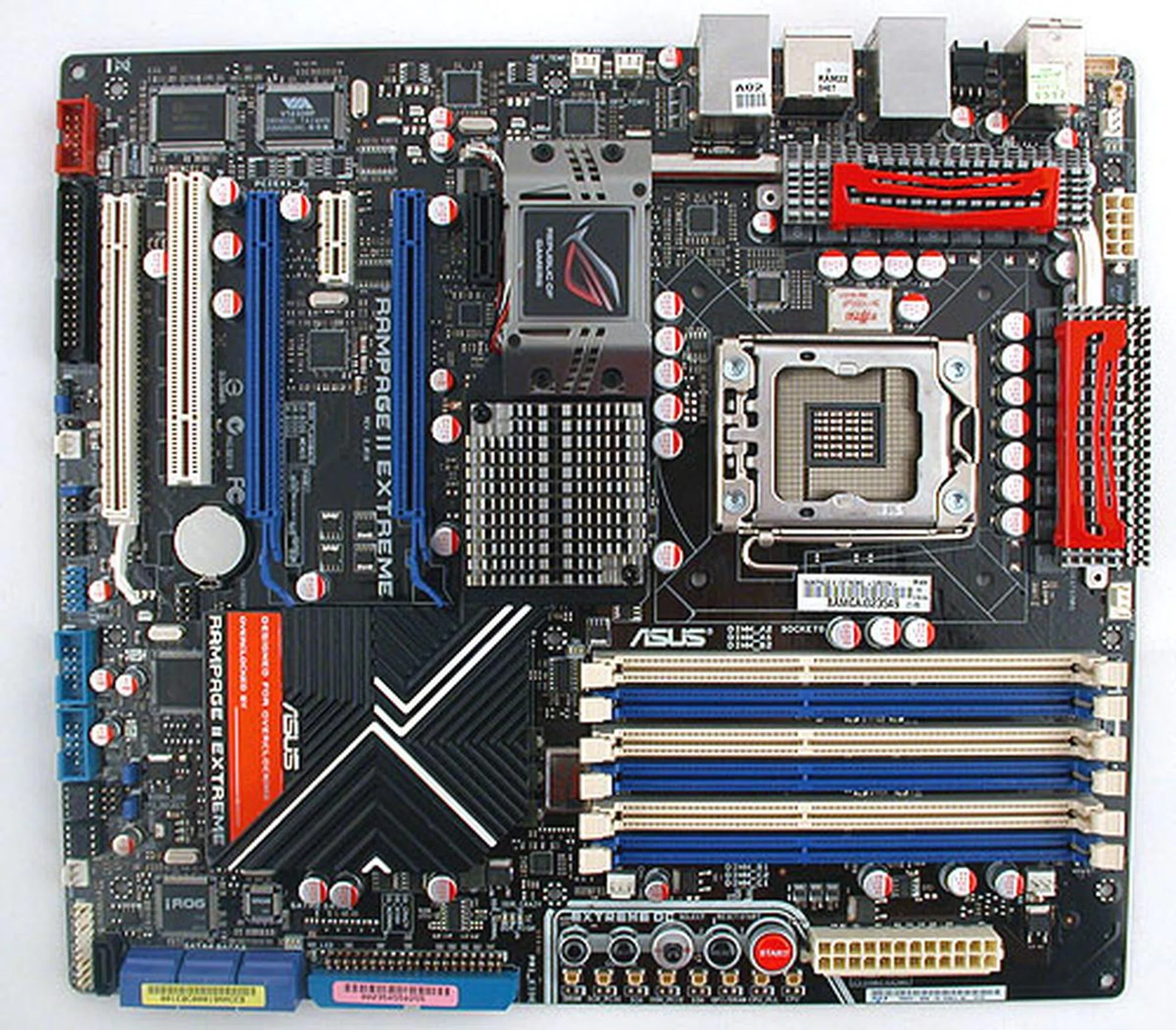
We start off with the ASUS Rampage II Extreme, which for those who have seen the first Rampage Extreme made for the X48 chipset, should look quite familiar. The exciting red and black color scheme is retained but the motherboard
cooling system on the Rampage II looks less 'extreme' with the Southbridge heatsink noticeably more modest. The water block on the original Rampage has also been removed, but ASUS has reassured water cooling enthusiasts that they would still be able to remove the current heatsink and replace it with supported water blocks, like like this one from Swiftech.
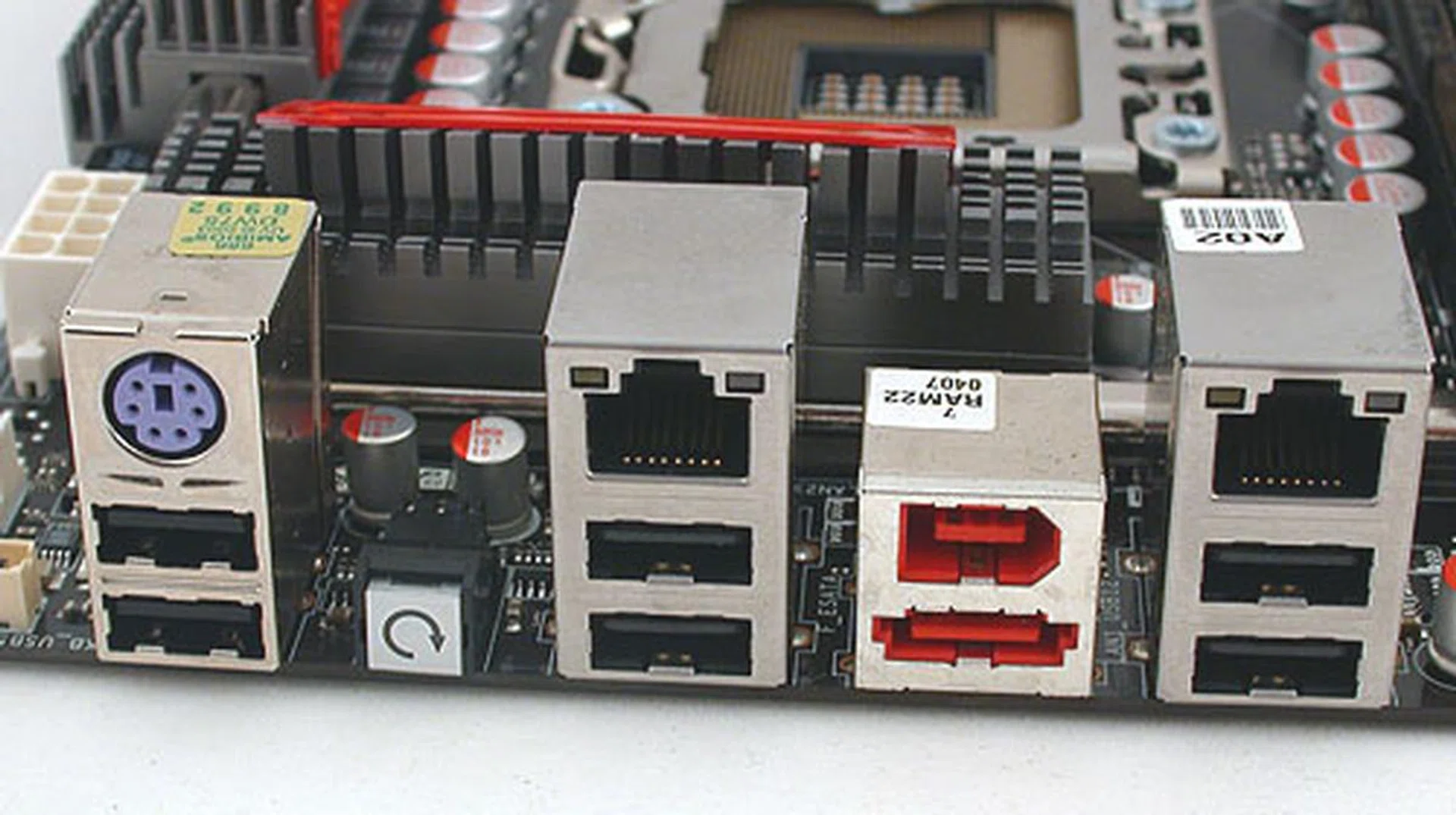
ASUS has kept with the PS/2 keyboard port but there are no other legacy ports here. 6 USB 2.0 ports, eSATA, FireWire, dual Gigabit LAN and a Clear CMOS button complete the set.
The board itself is teeming with ports, headers and those special 'Republic of Gamers' overclocking tools. We have no complaints about the layout generally, except that if you're doing 3-way GPUs with dual slot graphics cards, the floppy connector at the edge could become quite inaccessible. Few users however are keeping their floppy drives now (especially with BIOS-based flash tools) so it's a minor issue. You do get the full complement of 12 USB 2.0 ports, support for 2 FireWire devices, dual Gigabit LAN controllers and two IDE/PATA devices.
ASUS also states in its spec sheet that the Rampage II Extreme will support up to 12GB of DDR3 memory, with the usual (for X58) six DIMM slots. For those few users who would like to pile on the memory, this maximum amount pales when compared to the 24GB on the Gigabyte and MSI boards.
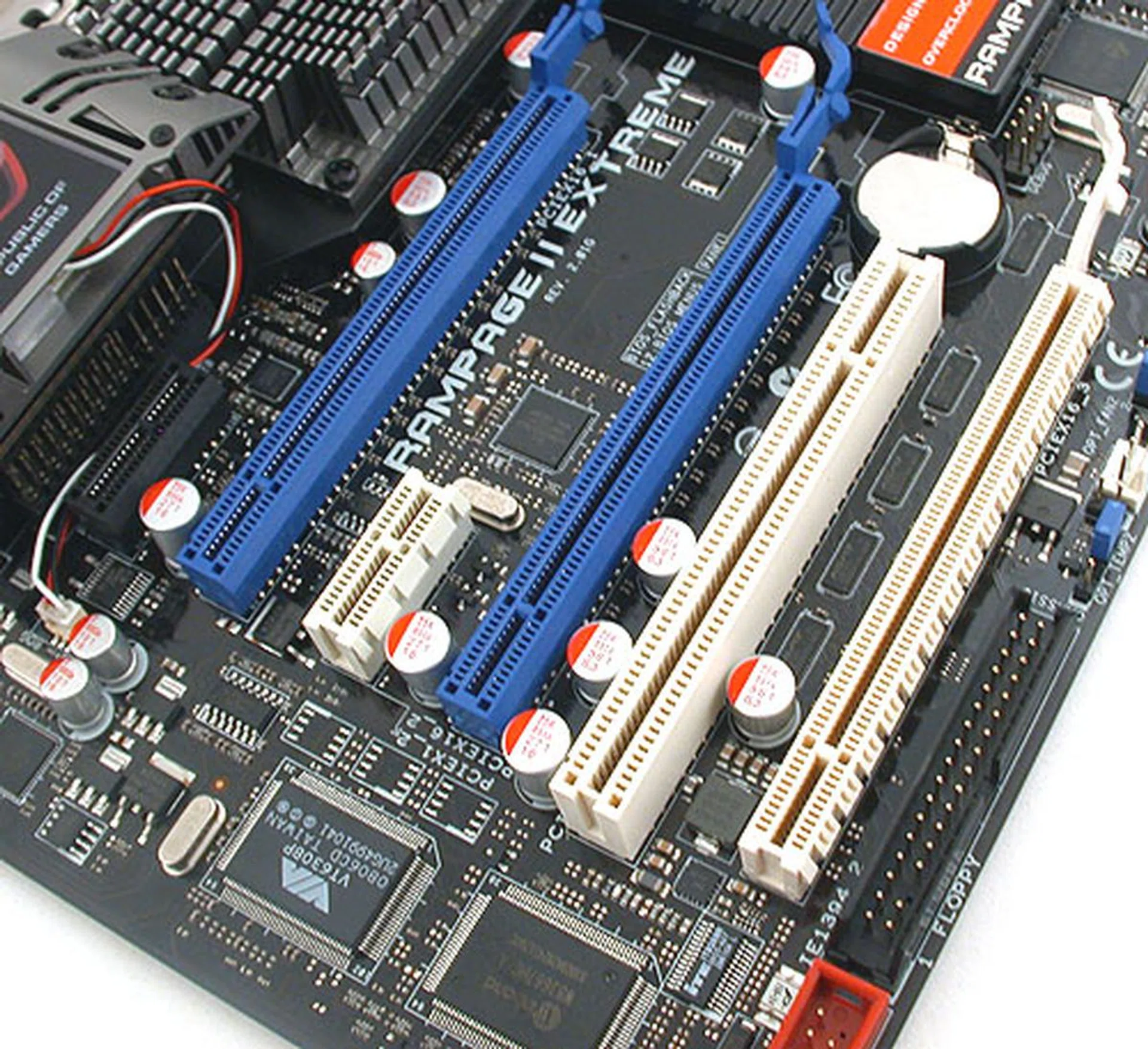
3-way SLI and CrossFireX is the main draw for high-end X58 boards like this and the ASUS has three PCIe 2.0 slots for it, which can be either configured as 2 x16 or x16/x8/x8, depending on how many graphics cards you install. And though it does come with 2 PCIe x1 slots, the black slot (close to the ROG heatsink) is practically reserved for the audio add-on card due to space constraints.
There are 7 SATA 3.0Gbps ports onboard, 6 are from the default Intel ICH10R and the remaining port from the JMicron JMB363 controller that also provides the eSATA and IDE (2 devices) functionality.
3-way SLI and CrossFireX is the main draw for high-end X58 boards like this and the ASUS has three PCIe 2.0 slots for it, which can be either configured as 2 x16 or x16/x8/x8, depending on how many graphics cards you install. And though it does come with 2 PCIe x1 slots, the black slot (close to the ROG heatsink) is practically reserved for the audio add-on card due to space constraints.
The presence of the TweakIt controls do mean that this ASUS board has the fewest storage options of all three X58 boards compared, with just one additional SATA 3.0Gbps and one eSATA besides the standard six ports from the ICH10R.
Solid capacitors are standard on motherboards now, so ASUS has to trump it for its Extreme series with multi-layer polymer capacitors (ML caps) to complement its 16-phase PWM, a package that ASUS dubs the Extreme Engine. These elements are touted to improve the overclocking headroom by ensuring a stable power output during overvoltage situations. With each vendor trying to sell their own unique 'features', the proof would be in the pudding (or testing).
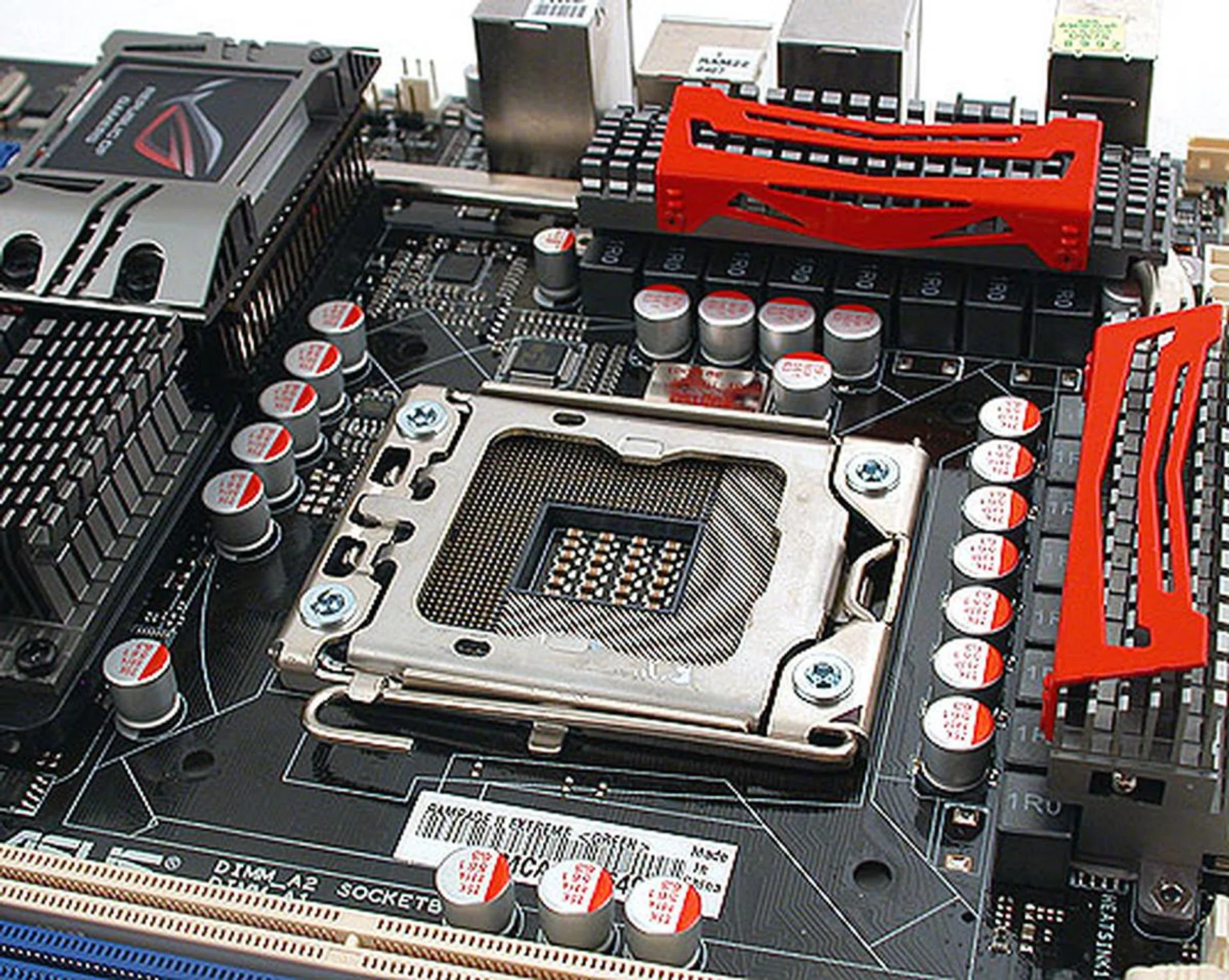
Although the heatsinks near the CPU socket are not overly intrusive, we would have appreciated having more space. Nevertheless, we had no trouble mounting our huge Thermalright Ultra 120 Extreme cooler. This board comes with 16-phase power and solid Japanese-made conductive polymer capacitors.
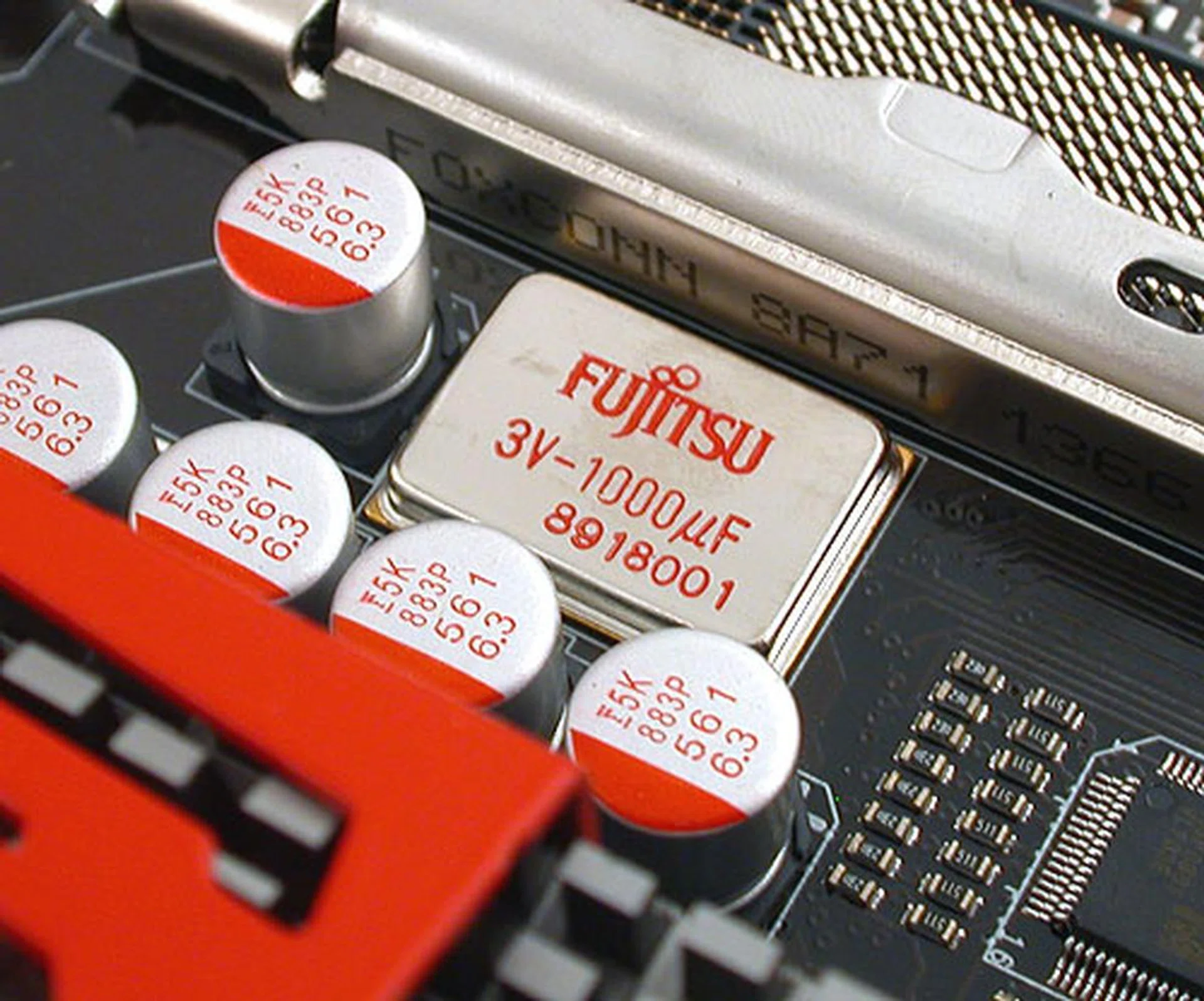
In fact, ASUS touts its use of multi-layer polymer capacitors (ML caps) from Fujitsu to improve stability during overclocking and overvoltage situations.
And finally, with all the enhancements and features onboard, it's not surprising that ASUS has gone for an audio riser card that fits into the black PCIe slot near the heatsink. With optical and coaxial outputs besides the usual audio jacks, this HD audio is powered by ADI's AD2000B CODEC and is unfortunately the last we'll see from the company as ADI is withdrawing from this business. Despite the X-Fi features like Crystalizer and EAX Advanced, the SupremeFX X-Fi here does its X-Fi magic via software emulation unlike a proper Creative X-Fi soundcard. Nevertheless, it's still a very competent CODEC, if only for the Creative X-Fi features.
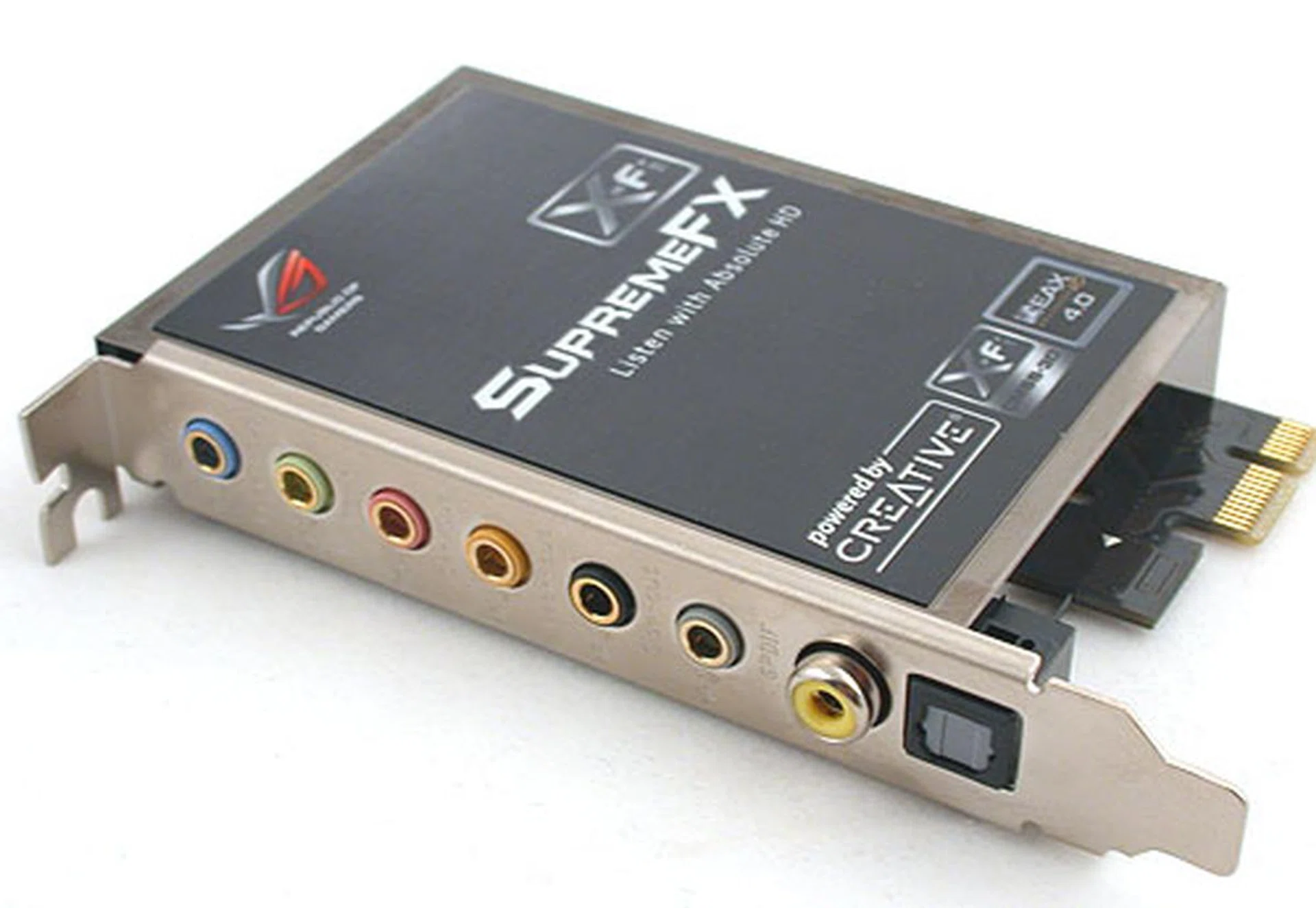
ASUS bundles an audio riser card, the SupremeFX X-Fi, which actually uses an ADI AD2000B HD audio CODEC inside. While it supports the suite of Creative branded sound features like EAX 4.0 Advanced, X-Fi Crystalizer, etc, it's done through software and has no hardware accelerated sound effects.
The OC Factor
When it comes to the tools for overclocking, the ASUS Rampage II Extreme looks heads and shoulders above the competition. At least in terms of what you can see and play with. Those who have seen the Rampage Extreme would find more of the same, with the return of the almost all the features, minus the Fusion water block mentioned earlier. That means the TweakIt control panel, the dual BIOS (BIOS Flashback), the iROG chip which allows for real-time system monitoring and tweaking and of course all the ASUS proprietary technologies, like the EPU 6-Engine.
What's new this time is the Probelt, which is seriously for the hardcore O.C enthusiasts. Basically ASUS has gathered the voltage detection points below the TweakIt controls and using the included sensor, you can connect your multimeter to it for the most accurate readings. That's convenient if you don't want to keep going into the BIOS to check them (or don't trust the BIOS readings). It only makes this Extreme go even further into the O.C niche and we really don't see ourselves or anyone we know using these tools. But if you do, it's probably another cool toy to play with.
And we haven't even talked about the BIOS, which has quite a lot more options and settings than your average motherboard. The best thing is that ASUS has made the BIOS relatively easy to use despite the number of advanced settings. Settings are organized properly and understandable while simple and effective profiles (CPU Level Up) instantly pushed our Core i7-965 XE to 4GHz, without us doing anything else. Also, with the BIOS Flashback feature, you can go crazy with your settings knowing that you always have a backup (provided you know what you're doing).
Even without looking at the rest of the two motherboards in contention here, we can safely say that this ASUS board is the most extreme when it comes to satisfying your overclocking urges and we're looking forward to a good showing in our tests.
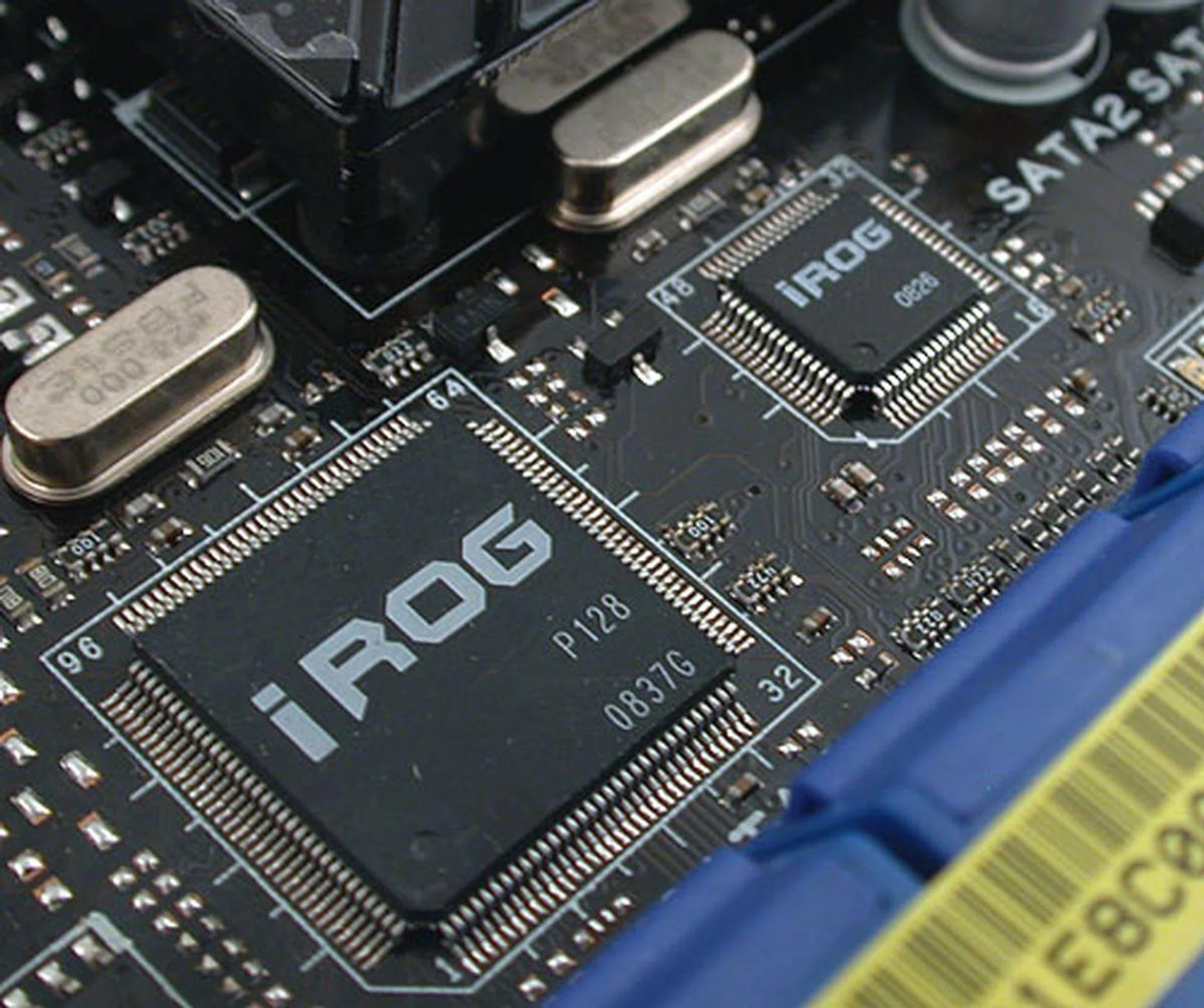
ASUS's Republic of Gamers (ROG) is all about the high-end enthusiast and these iROG IC chips enables the various ROG functions found on this board, including the monitoring and tweaking aspects.
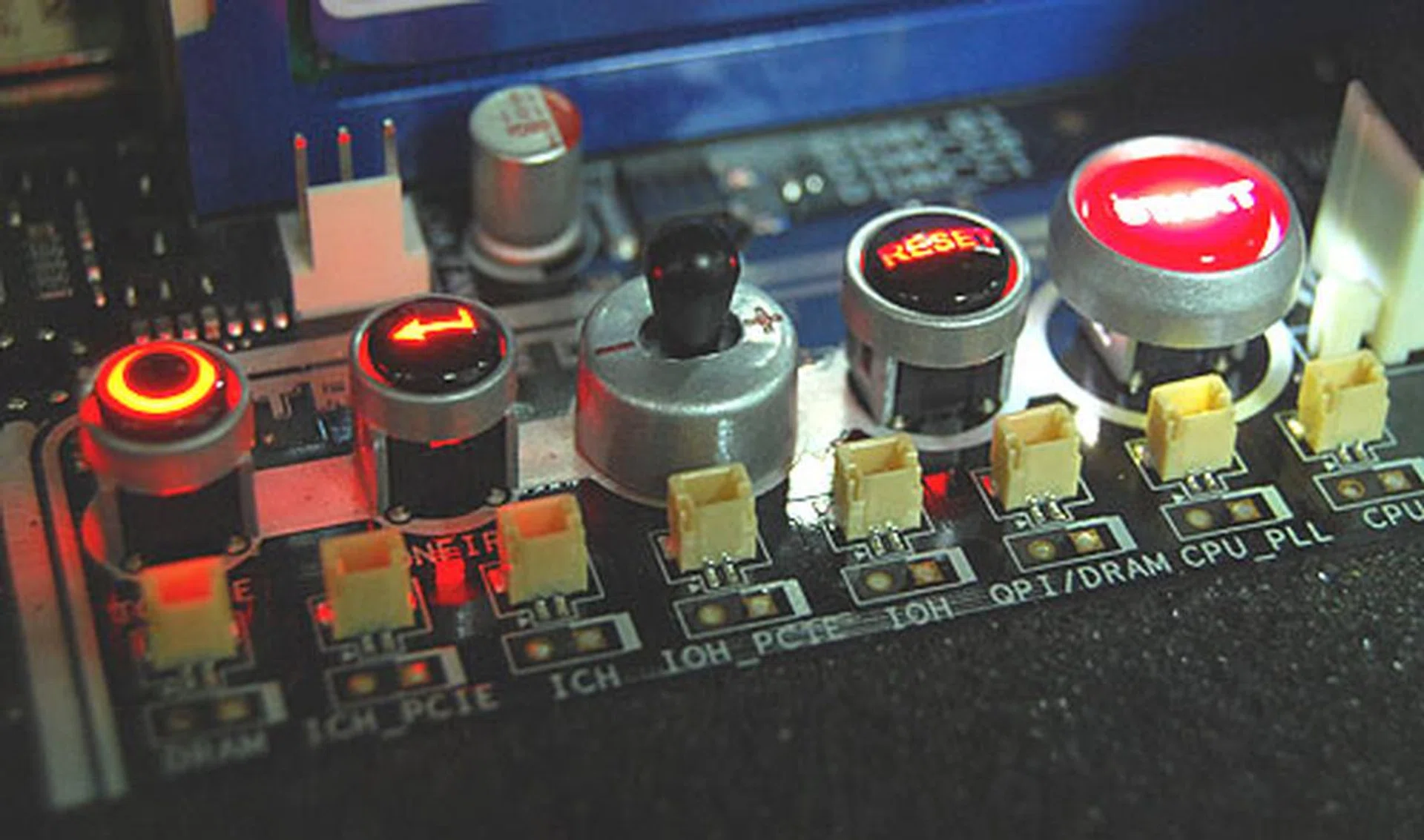
ASUS' TweakIT was in the previous Rampage and it's no surprise that it makes a return here. Basically, you can access and change your overclocking settings on the fly though this 'control panel', even while running the benchmarks or applications.
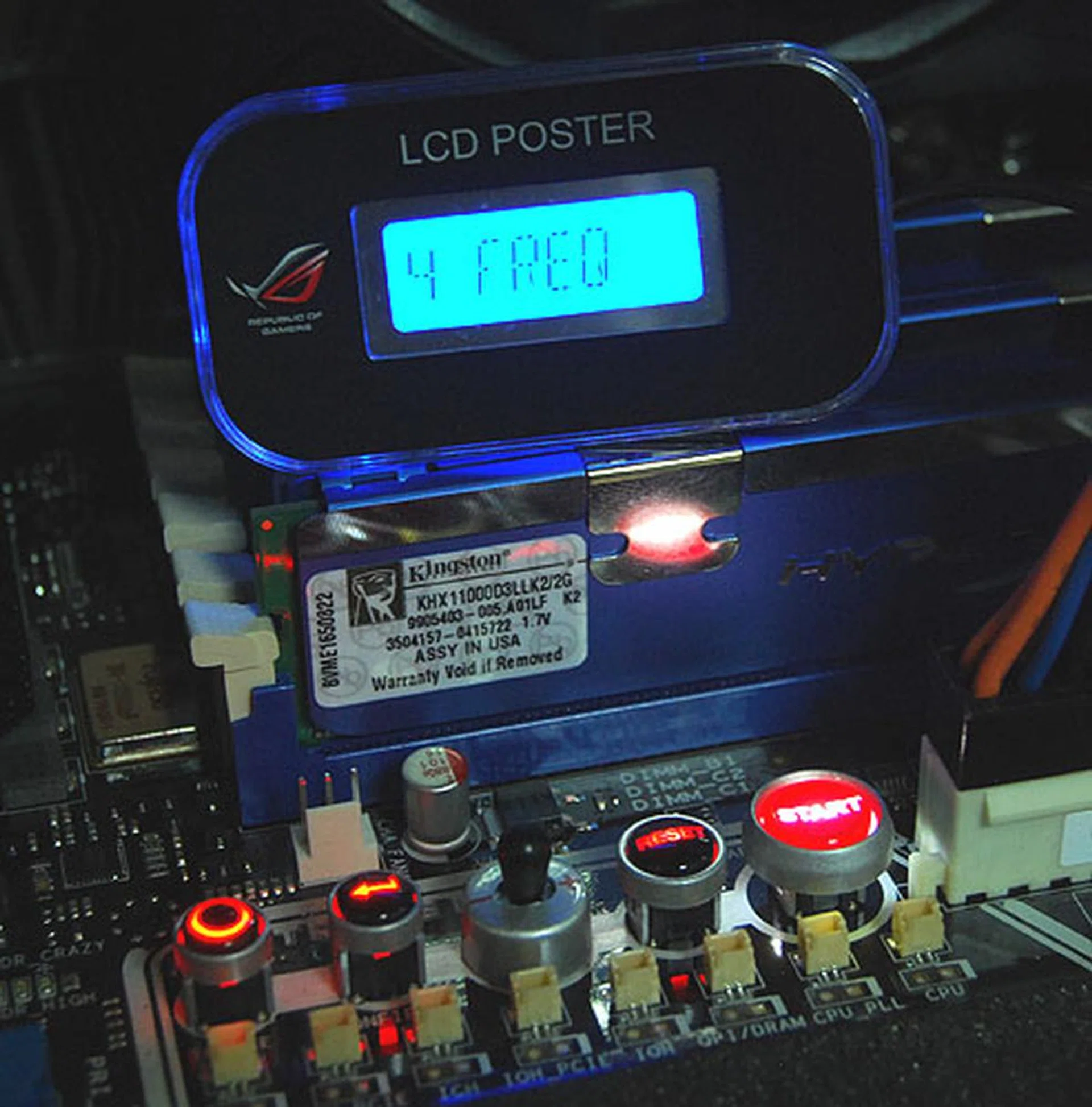
TweakIt works together with the LCD Poster module shown here.
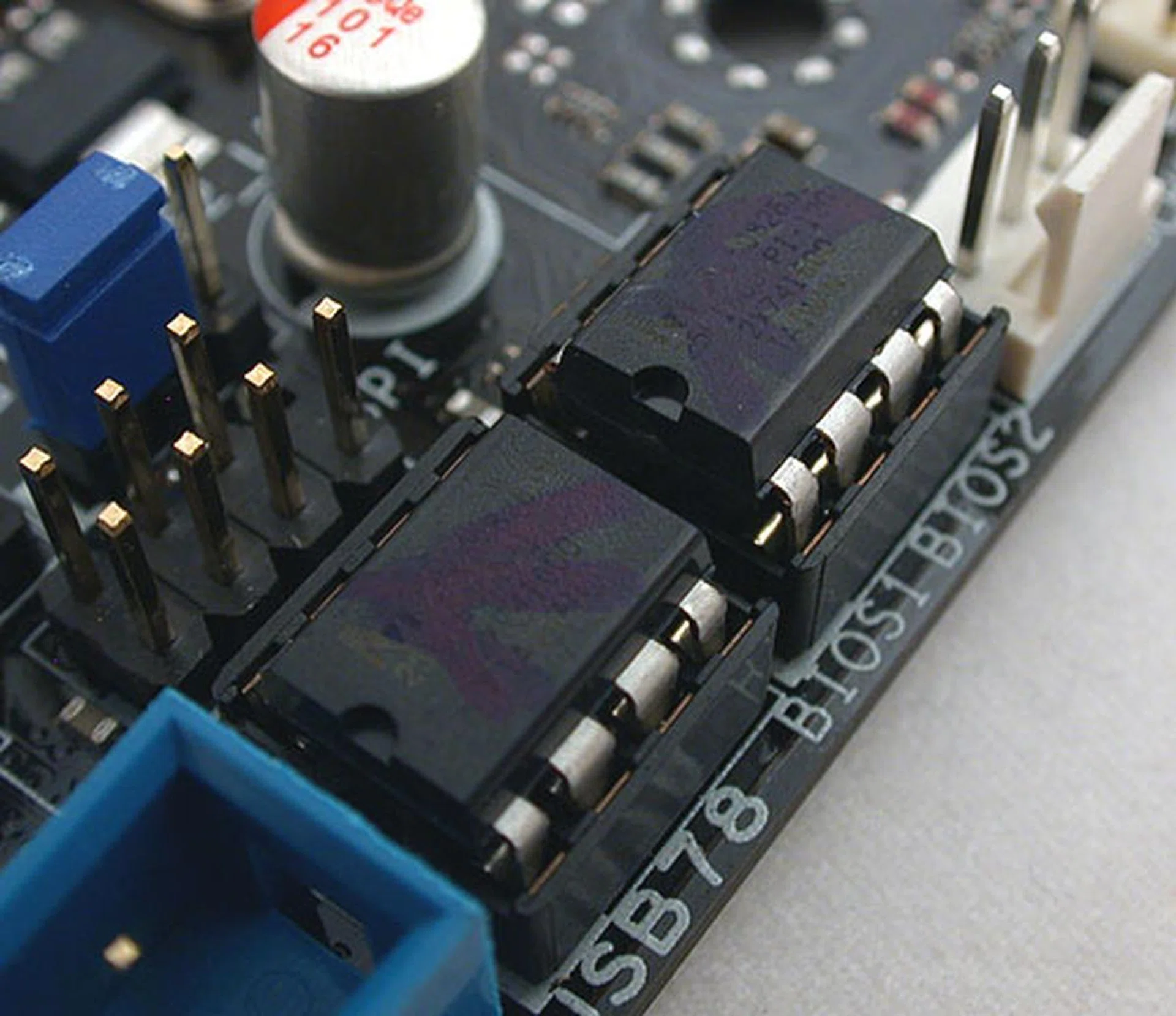
With two BIOS aka BIOS Flashback, it's very convenient for enthusiasts to keep a save copy to restore in an emergency, while having the freedom to go wild with the other BIOS. You can enable/disable this functionality in the BIOS under the iROG subsection while also setting the priority for each BIOS.
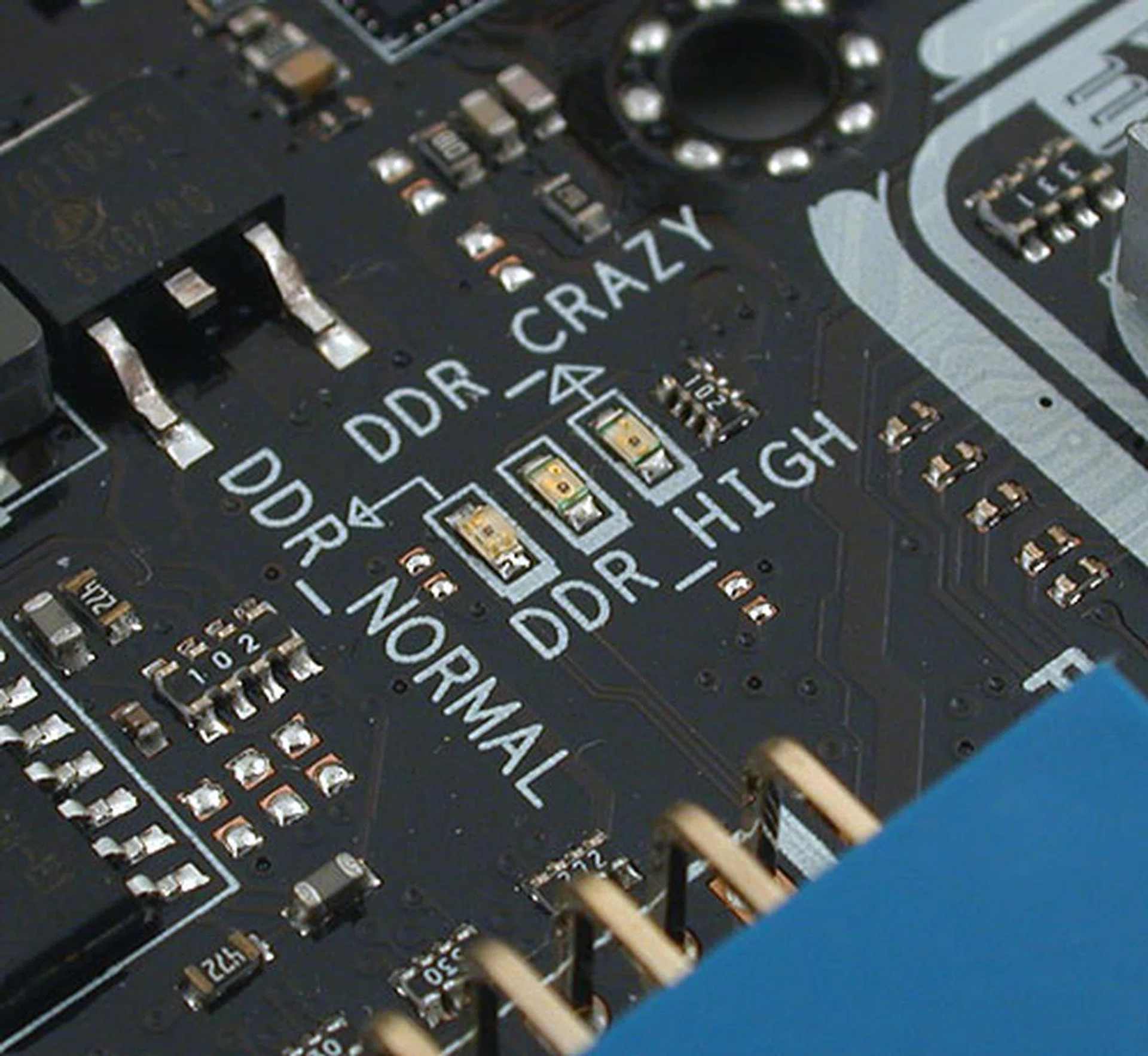
These LEDs help enthusiasts tell at a glance what their memory are running at, especially since these are color-coded, with red being too dangerous for their own good. Yellow and green are the other colors. Similar LEDs are present for the Northbridge (NB) and Southbridge (SB) voltages.
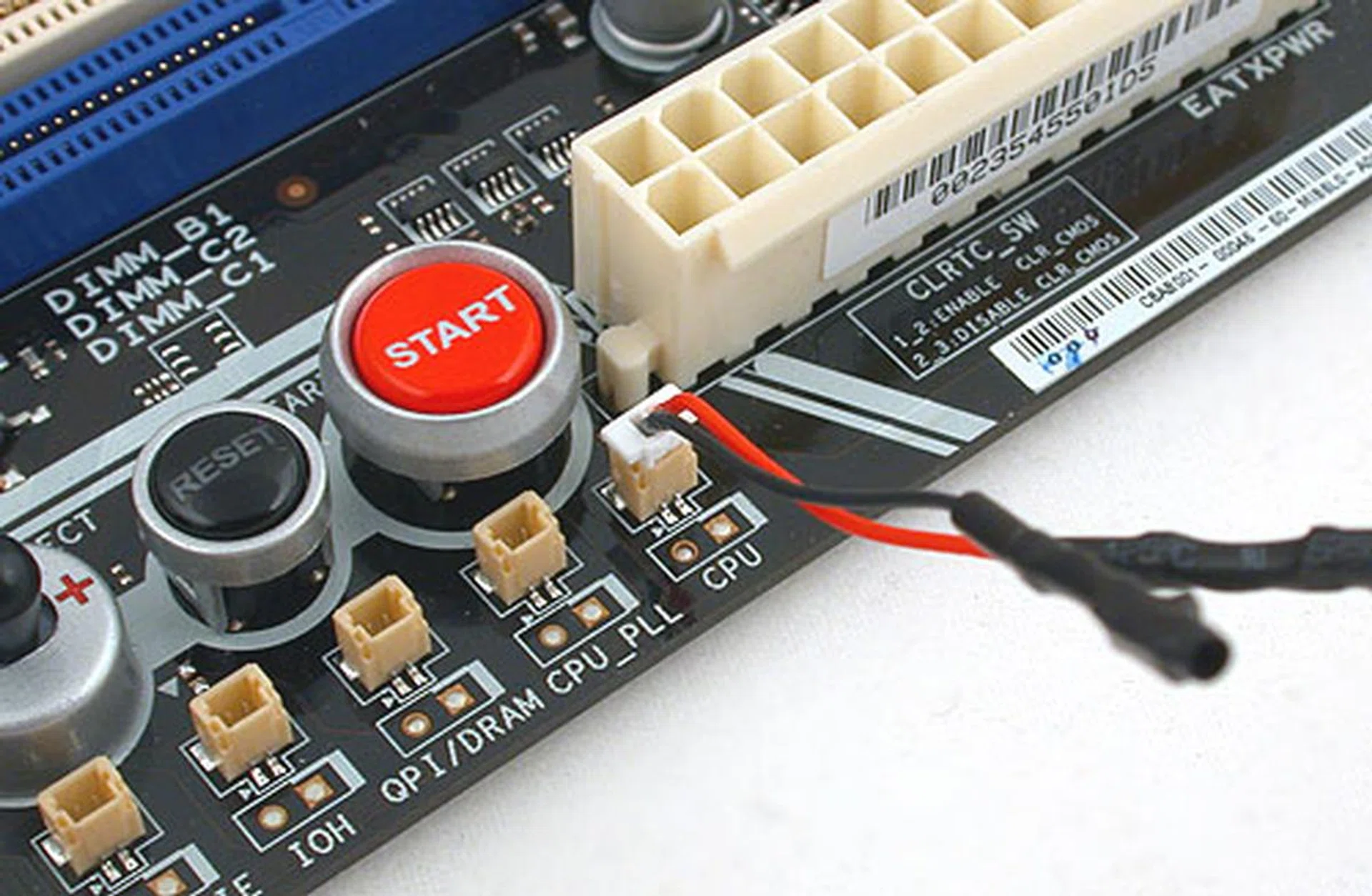
If you like to check the voltages yourself using a multimeter, ASUS has conveniently gathered all the various detection points here near the TweakIt controls. Users just need to attach the included cable to their multimeters to measure the desired voltages
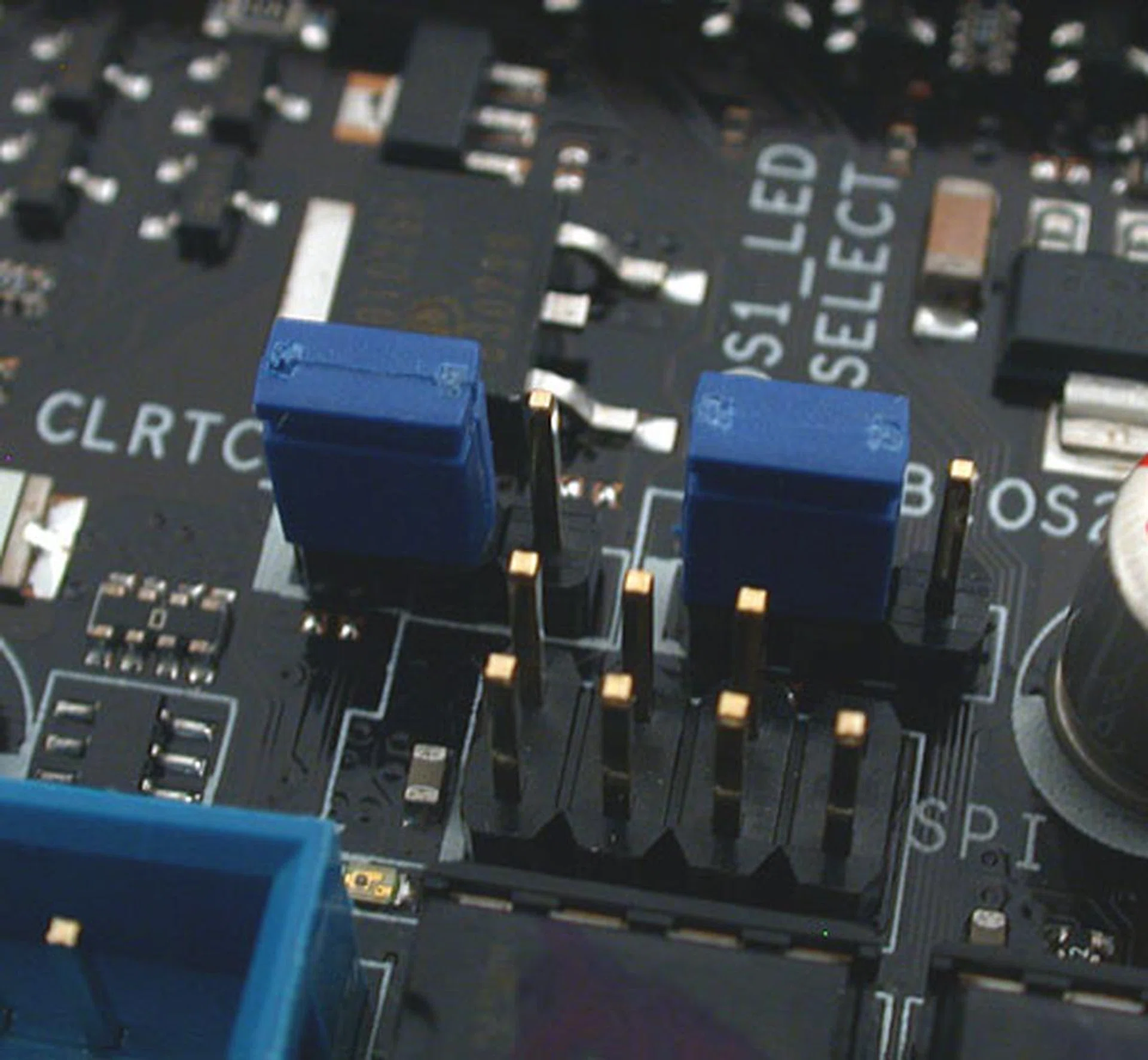
We have talked about accidents occurring with the Clear CMOS buttons found at the rear I/O panels on some motherboard nowadays. With this onboard jumper however, you can now disable or enable this Clear CMOS button.
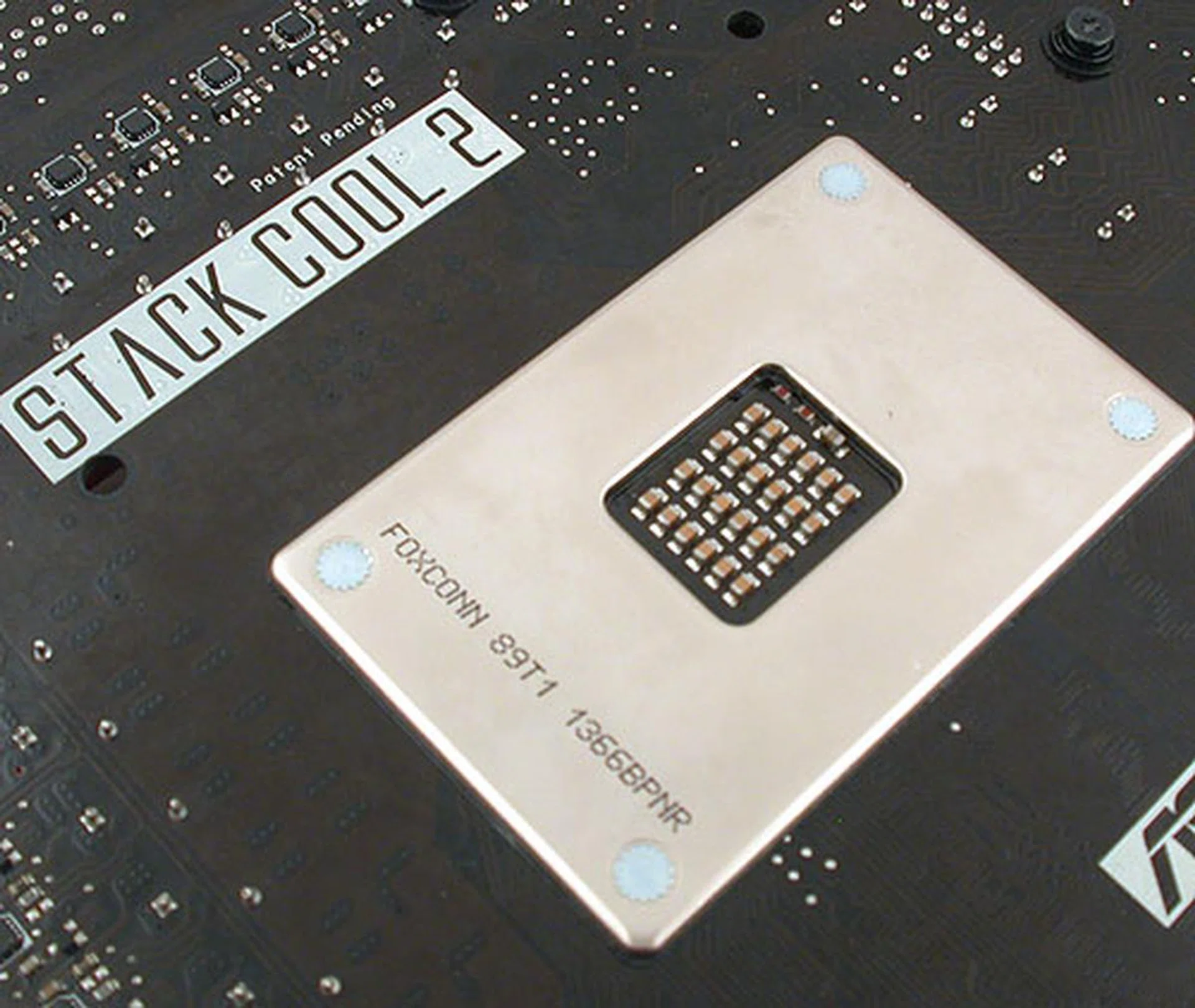
Just like other recent ASUS motherboards, it comes with Stack Cool 2, a passive cooling solution where the heat is dissipated through the metal plate at the bottom. However, with the advent of the Core i7, we have noticed that X58 boards do come with such a metal plate at the bottom for this purpose so it's probably no longer that unique.
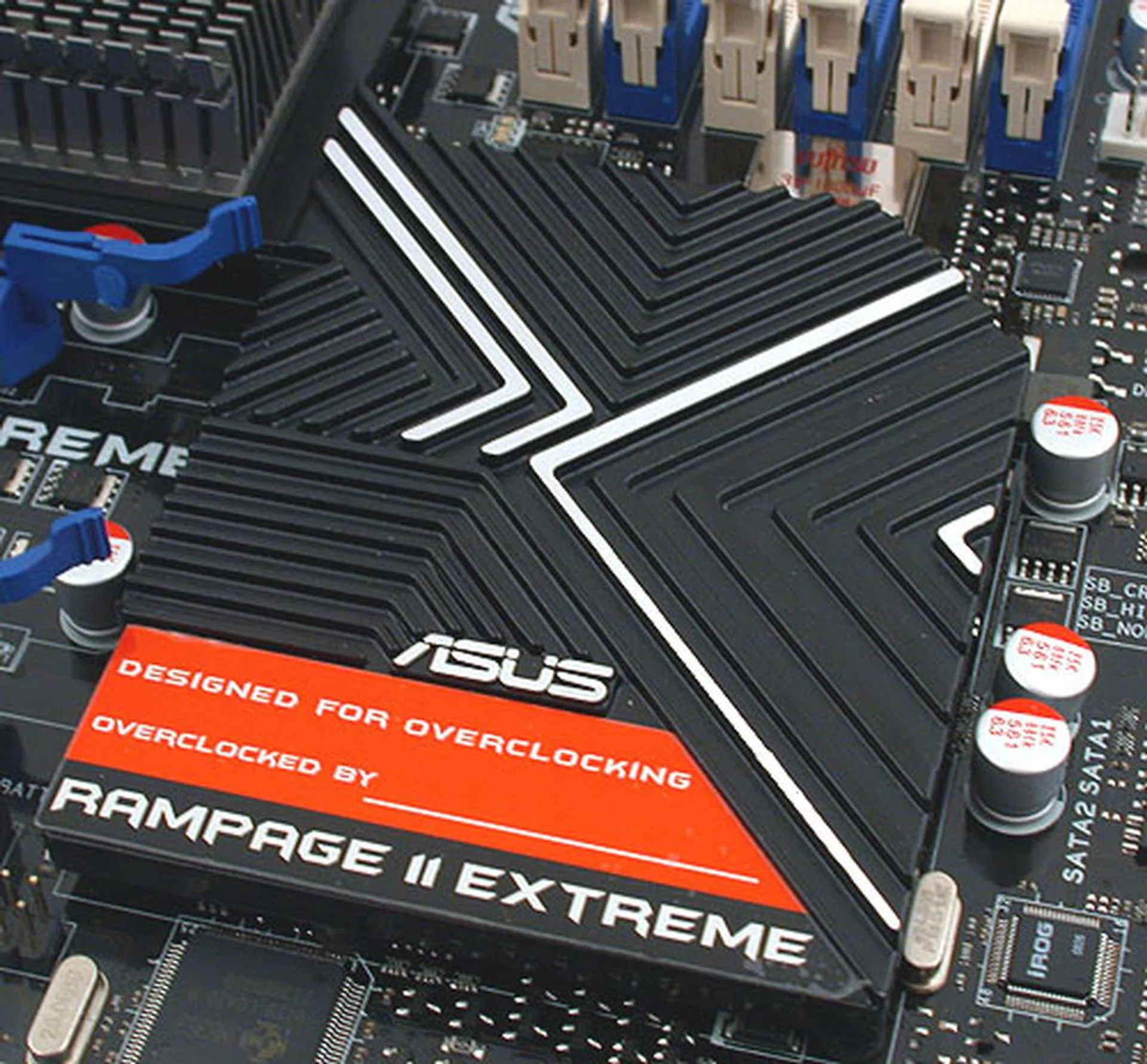
The Southbridge heatsink is also where users sign off on their overclocking achievements.
Features and Layout
After the extravagance and abundance in overclocking features found on the ASUS, the Gigabyte GA-EX58-EXTREME seems almost ordinary despite having an 'Extreme' moniker. Our first impression was that it looks quite like the company's older chipsets, albeit with a more sober color scheme. (We guess that Gigabyte probably decided that enthusiasts don't really like pink for their DIMM slots).
The Southbridge is covered by a rather large passive heatsink and linked to a water block over the Northbridge with the usual heat-pipes. This heatsink also lists Gigabyte's latest 'feature' for motherboards, Ultra Durable 3 technology, which doubles the amount of copper present in the PCB to improve heat dissipation and lowers impedance.
Six DIMM slots are found, which is standard, with a maximum total of 24GB of memory supported. We did notice that Gigabyte has decided to move the older connectors, like the floppy and IDE to the side and edge of the board. This was probably due to the extra number of SATA ports found on this board. Having the IDE right at the bottom however does seem like trouble to us if you're using it for your optical drive.
Occupying a whole chunk of PCB real estate, this Gigabyte board comes with 10 SATA ports, with the additional 4 provided by JMicron controllers. It comes with no native eSATA ports but there's a special SATA bracket provided if you need that. There's no separate audio riser card for the Gigabyte, which means there are quite a lot of rear I/O ports, though Gigabyte has managed to squeeze them in neatly, including a Clear CMOS button and FireWire port too. The HD audio CODEC however is a familiar one from Realtek.
Installing the Hybrid Silent Heat-pipe 2 will also take away one PCIe and almost certainly affect the adjacent slot too, so unless you really need it, we won't recommend installing it. Finally, Gigabyte's power management utility DES Advanced is present as usual for a greener motherboard.
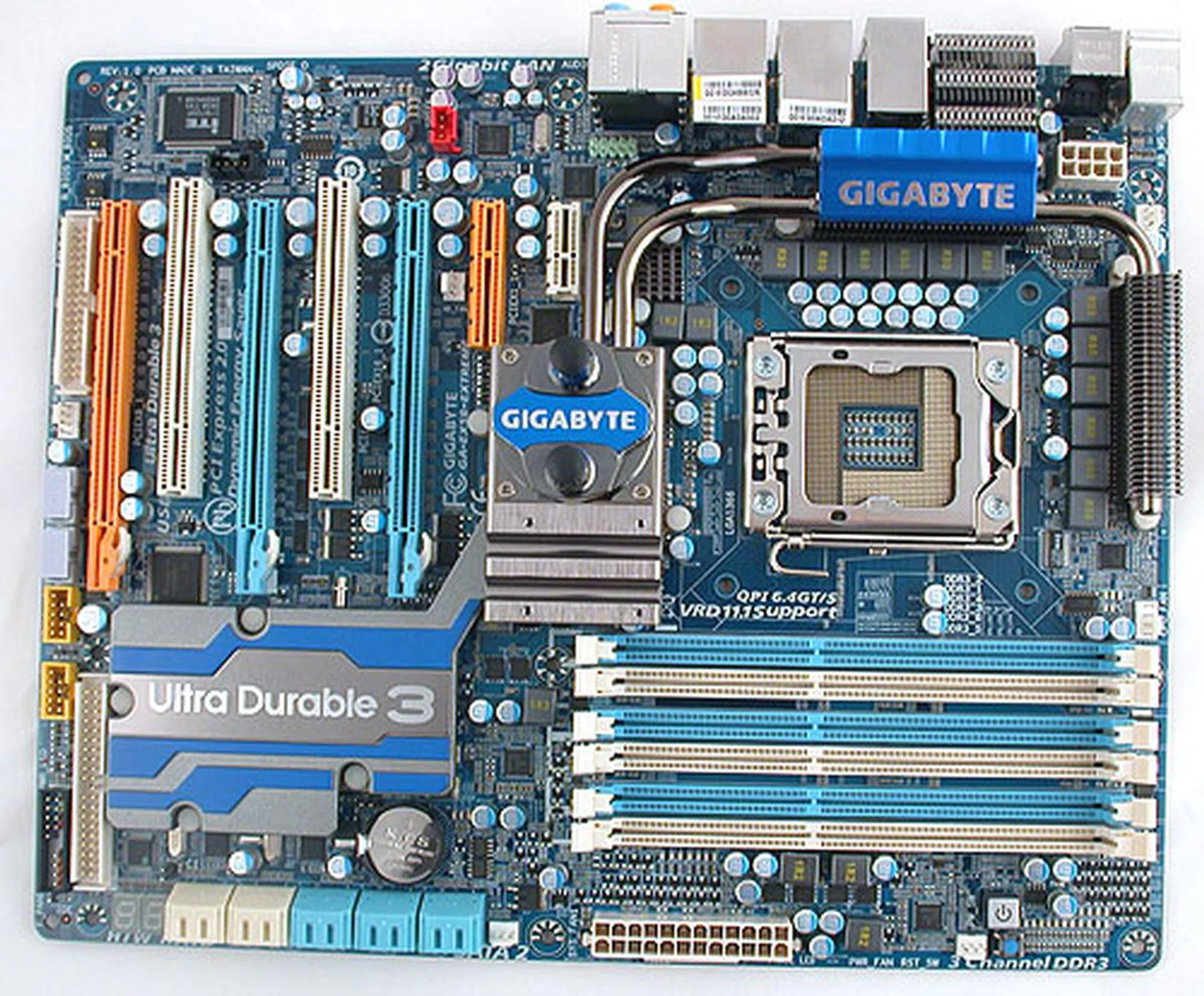
Gigabyte has sobered down the colors, with more blues in its EXTREME version of the X58 chipset.
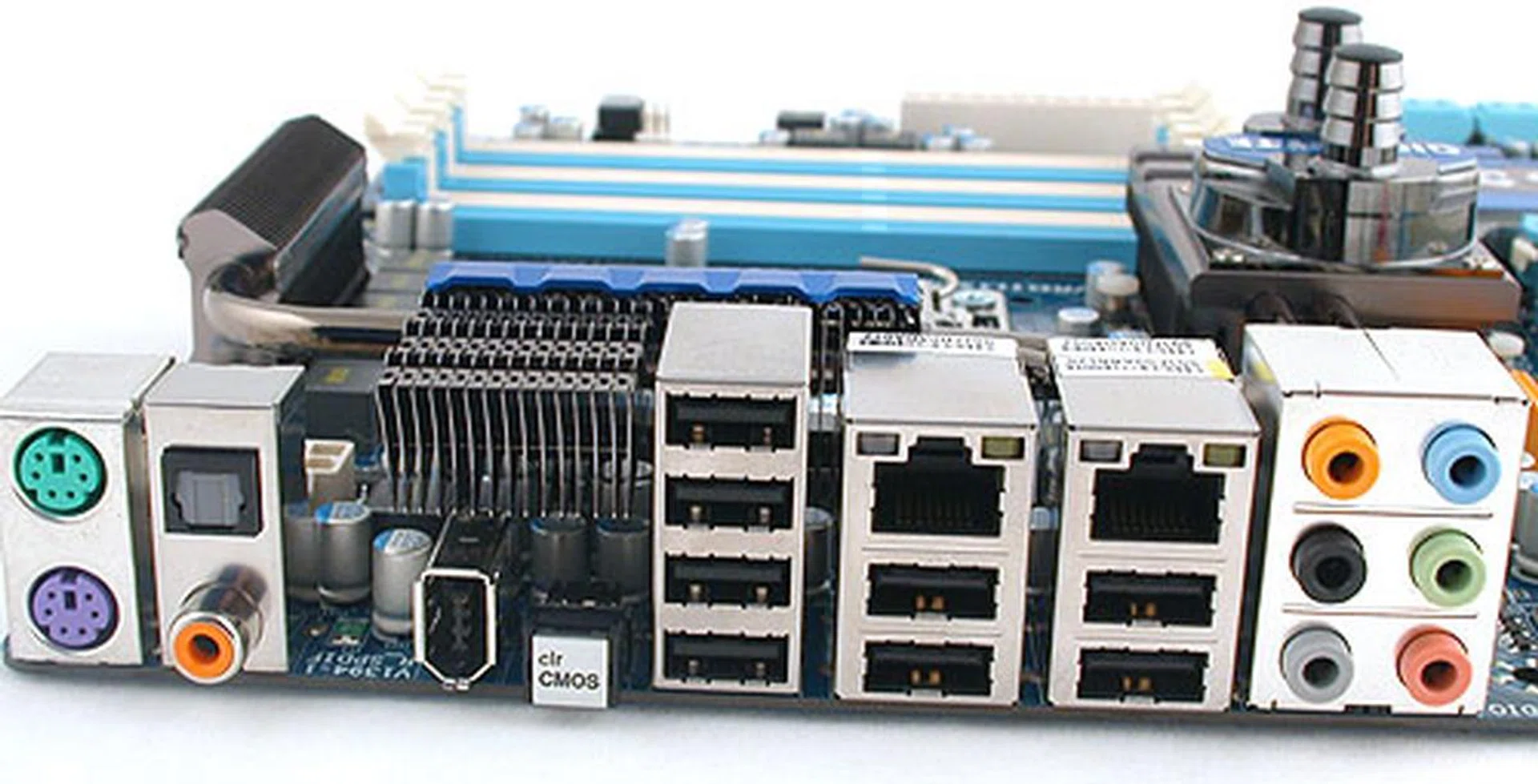
Unlike the two other motherboards in this comparison, Gigabyte has not gone for an audio riser card. Hence, this rather typical rear I/O panel layout. Nevertheless, the manufacturer still managed to fit 8 USB ports, 2 RJ-45 ports along with a Clear CMOS button and coaxial and optical S/PDIF outputs.
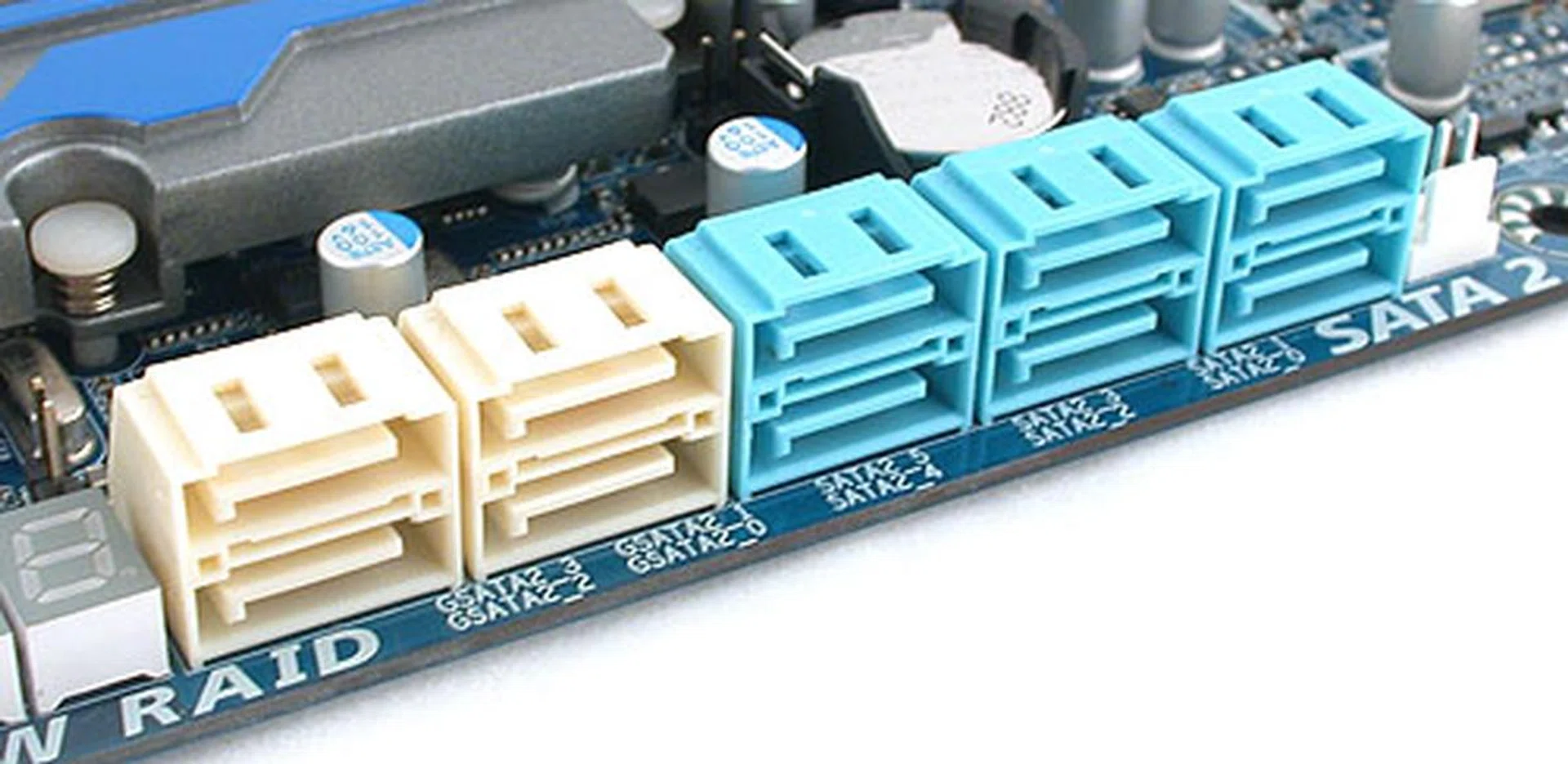
One thing that you won't find lacking on the Gigabyte GA-EX58-EXTREME is the number of SATA 3.0Gbps ports. There are 10 internal SATA ports but you'll need to install a bracket if you need eSATA.
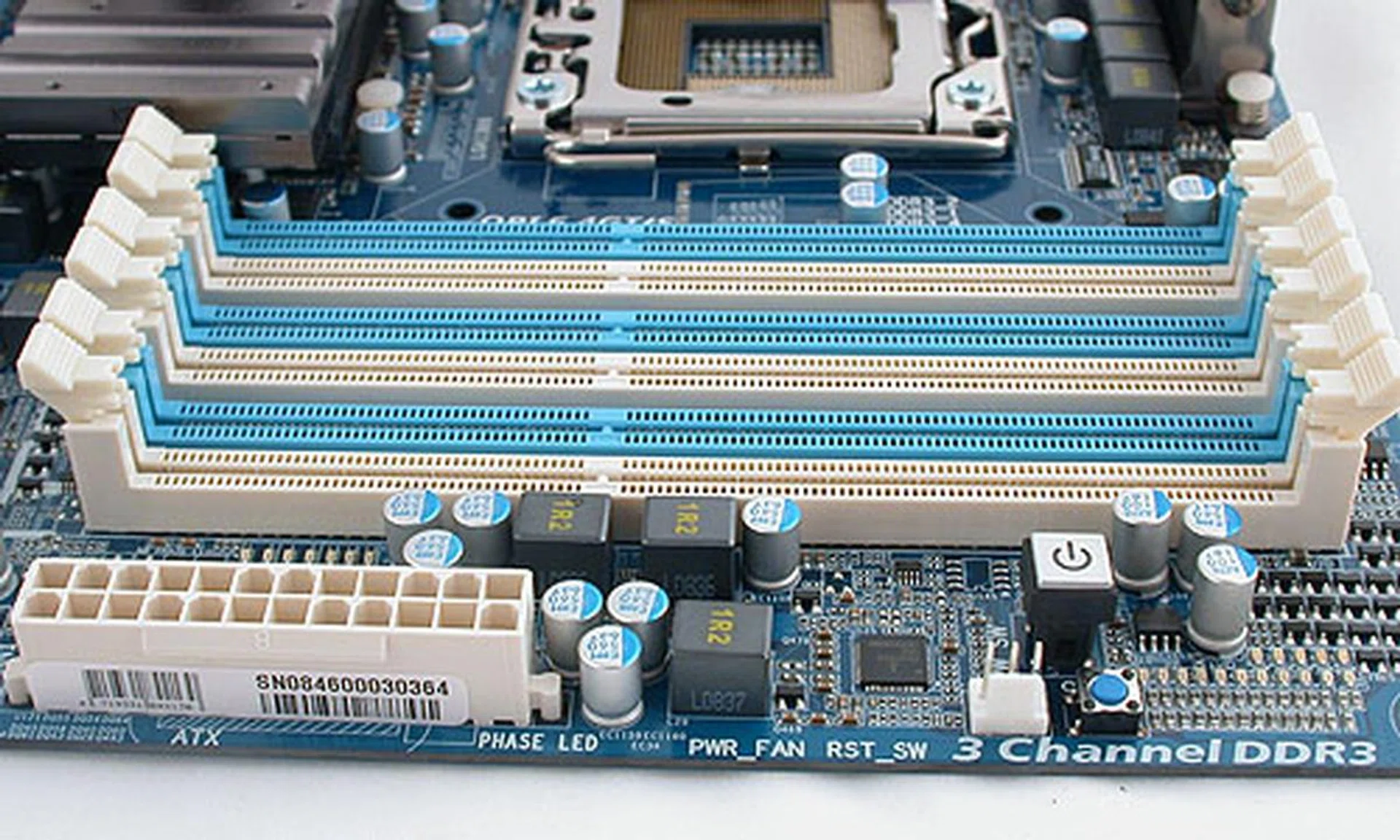
A fairly conventional layout for the memory slots and the ATX power connector. We were however a bit surprised that Gigabyte has shifted the power button here, though the front panel connectors are at their usual spot near the SATA ports.
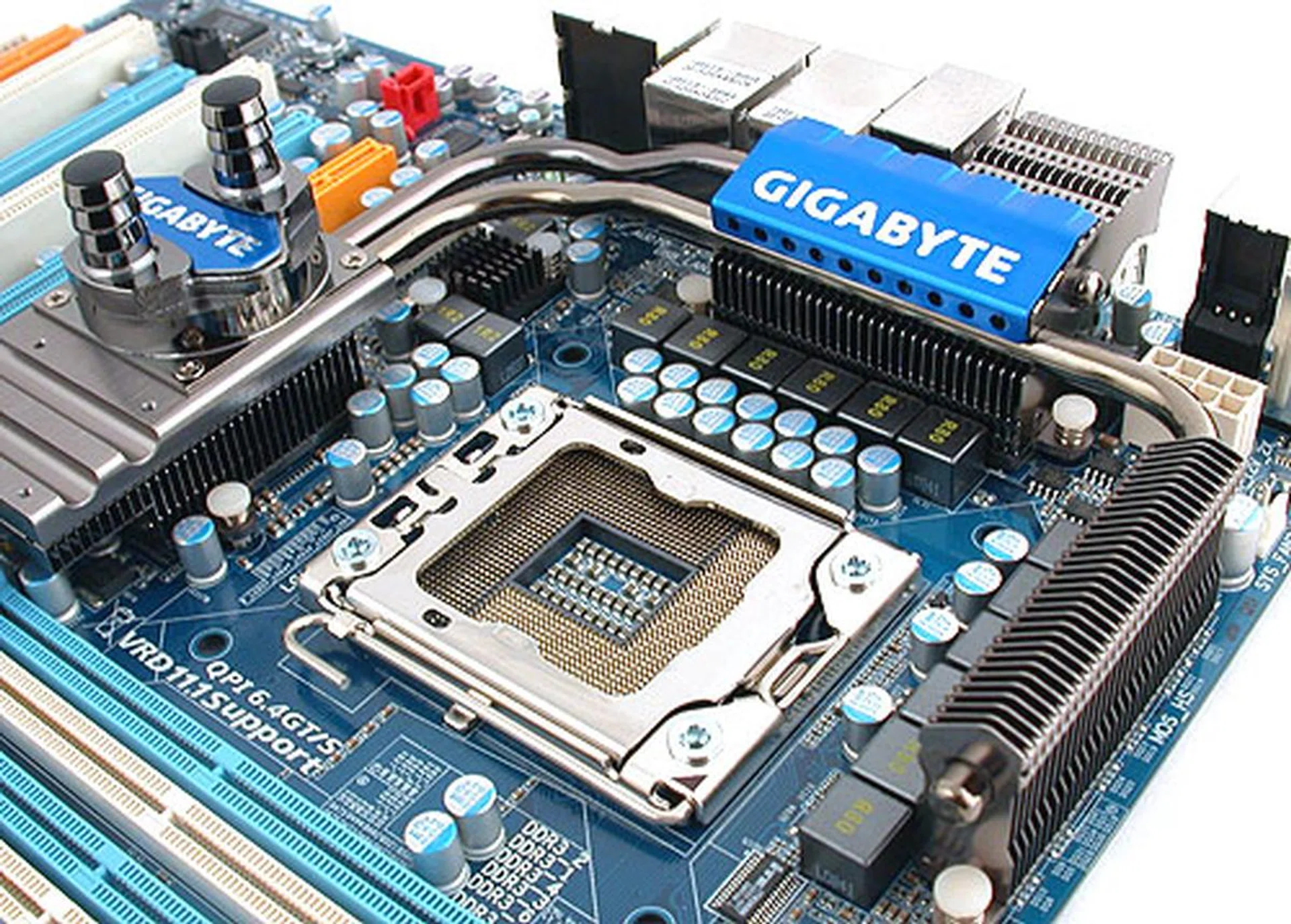
Similar to the ASUS, the heatsinks and heat-pipes surrounding the CPU socket are fairly low-profile and minimal when compared to their older chipsets. There are also 12 power phases for the CPU with VRD11.1 support, nothing new here for a Gigabyte board.
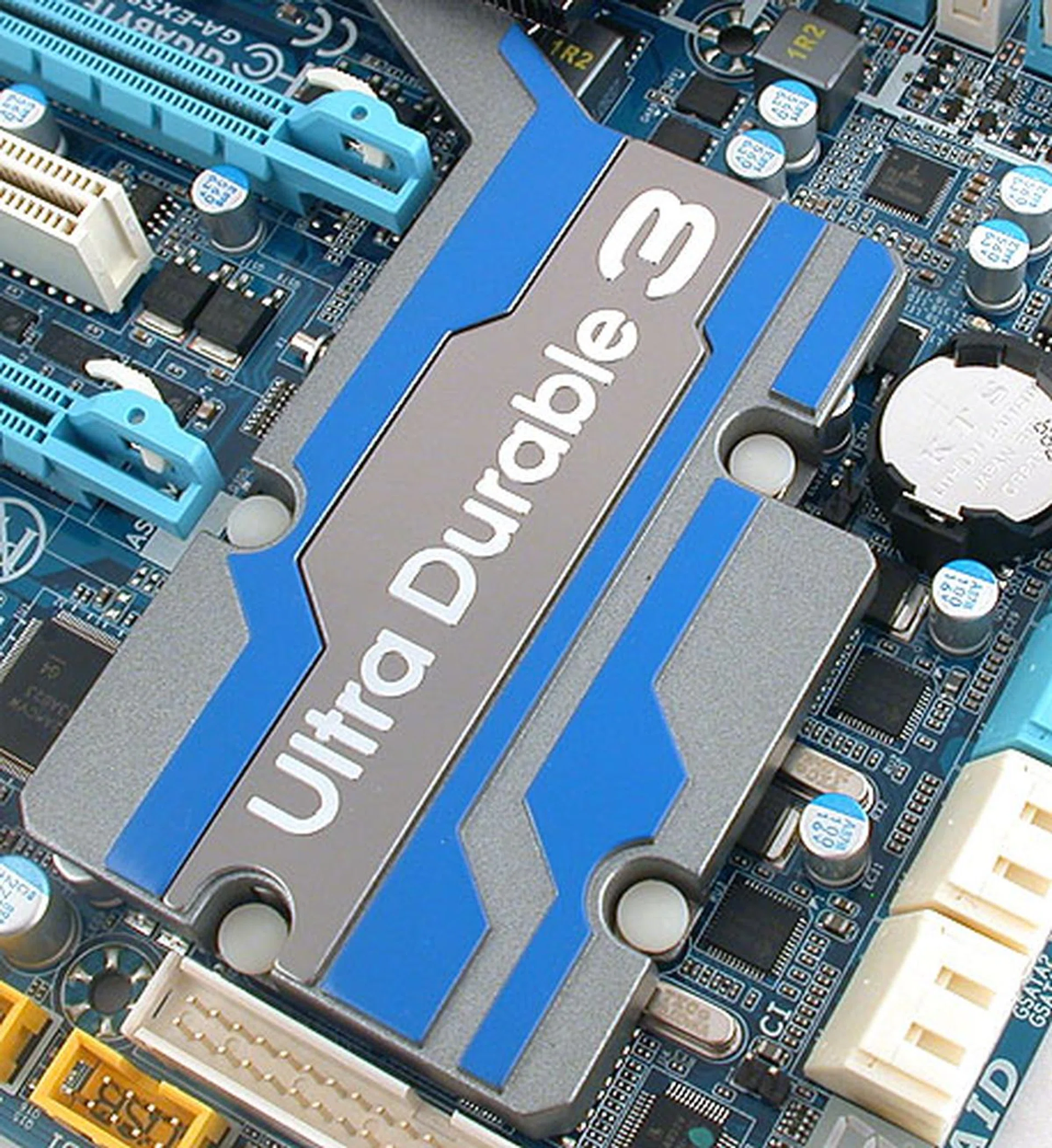
Gigabyte's latest Ultra Durable 3 technology, which basically doubles the amount of copper in the PCB is boldly embossed on the huge but flat Southbridge cooler.
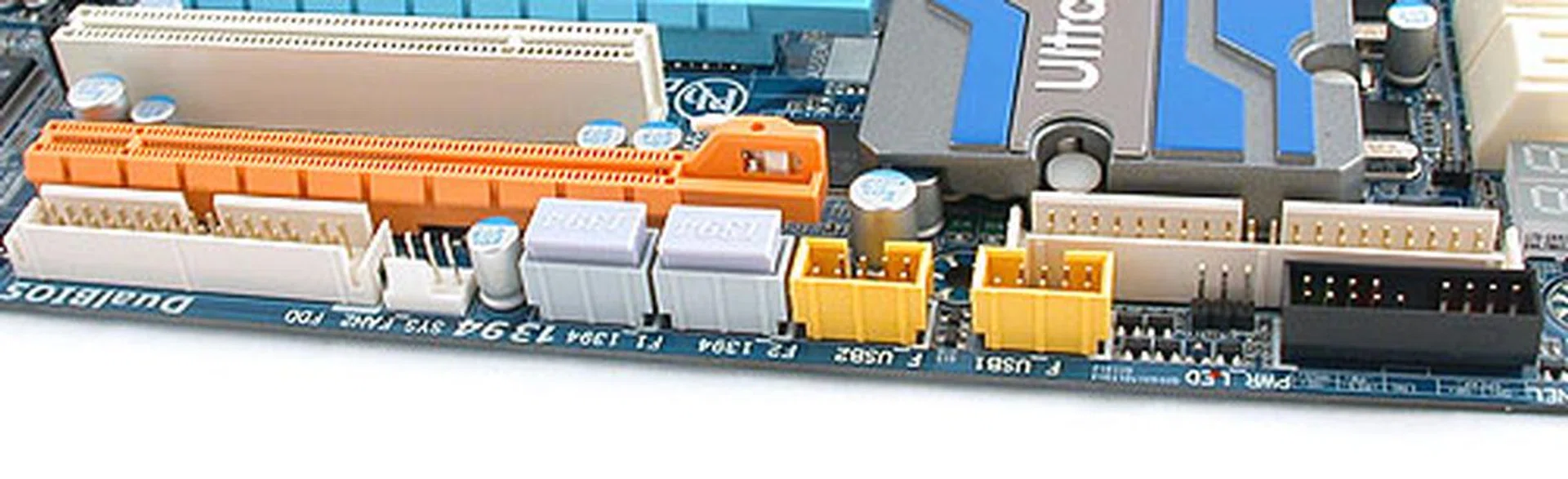
All the headers and connectors for older devices like the floppy and IDE have been shunted to the edge of the board. For those still using these devices, pulling the cables there could be troublesome.
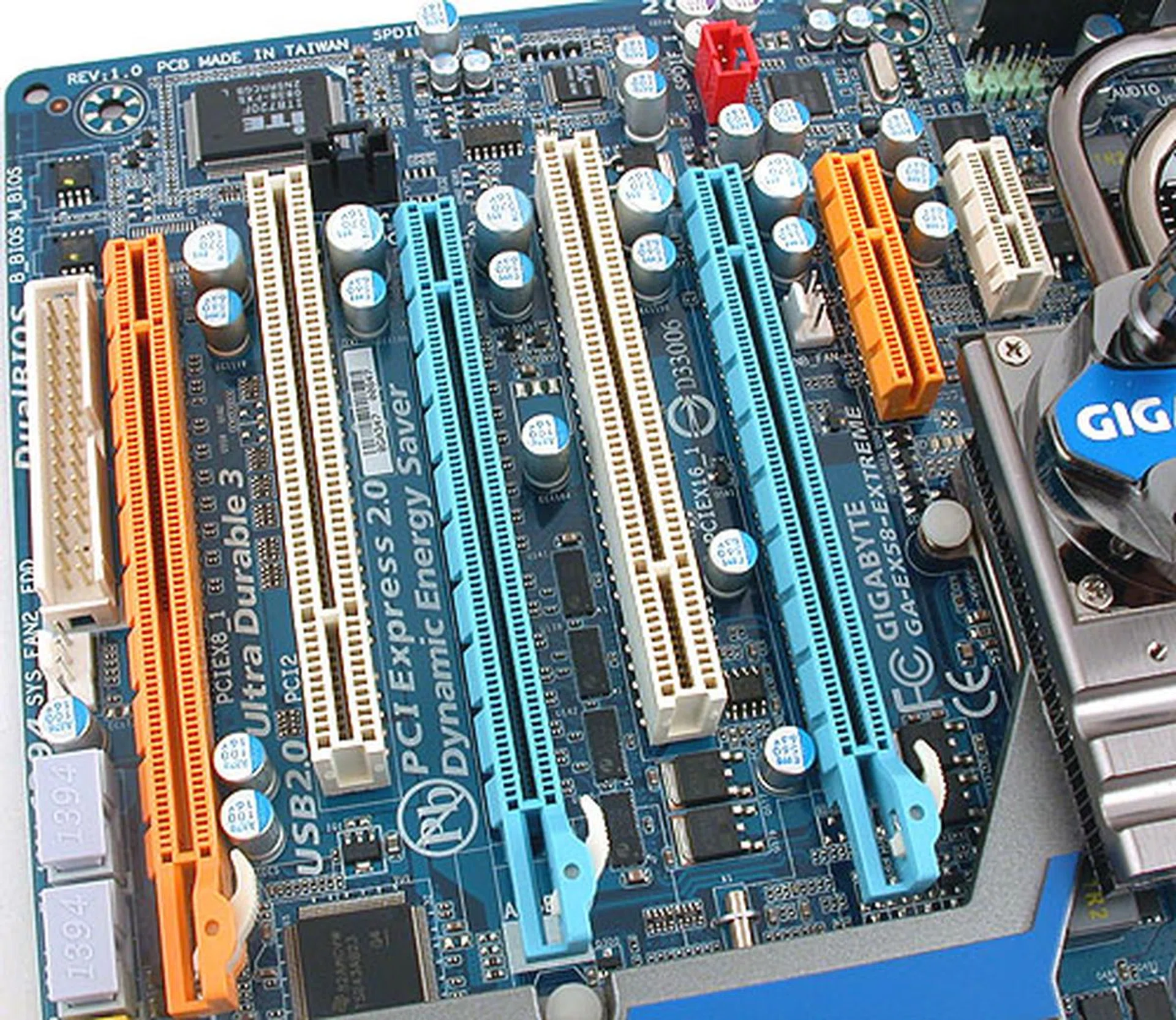
Besides the expected 3 PCIe 2.0 slots for 3-way SLI/CrossFireX, this Gigabyte also comes with 2 PCI, 1 PCIe x1 and 1 PCIe x4 slots. If you choose to install the Silent-Pipe heatsink, you would find the PCIe x1 slot taken and the x4 would be as good as occupied too.
The OC Factor
After the overdose of overclocking tools that we saw on the ASUS Rampage II Extreme, the Gigabyte Extreme here seems almost sedate. The nods to the overclocking crowd appear to be the debug and power phase LEDs, the standard Clear CMOS switch and onboard power and reset buttons and the unmistakably huge Hybrid Silent-pipe 2 radiator that can be optionally mounted to the Northbridge heatsink.
Sounds boring? Well, if one goes about comparing the list of overclocking friendly features, Gigabyte quickly falls behind the ASUS but one plus of this board (that could be underrated) is the Gigabyte BIOS, which in our opinion is clearly presented and provides a decent number of advanced tweaking options that is just right and not overwhelming. It's friendly for both new and experienced/power users and Gigabyte's usual overclocking profiles can help some users. In short, it's easily one of our preferred BIOS.
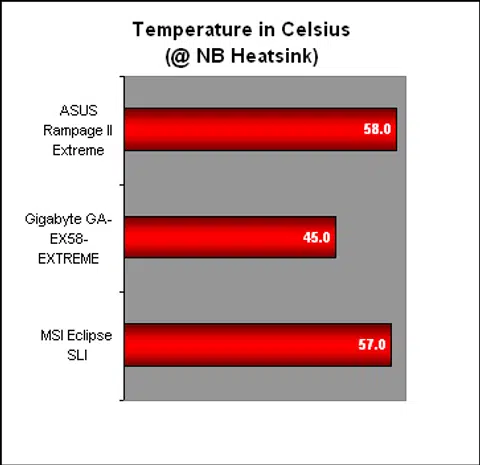
As for the giant radiator/heatsink that can be attached if you so choose (and which we didn't), it's a familiar feature that we saw previously on Gigabyte's P45 Extreme. We suppose it has its uses for some but what we found was that the Gigabyte board didn't really need it. As you'll find out in our temperature tests, the Gigabyte board ran cool enough at default that this heatsink is probably not necessary. Of course, if you're overclocking, that could be a different story.
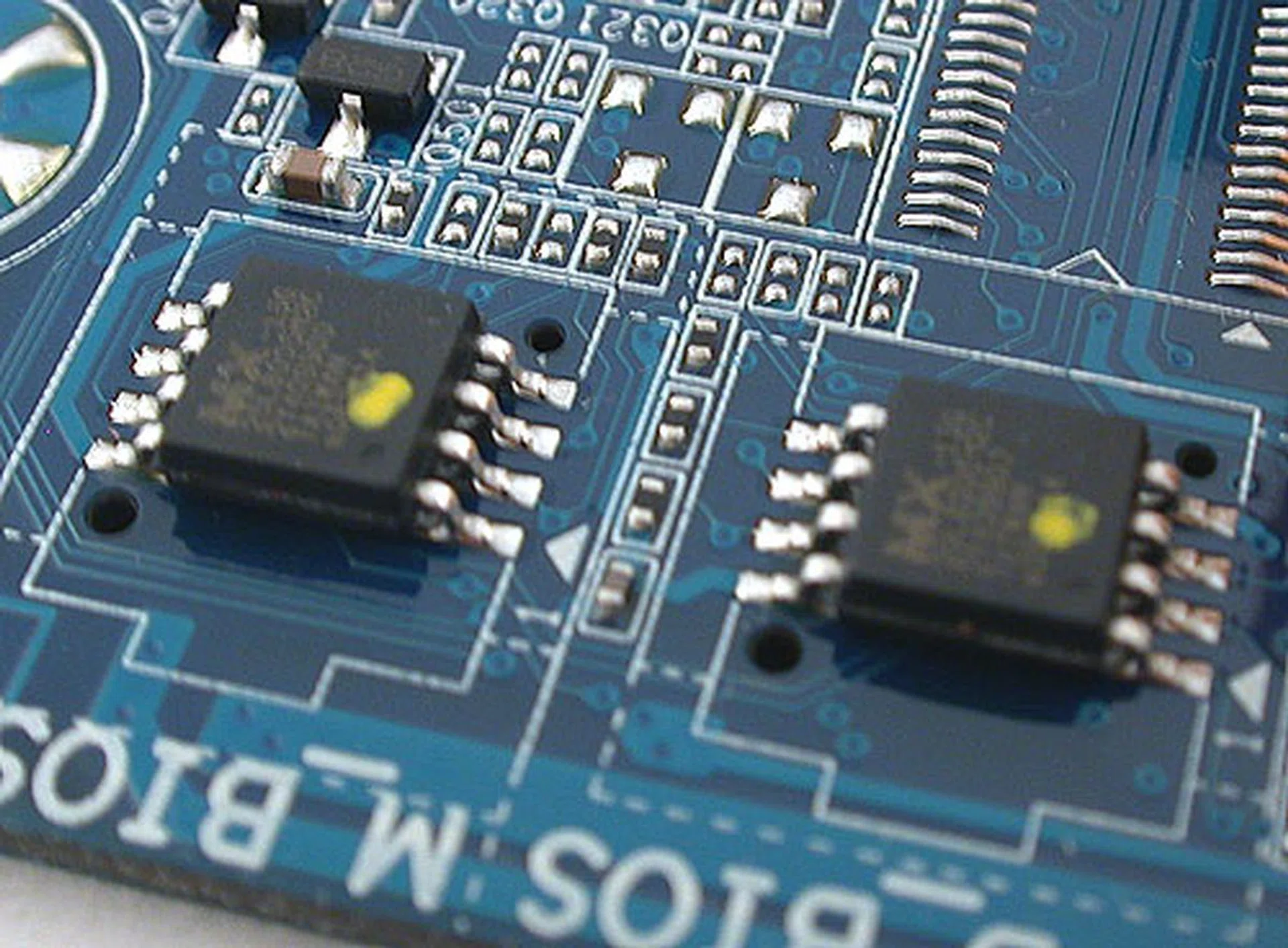
Gigabyte has had its DualBIOS feature for the longest time but unlike the ASUS version, it's more for protecting the BIOS against corruption rather than for overclocking purposes. It will kick in automatically when required, like after a bad BIOS update.
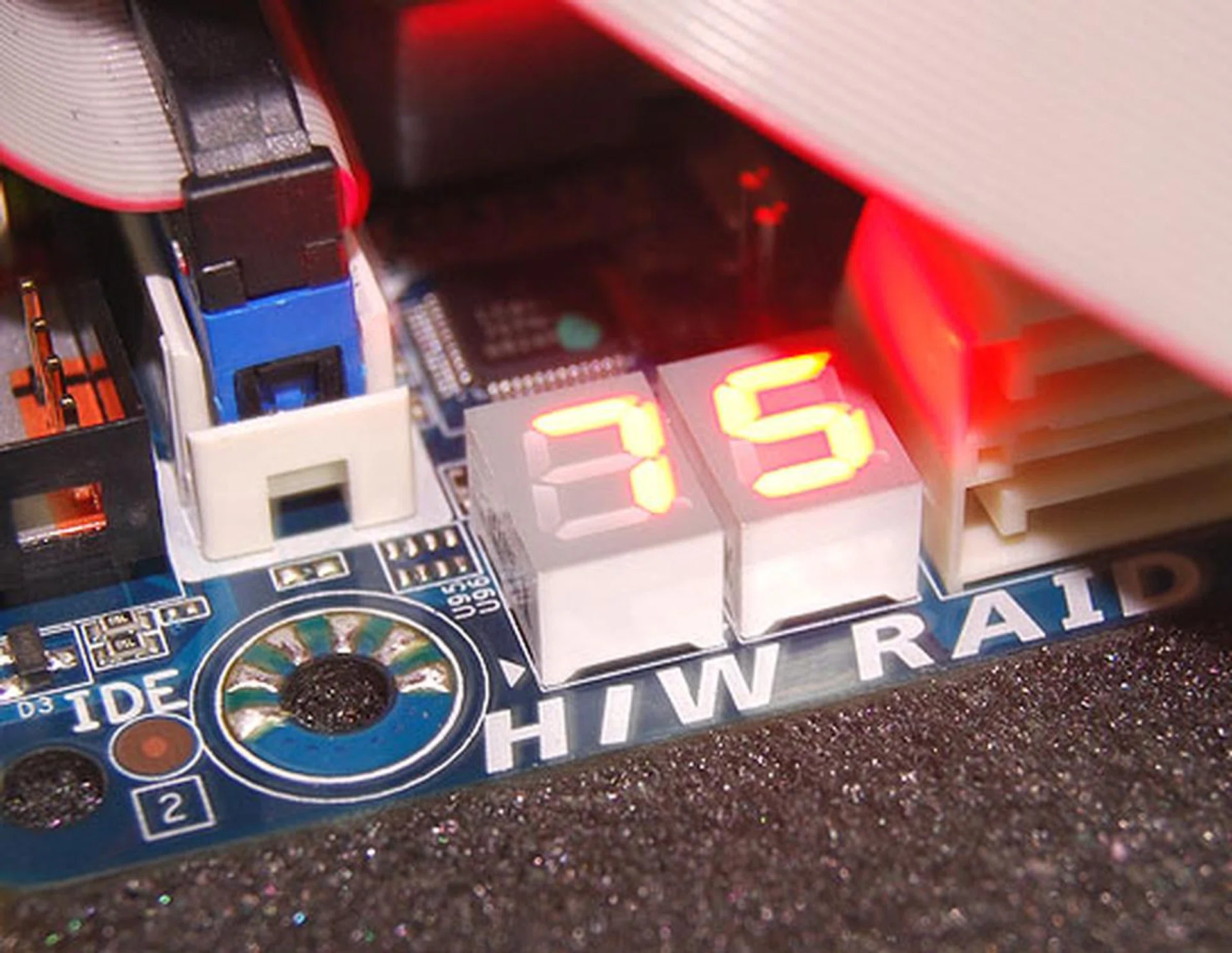
These LEDs will display the POST codes for troubleshooting purposes. It's obviously not as powerful as some we have seen, though still of use to enthusiasts.
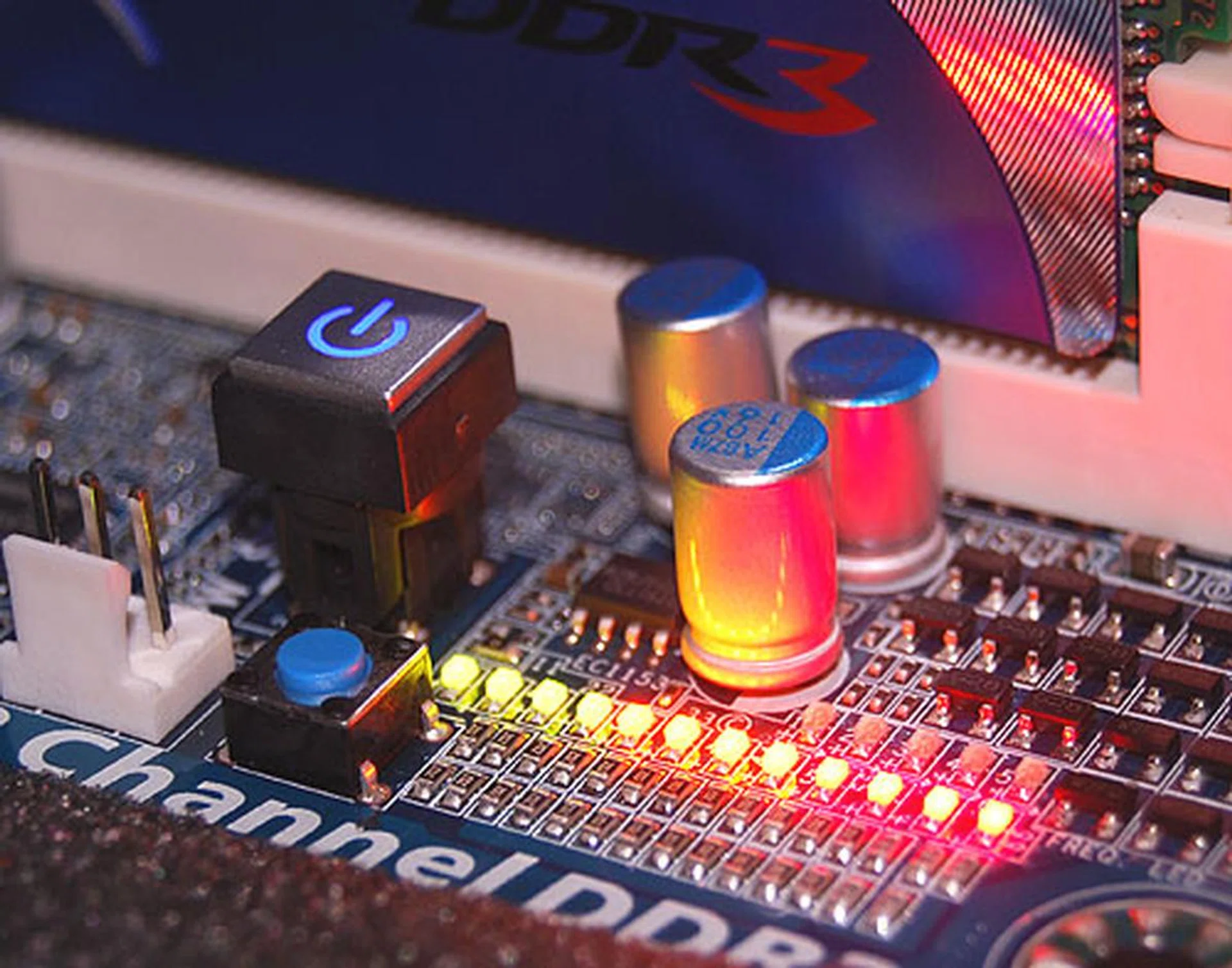
The lighted power button and the LEDs here show the status of the power phases from Gigabyte's Dynamic Energy Saver Advanced.
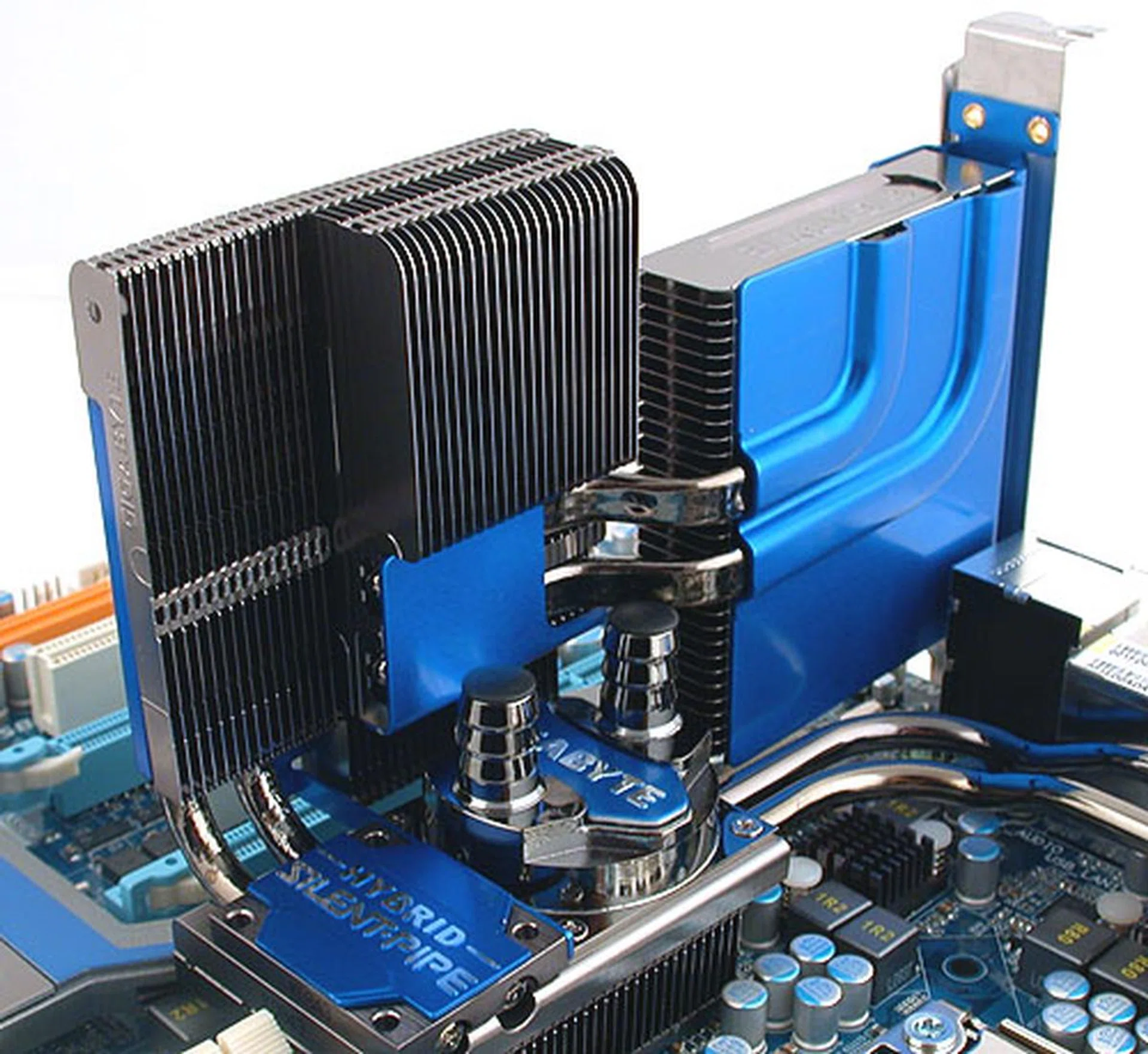
Although the Gigabyte EX58-EXTREME supports water cooling, it also comes with an add-on radiator, just like the other EXTREME boards we have seen before. This is called the Hybrid Silent-Pipe 2, which will definitely raise the thermal dissipation rate, since heat is vented out of the casing with the help of internal airflows. It is mounted using screws and some thermal paste.
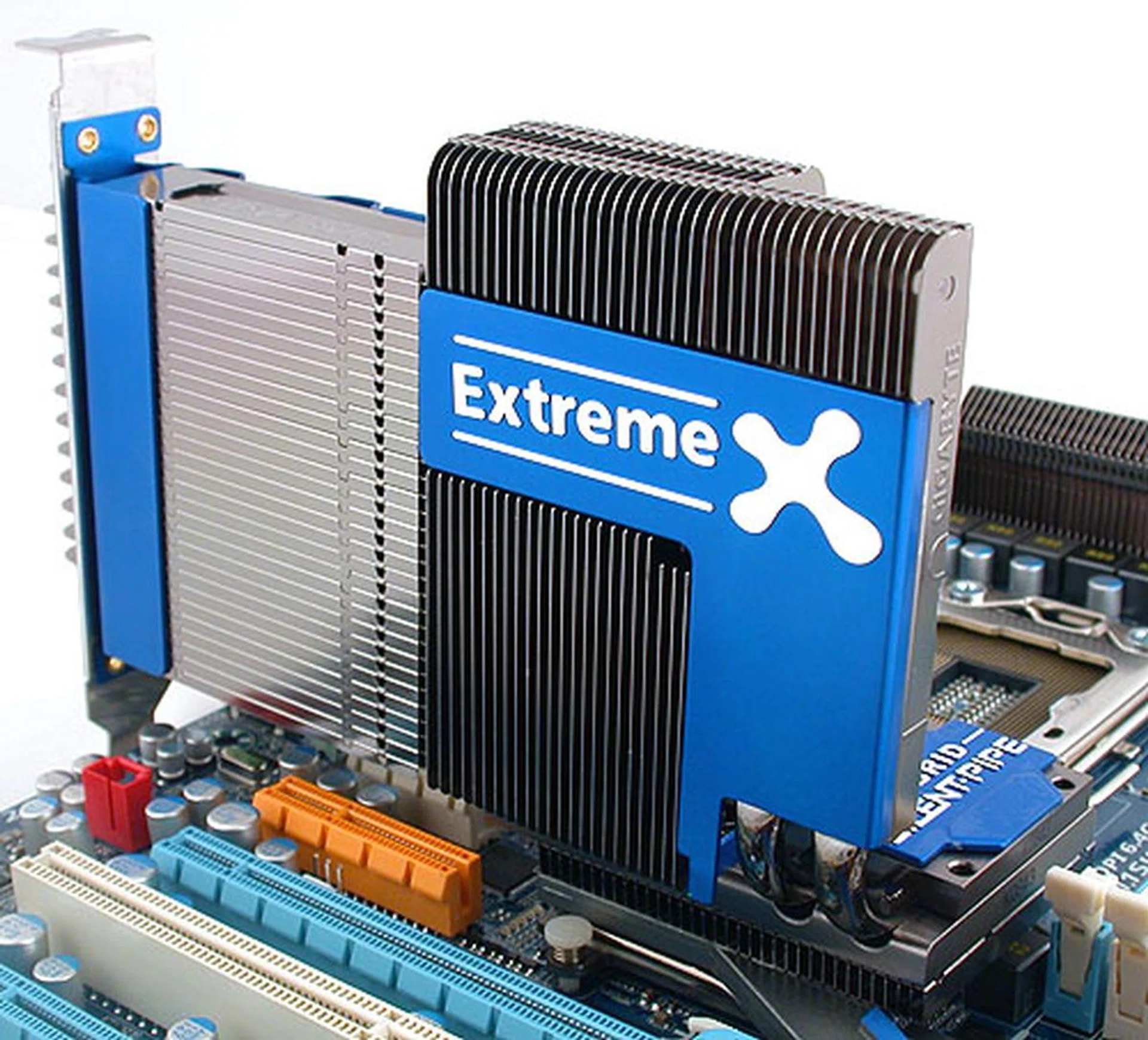
Another shot of the Hybrid Silent-Pipe 2, which we think could have originated from the company's graphics department.
Features and Layout
The last X58 motherboard in our roundup comes from MSI, which has a new name to distinguish its top X58 board. The MSI Eclipse as we had known for some time now, gets a SLI suffix, though don't worry, it still has native CrossFireX support. 3-way is the name of the game and this MSI is just as capable of this as the other two boards.
This MSI's main advantage over the others is its number of storage options. While MSI has discarded the floppy drive here in line with Intel's own X58 board, it has used the extra PCB space to more SATA ports. Thanks to two JMicron controllers, it has an additional 4 SATA ports to put it on par with the Gigabyte. However, with two eSATA ports at the rear, the MSI probably has the edge here, making it the storage king of the three boards here.
We have a slight preference for the layout of the SATA ports on the Gigabyte, as the MSI has four of those SATA ports facing upwards. Having it aligned the same way as the other SATA ports from the ICH10R Southbridge would have meant placing the IDE connector somewhere else, so we guess a compromise has to be made. At least MSI has positioned the ports such that even with longer graphics cards and in multi-GPU configuration, one should still be able to access the ports, even if it's more cramped.
Another quirk of the layout was in having the power/reset buttons right besides the third PCIe x16 slot. Again, a minor inconvenience could arise if this slot is taken by a dual-slot graphics card, but in most situations, it won't be a factor. If it does then perhaps the Eclipse is not for you.
MSI too has an audio riser card that fits into its PCIe x1 slot and this has the proper Creative X-Fi backing, powered by a Creative digital audio controller. Some of you may have seen this add-on card before, since it has featured in previous high-end MSI motherboards and for those who need the Creative features, it's all there, including the bundled applications.
Finally, we have to say that MSI has got its act together when it comes to offering a BIOS flash utility through the BIOS. The new M-Flash utility is something that we have been hoping to see from the company and it is certainly good news that MSI has now implemented this. It may be playing catchup to its rivals for this feature but it's a start.
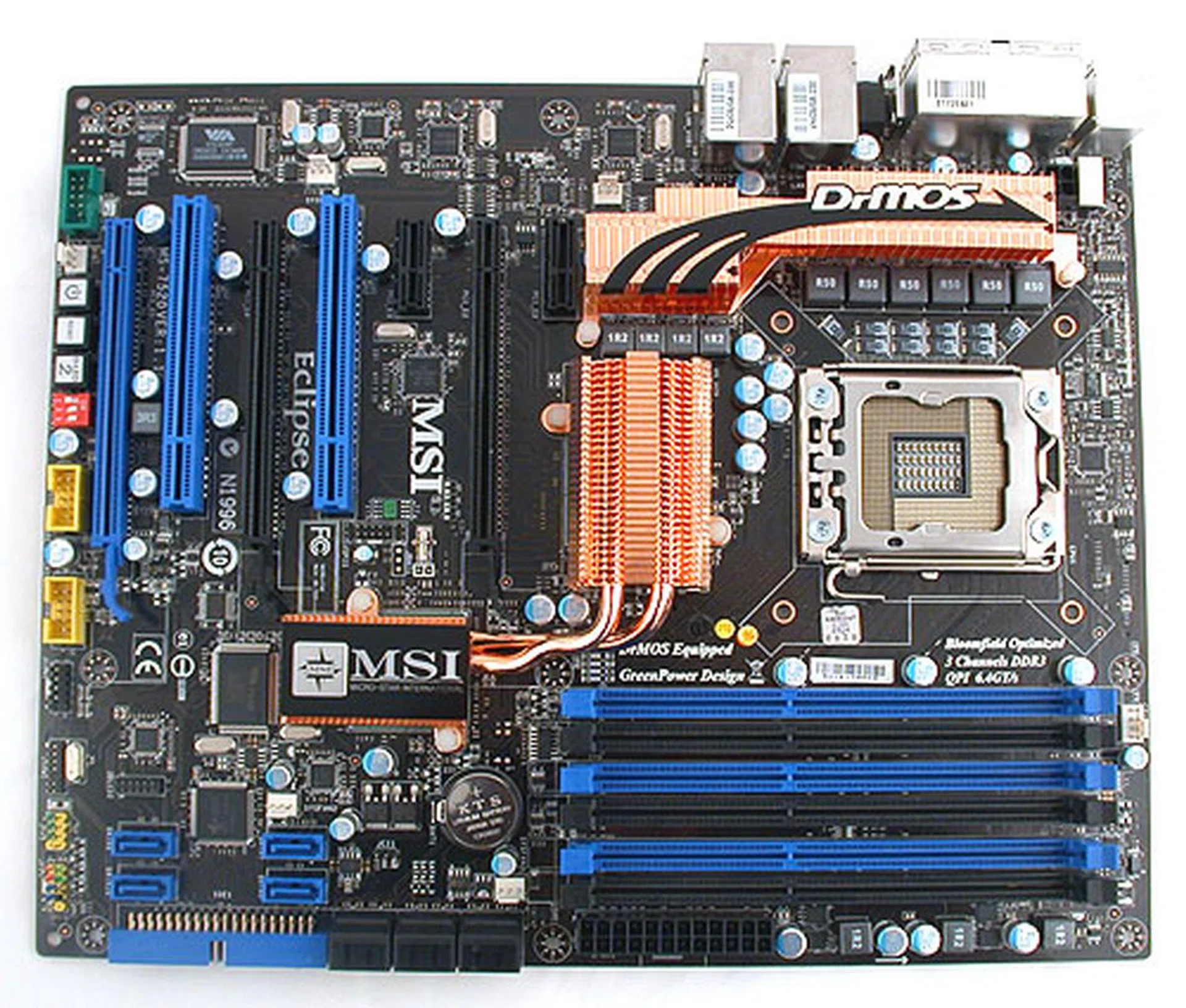
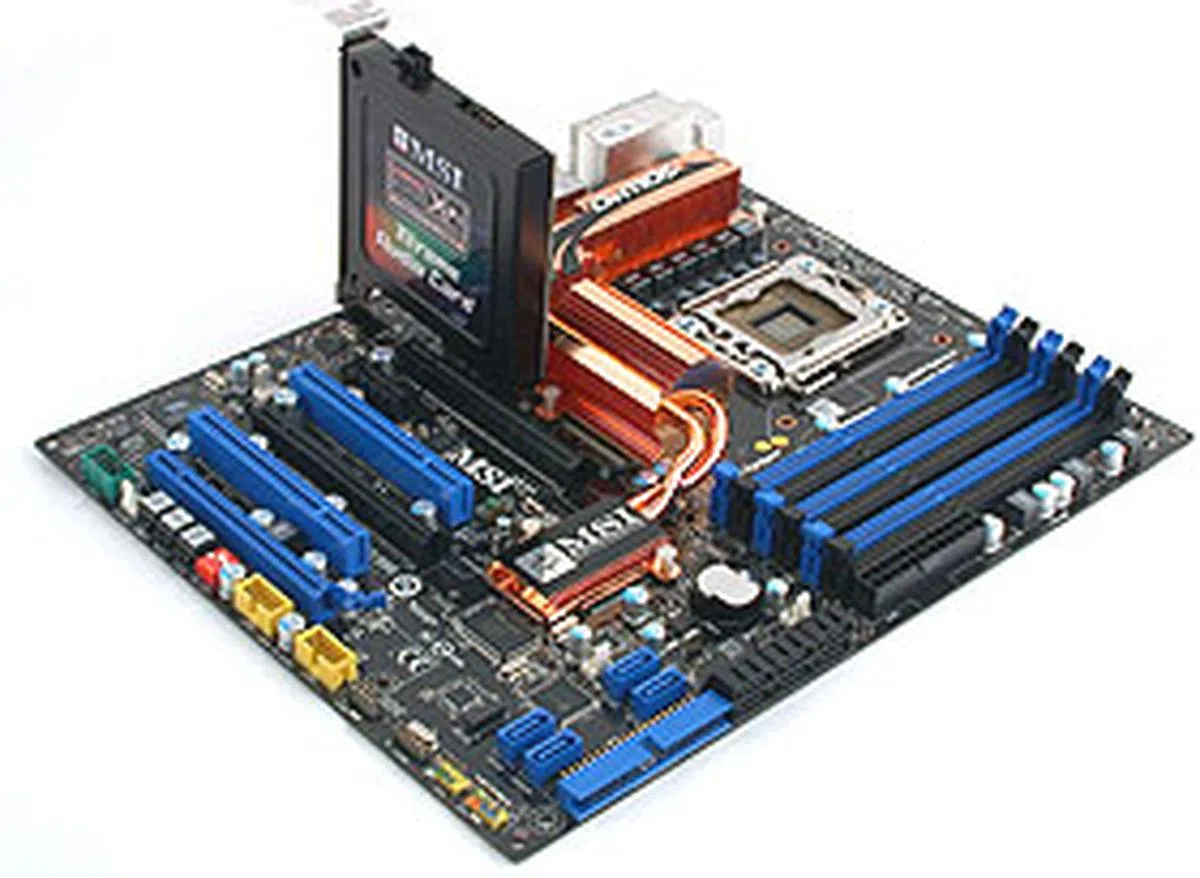
More sober colors from another vendor, with blue and black the predominant colors for the MSI Eclipse SLI. At a glance, MSI has removed the floppy connector and bolstered that with 10 SATA ports. There are also two eSATA ports, making this MSI the X58 board for storage buffs.
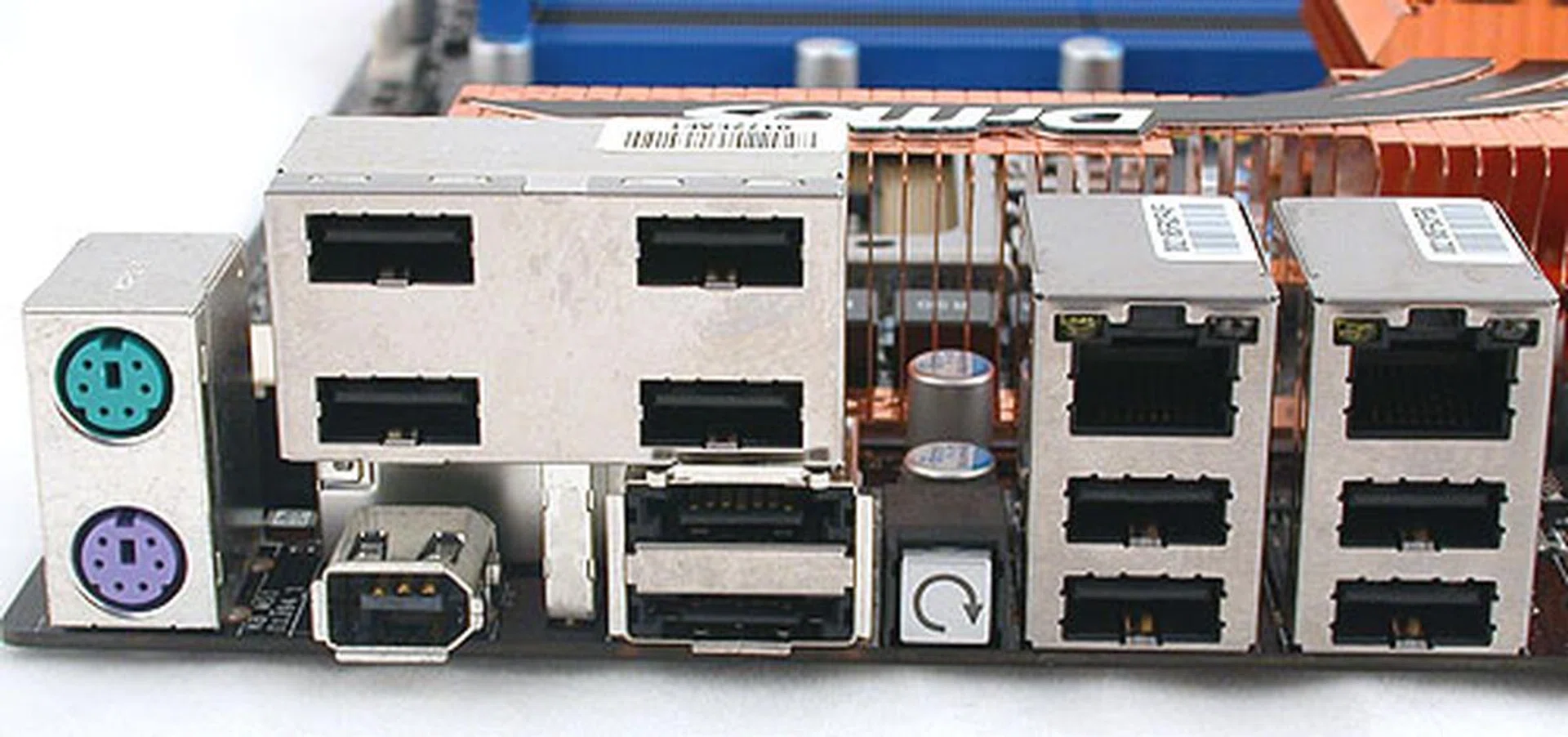
There's no shortage of rear I/O ports and connectors on this board, with 8 USB ports, 2 eSATA, two Gigabit LAN RJ-45, FireWire and the seemingly standard Clear CMOS switch.
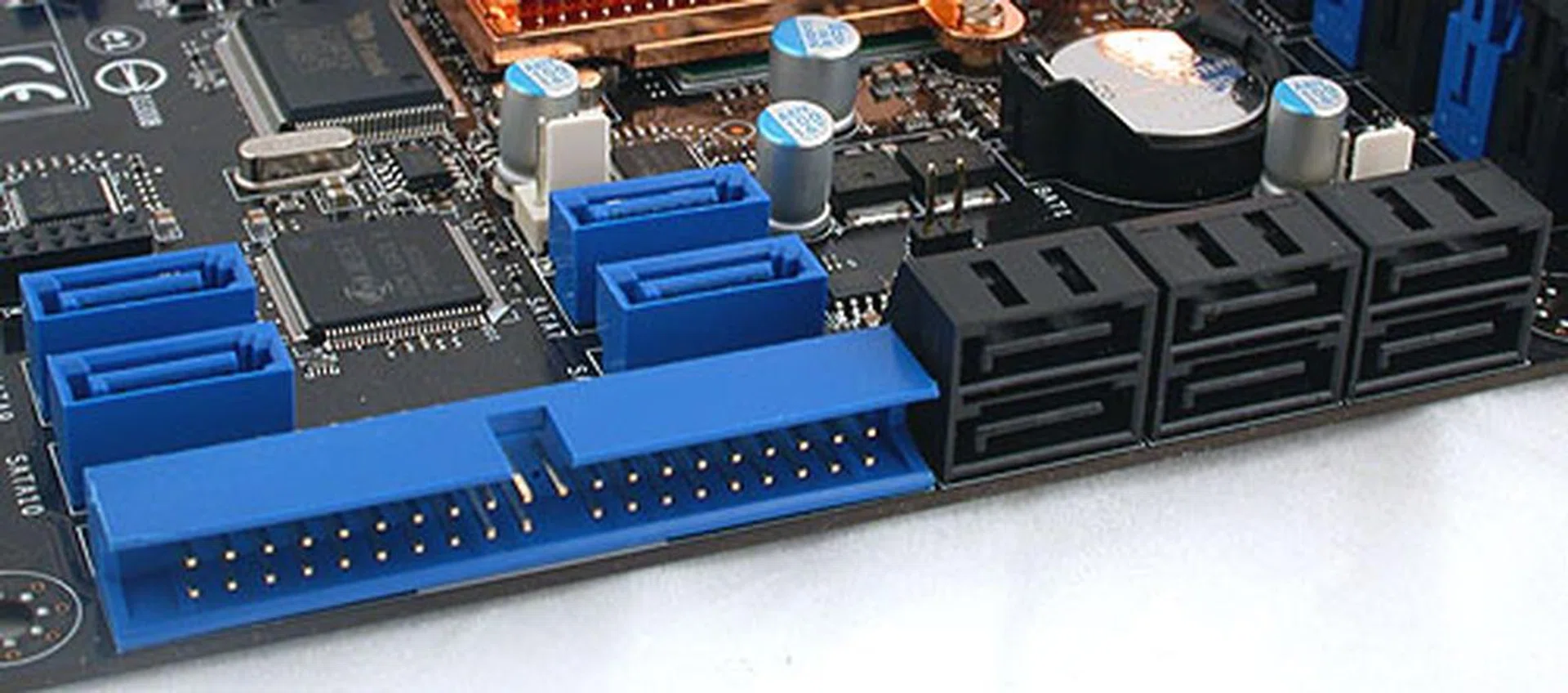
Extra controllers from JMicron help to explain the many SATA ports on the Eclipse. IDE functionality is still supported at least, unlike Intel's reference board.
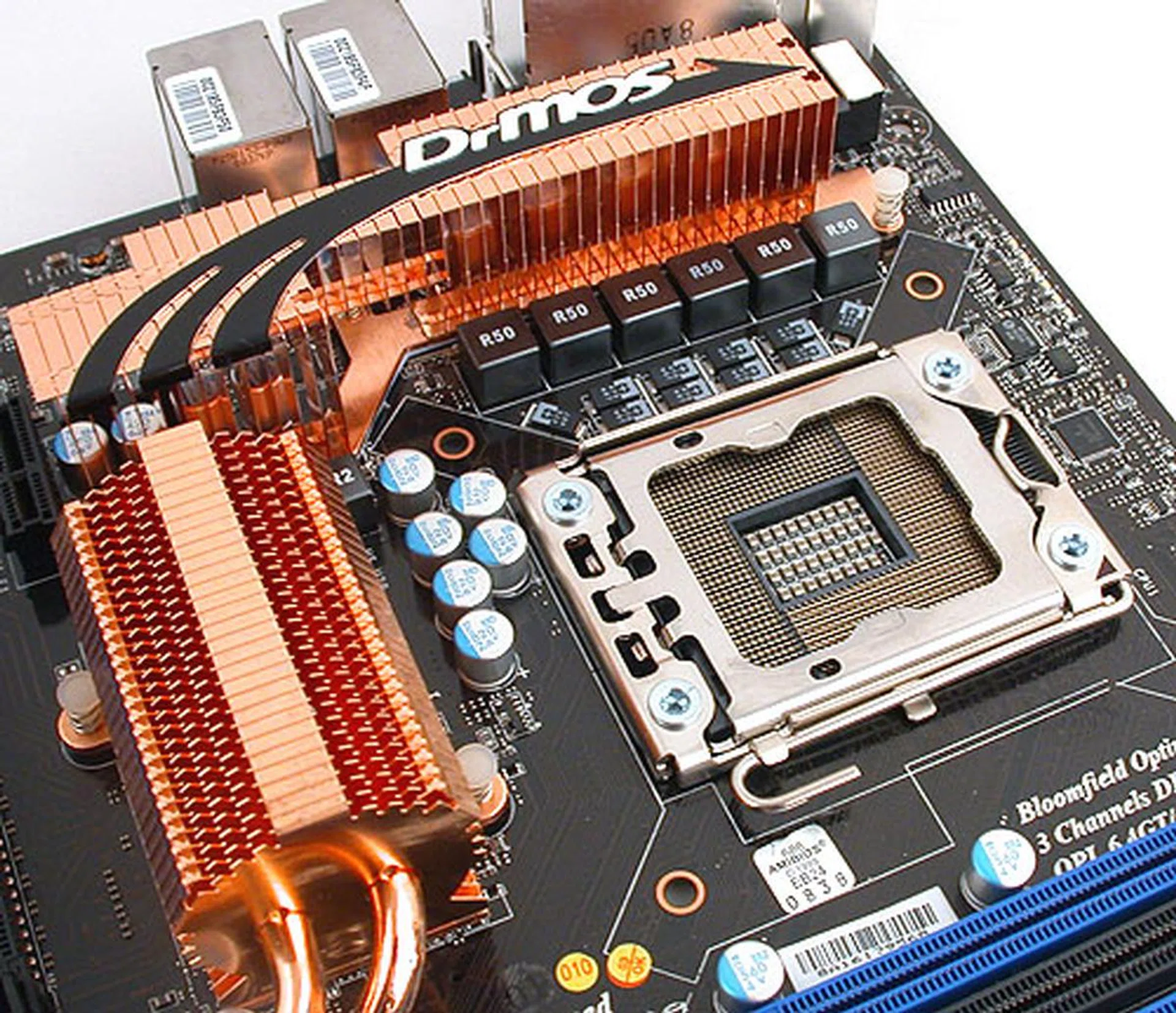
Gone are the fancy heatsinks used by MSI in the past. There was also plenty of space near the CPU socket. MSI uses what it calls, true 6-phase PWM enhanced with its DrMOS technology.
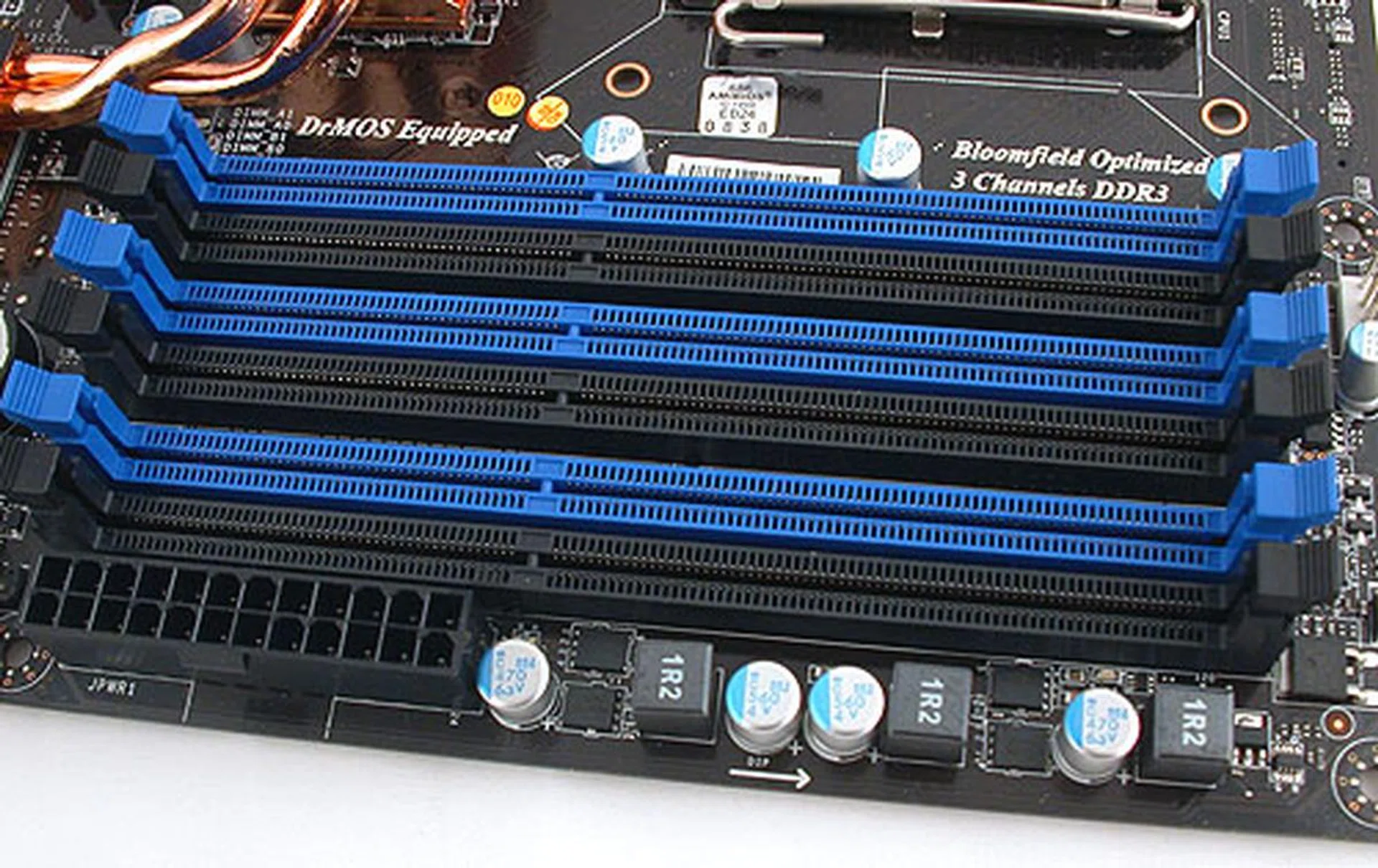
6 DIMM slots supporting up to 24GB of DDR3-1600. This layout is fairly typical.
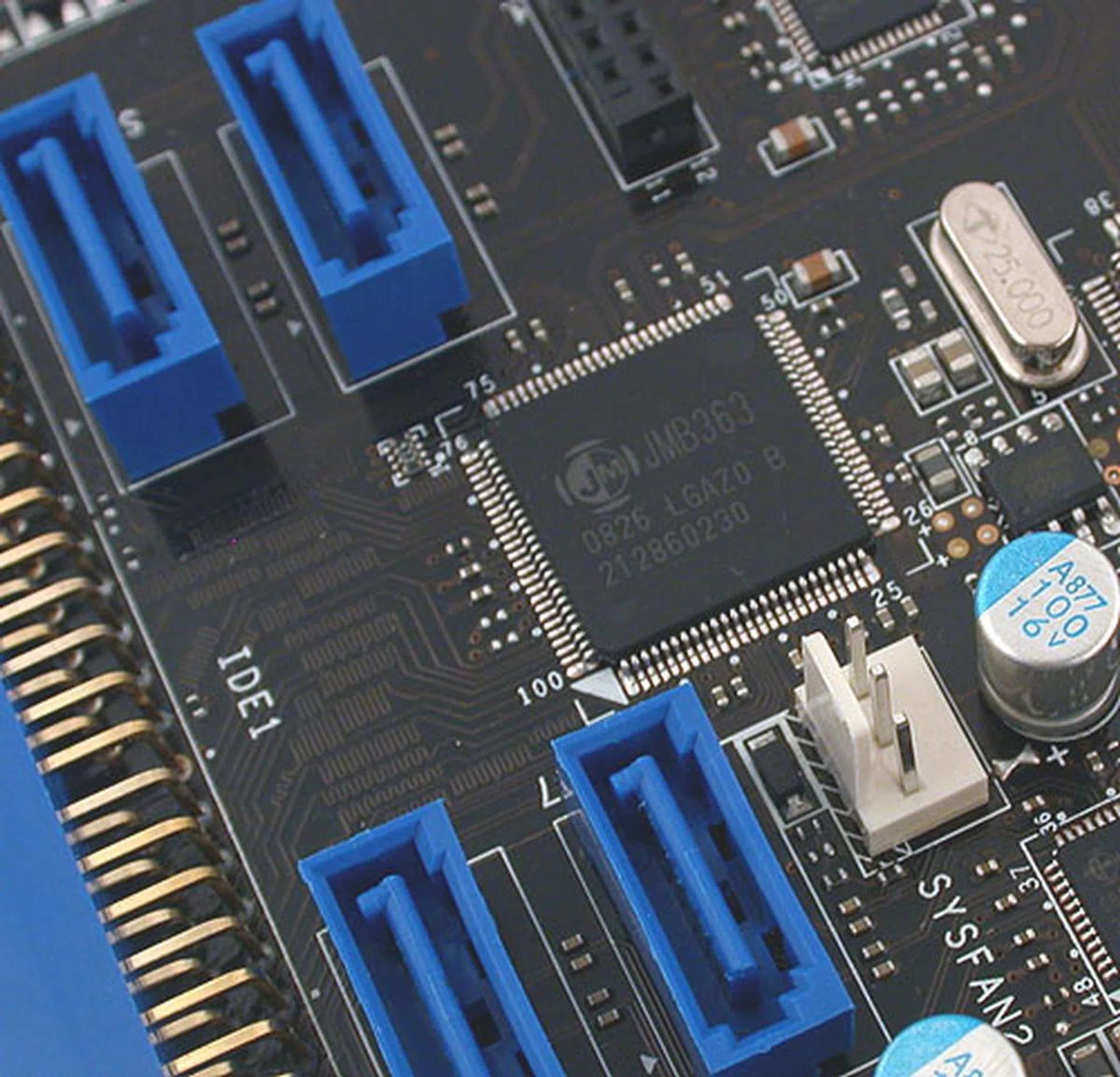
One of the three JMicron controllers found on this board. They are the reason for the large number of storage options.
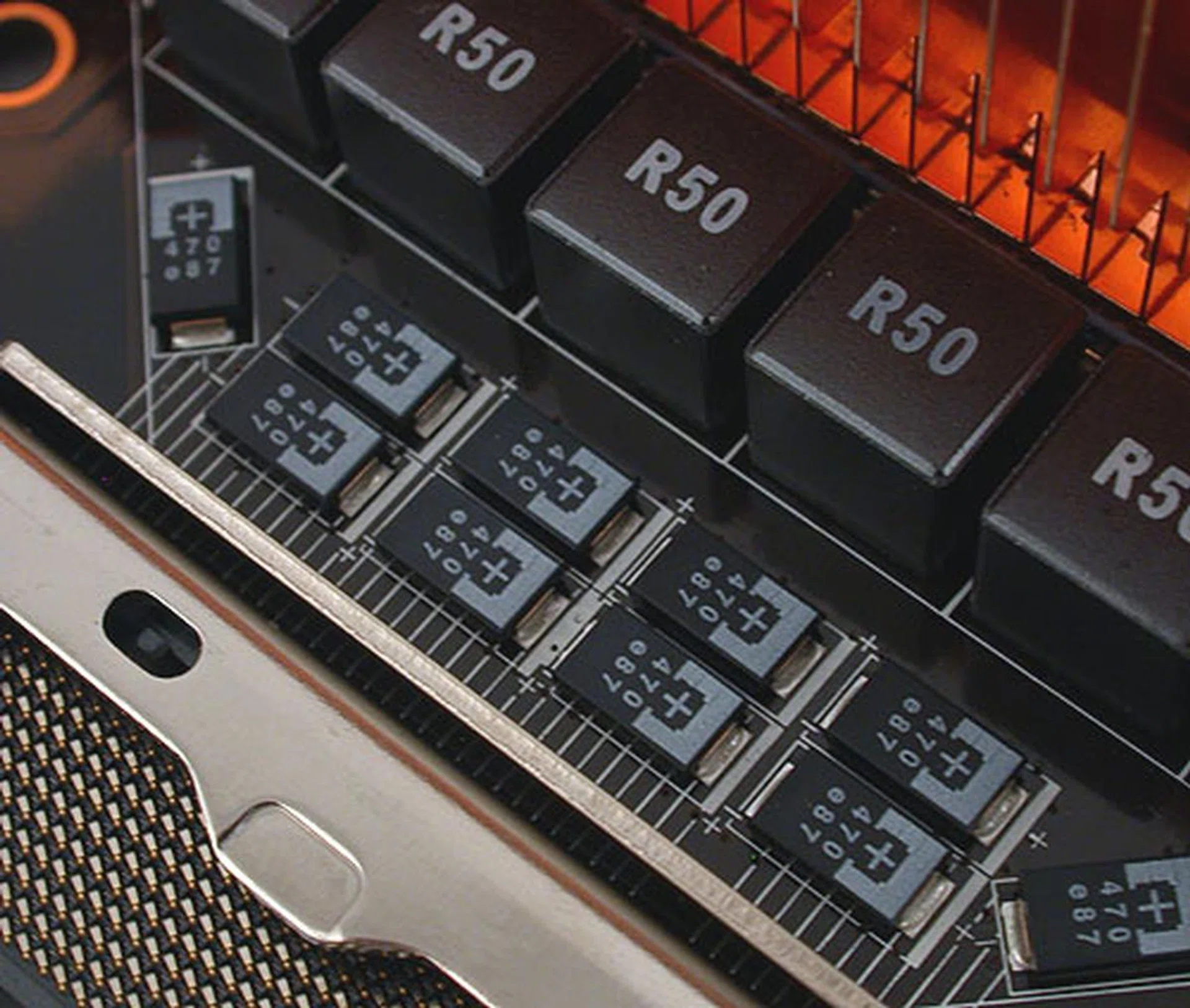
MSI is the latest vendor to start using these hi-c capacitors that are touted to have greater stability and a longer lifespan.
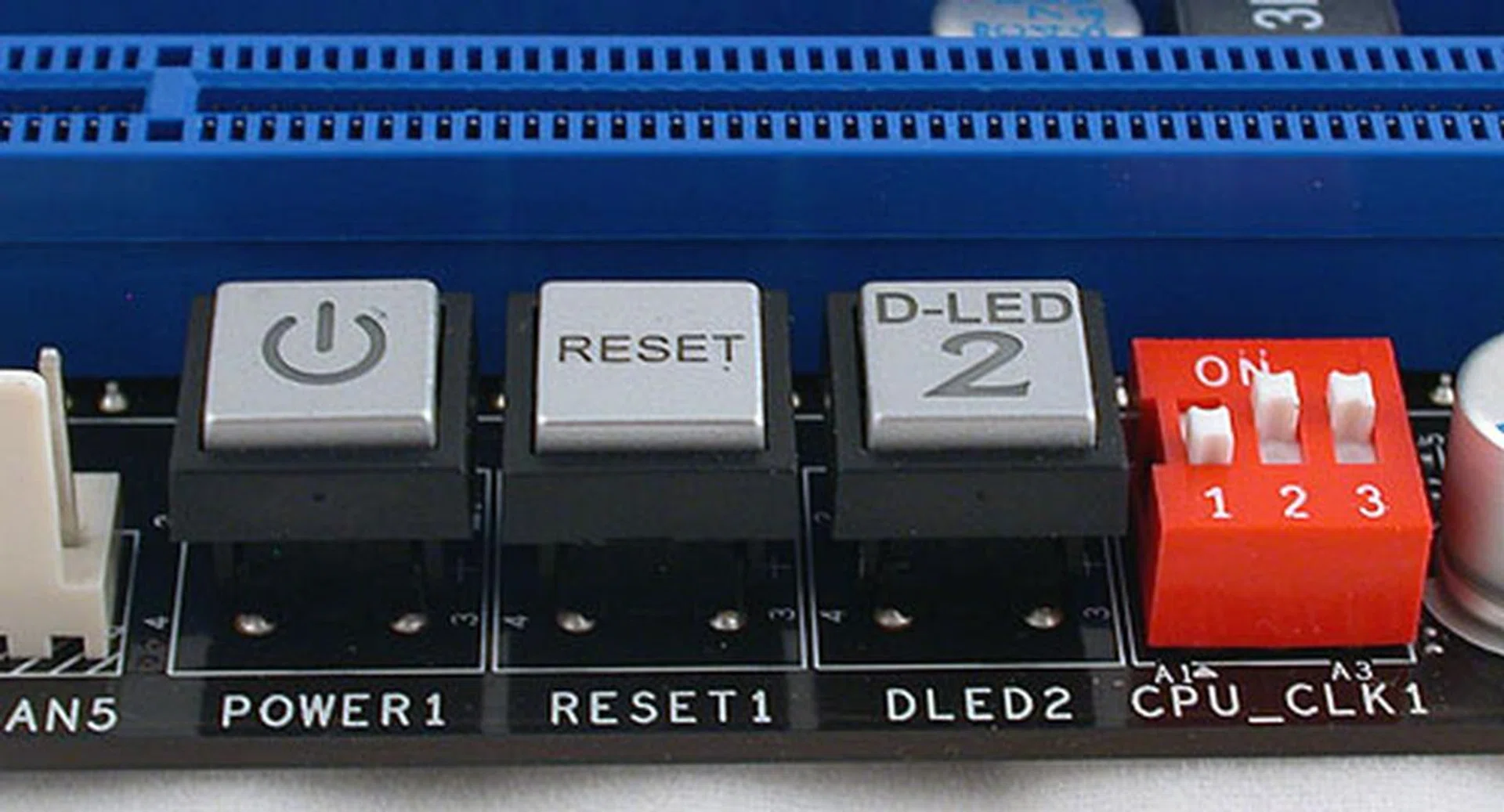
These onboard switches and jumpers are located right besides the third PCIe 2.0 graphics slot. So if you're planning to do 3-way multi-GPU with cards using a dual-slot cooler, it could be quite difficult to use these buttons after that.
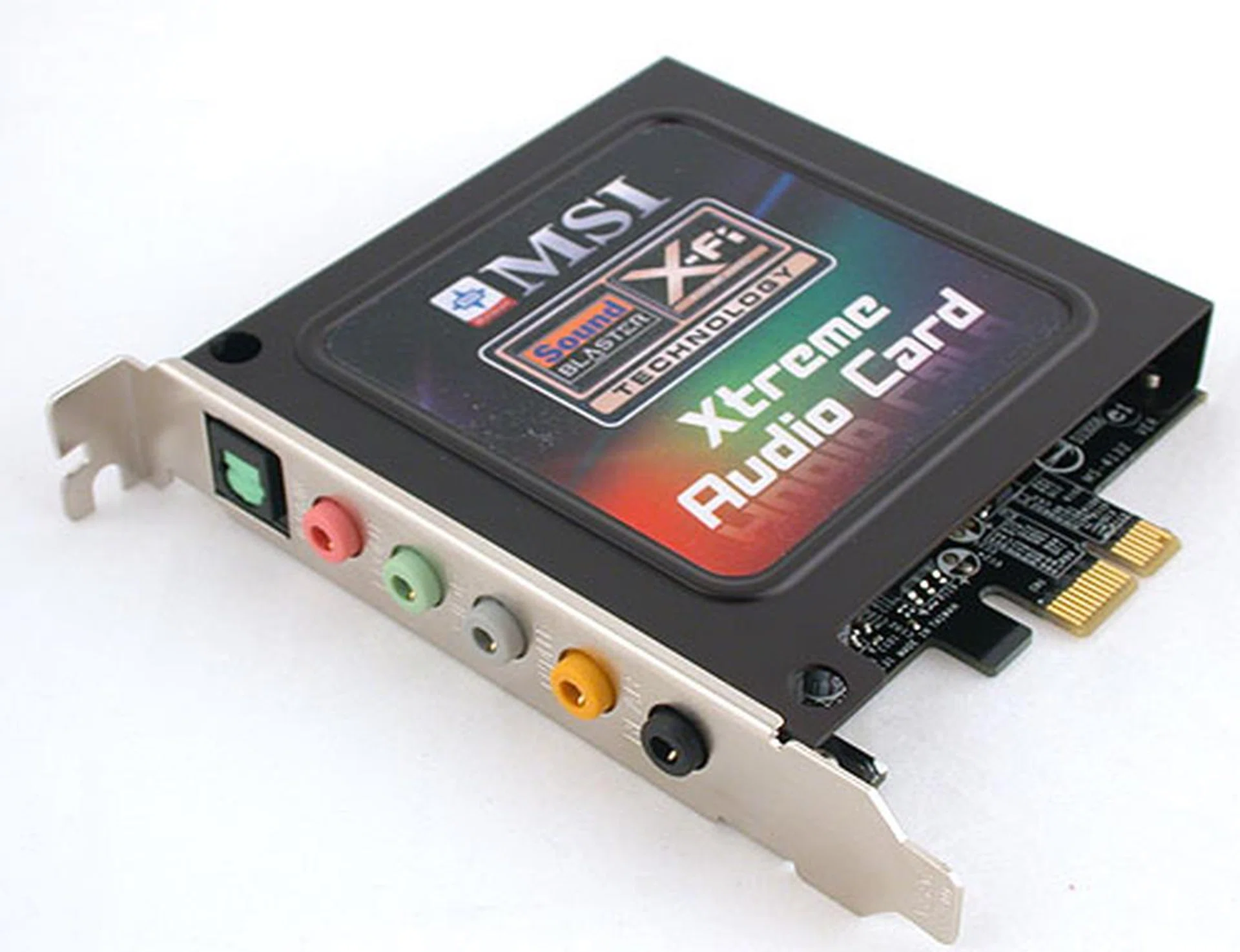
MSI too has an audio riser card but unlike the ASUS, this is a true X-Fi hardware solution and not software like the SupremeFX X-Fi.
The OC Factor
If the ASUS is really for the hardcore extreme enthusiast and the Gigabyte not so much, then the MSI belongs to the latter camp. Besides its Dynamic Overclocking Tool (D.O.T), MSI's board has useful options to save multiple BIOS settings, along with the usual voltage, memory and clock skew adjustments. And in a throwback to the past, there's a onboard switch to increase the base clock from 133MHz to 166MHz and further on to 200MHz, if you don't want to go into the BIOS. We however don't see that as being too useful, since enthusiasts probably want the finer control available only in the BIOS. Nevertheless, the OC features are decent and competitive with most of its rivals.
But that's about all, for except for a debug LED dubbed D-LED2 and onboard power/reset buttons, hardware overclock switch, there are no other features that are directly aimed at overclockers. Of course, one could argue that its DrMOS set of technologies that help in cooling, power efficiency and stability could be of some help when it comes to overclocking.
What it does have is the addition of the GreenPower Genie, a device that sits between the PSU and the motherboard, monitoring and sending the readings to the software Green Power Center utility. The utility seems to have also undergone an interface revamp since the last time we reviewed it, though we found it to be quite unstable with random crashes. That really gave us pause, though we'll find out whether it works as advertised to optimize power savings later. In short, the MSI Eclipse comes across as a direct rival to Gigabyte in its focus on green power.
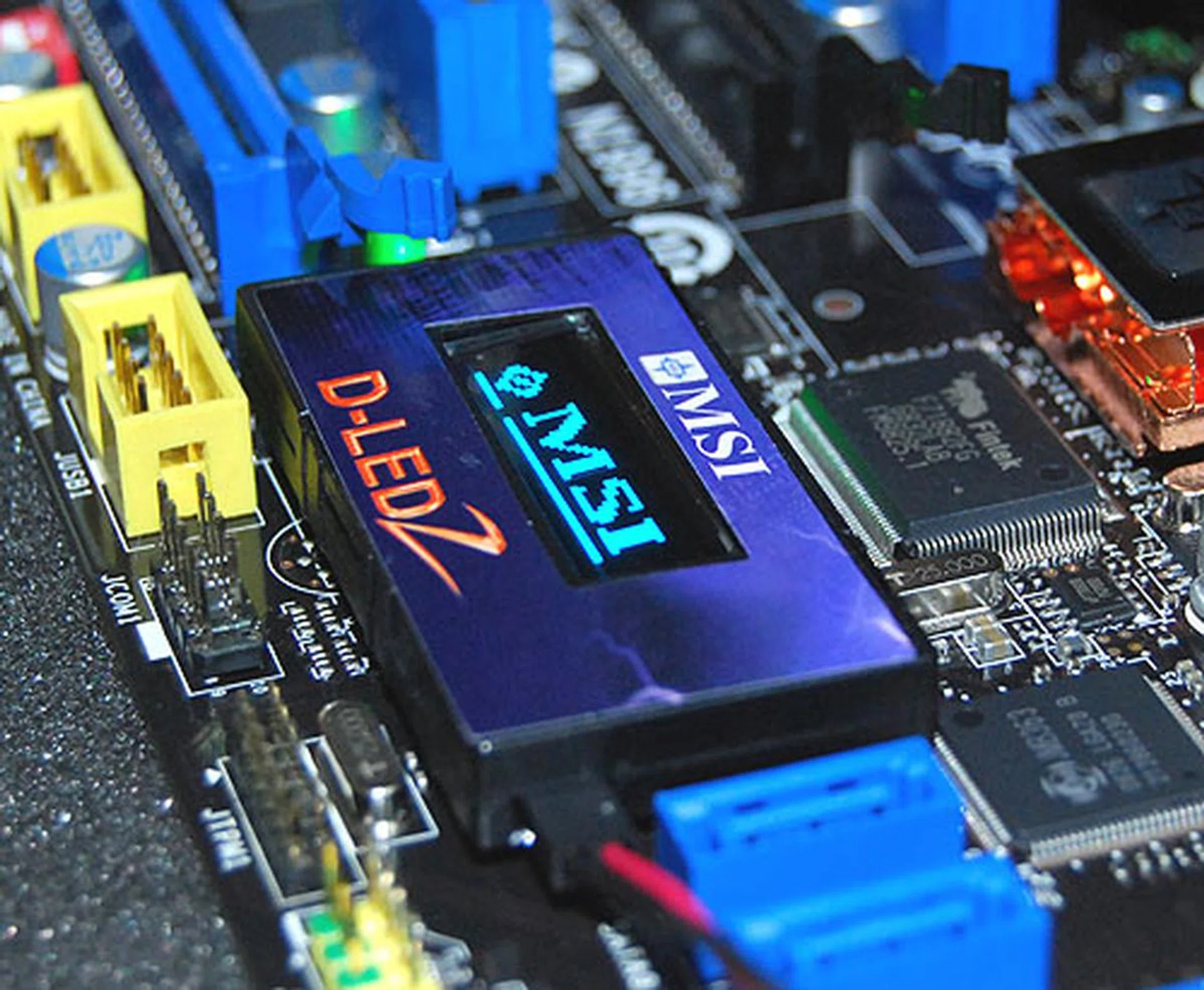
MSI also has its onboard status monitoring LED tool. It's a bit more advanced than Gigabyte's version but of course not to the extent of ASUS' LCD Poster.
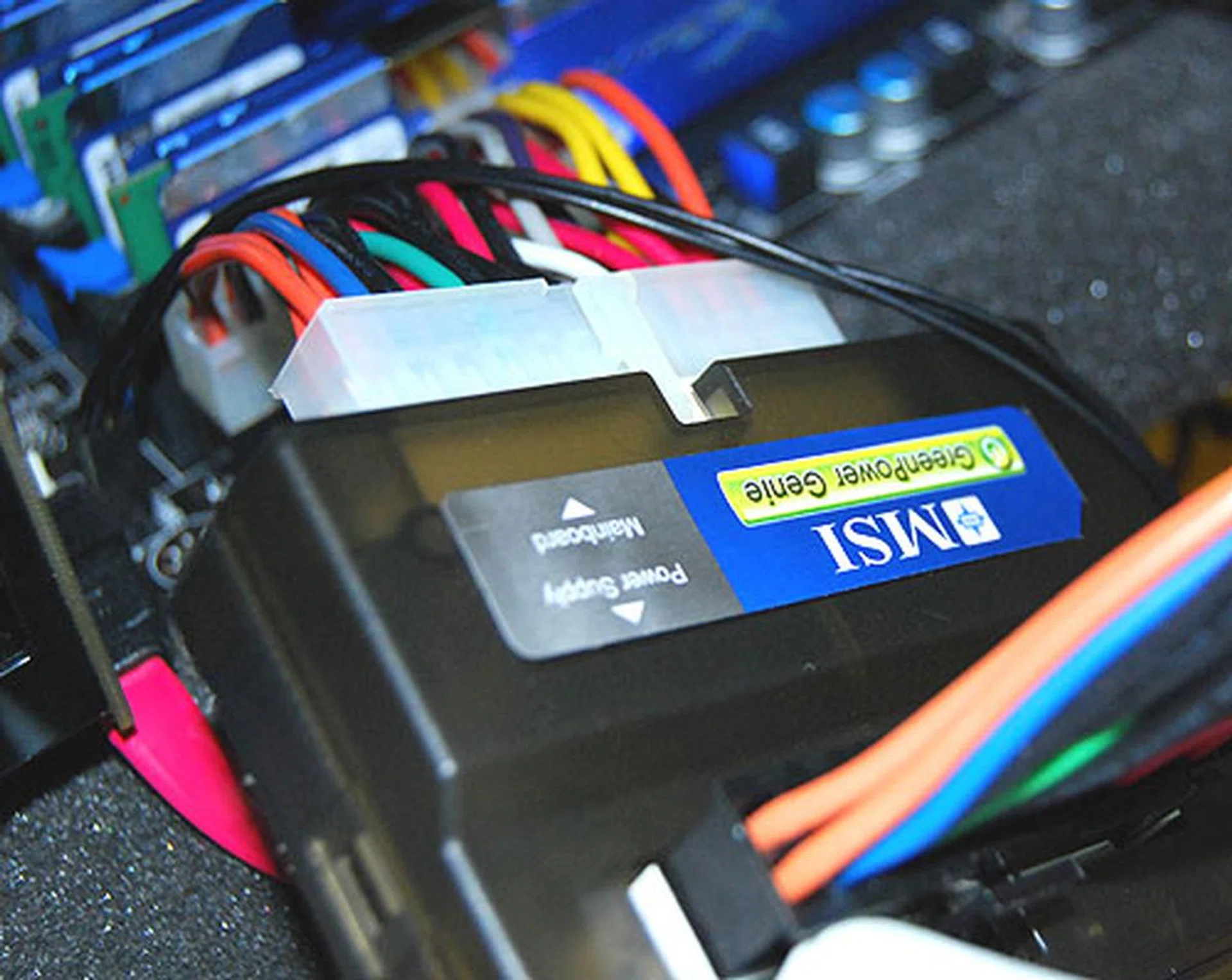
This GreenPower Genie sits between the PSU and the motherboard's ATX power connector and gives real-time readings of the voltages from the PSU. This information is then relayed to the various monitoring tools and utilities, like the DLED2 or the GreenPower Center application.
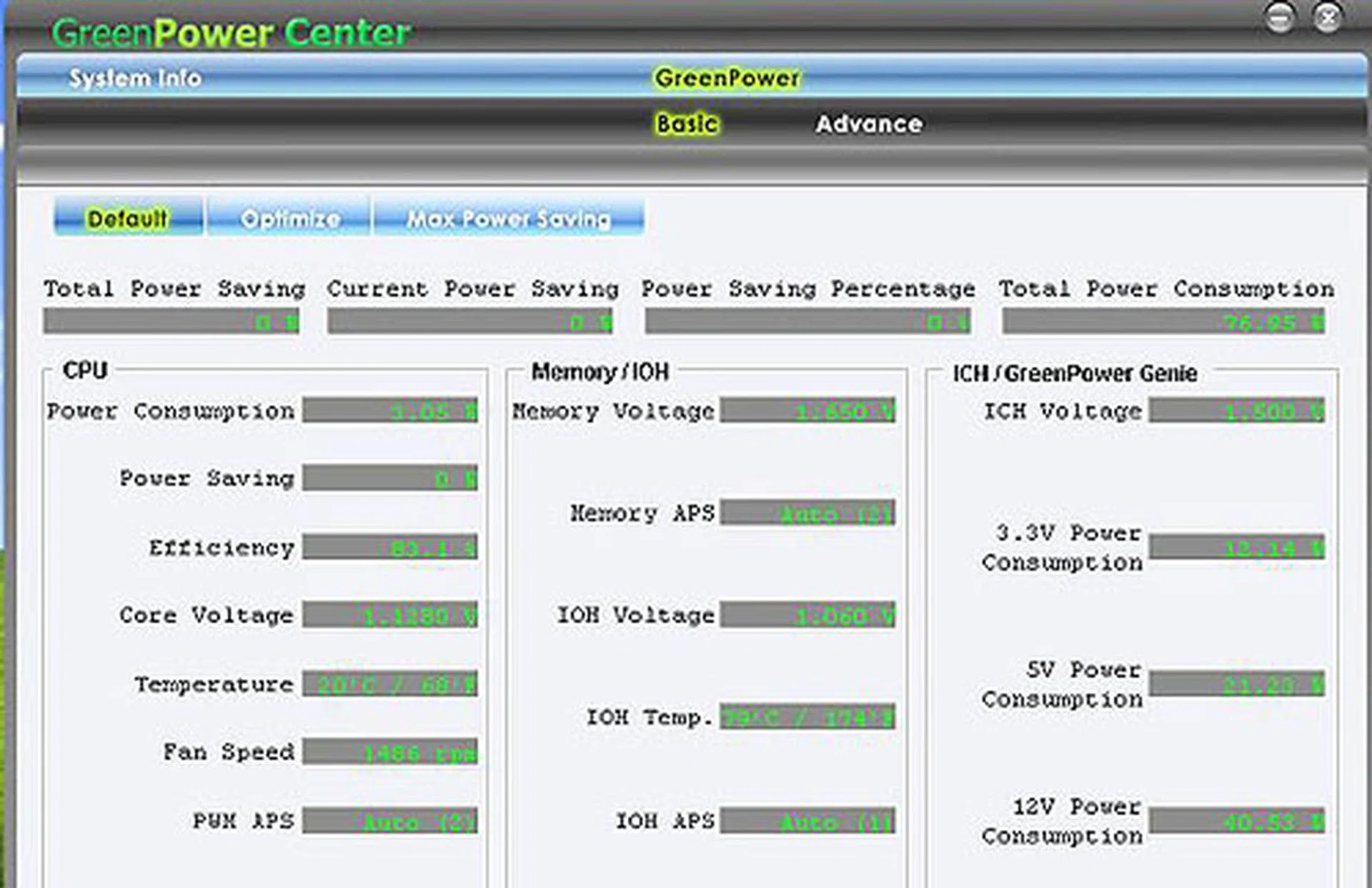
The new-look GreenPower Center from MSI, a one-stop application where users can monitor their system status, like fan speed, temperature and voltages. The utility can also automatically adjust the settings according to different profiles, like maximum power savings. When we tried this program however, it had the tendency to cause a BSOD upon selecting some options and it seemed to be quite random.
Overclocking
Our table below shows some of the more important settings in the BIOS that could be of use and interest to overclockers. When it comes to overclocking the Core i7, it's not as straightforward as the Core 2, where the FSB and the CPU multiplier were the main variables to be adjusted, along with the relevant voltages.
For the Core i7, it's more akin to overclocking on the AMD platform, with the QPI link and voltage playing a role. There's also the UCLK, the uncore multiplier to consider, which has to be twice that of the memory multiplier. Given so many settings that are inter-related, it could be daunting for users and we again refer you to our articles on the Core i7 to get the basics. For evaluating our motherboards, we have decided to focus solely on the amount of headroom available for the base clock, which you'll know starts at 133MHz and is the closest to the FSB of the past.
Hence, we have lowered the CPU multiplier to 12x for all the overclocking tests here so as to maximize the base clock without pushing the CPU too high. Of course, this is not done in a real world situation, since it's (base clock x CPU ratio) that you want to maximize. The memory multipliers are also adjusted such that our memory (rated at only DDR-1333) does not become the bottleneck. The QPI links have also been tweaked such that the base clock has the freedom to go as high as possible.
Importantly for the overclockers, Intel's safety valve mechanism to limit the TDP of the processor can be removed on all these boards so that you can achieve a higher and more energy consuming (and perhaps dangerous) overclock. We have also turned off this limitation in our testing.
O/C Settings | ASUS Rampage 2 Extreme | Gigabyte EX58-EXTREME | MSI Eclipse SLI |
Base Clock | 100 - 500 | 100 - 1200 | 100 - 400 |
CPU Ratio | Varies from CPU | 12 - 44 | 24 - 254 (Turbo Ratio Limit) |
PCIe Frequency | 100 - 200 | 90 - 150 | 100 - 200 |
QPI | Auto, 4800MHz, 5866MHz, 6400MHz | Auto, x36, x44, x48, Slow Mode | Auto, 4.8, 5.86, 6.4GT/s |
UCLK | Auto, DDR3-1600, DDR3-2033 | Auto, x12 - x48 | N.A |
Memory Ratio/Multiplier | Auto, DDR3-800, DDR3-1066, DDR3-1333, DDR3-1600, DDR3-1866, DDR3-2133 | Auto, 6.0, 8.0, 10.0, 12.0, 14.0, 16.0, 18.0 | 800, 1066, 1333, 1600, 1866 |
Voltage Adjustment |
|
|
|
Clock Skew |
|
|
|
Maximum OC (Base Clock Only) | 220MHz | 205MHz | 200MHz |
And as our results have shown, ASUS' Rampage II Extreme justified its billing by hitting a high of 220MHz for the base clock, 15MHz more than the competition. Both the Gigabyte and MSI were quite similar in their headroom.
Test Setup
Since this is our first look at the Intel X58 motherboard, we will be comparing between the three contenders here, using the top Core i7-965 Extreme Edition as our processor. We tested all the boards with Intel Turbo Boost and HyperThreading enabled. There was a small niggling glitch with the Gigabyte board, where despite fixing the memory at 7-7-7-20 in the BIOS, CPU-Z reported it as 7-7-7-22 instead. Besides that, the following configuration was used:-
- Intel Core i7-965 XE (3.20GHz, Intel Turbo Boost, HyperThreading enabled)
- 3 x 1GB Kingston HyperX DDR3-1333 @ 7-7-20 CAS 7.0 (7-7-22 for Gigabyte GA-EX58-EXTREME)
- Seagate Barracuda 7200.10 200GB SATA hard disk drive (one single NTFS partition)
- ASUS GeForce 9800 GTX 512MB - with ForceWare 178.24 drivers
- Intel INF 9.1.0.1007 and Intel Matrix Storage manager 8.6.0.1007 driver set
- Microsoft Windows XP Professional with Service Pack 2 (and DirectX 9.0c)
The following benchmarks were used to determine the performance of the X58 motherboards here:-
- BAPco SYSmark 2007 (with Patch 3)
- Futuremark PCMark05 (ver 120)
- SPECviewperf 9.0
- AquaMark3
- FarCry 2
Results - SYSmark 2007 Preview
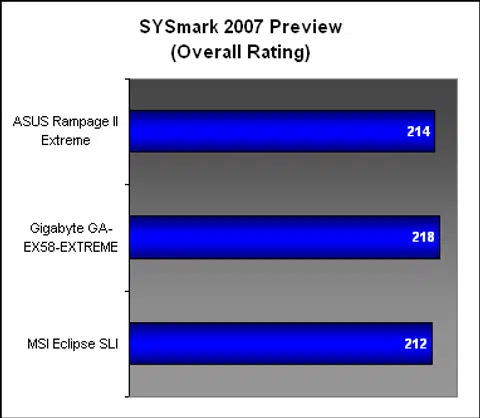
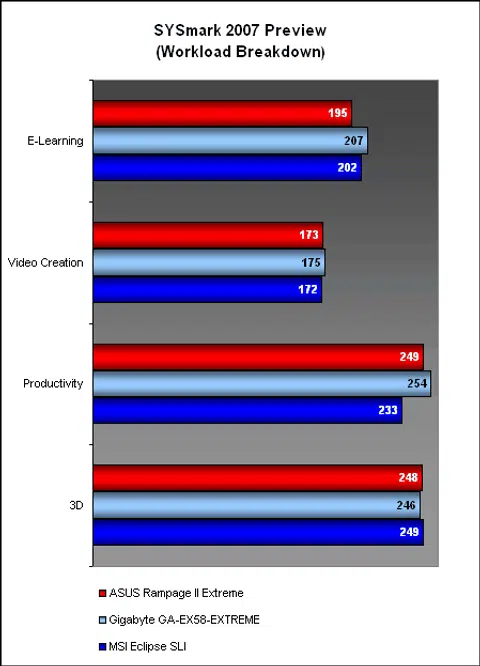
We started off with SYSmark 2007, which was narrowly won overall by the Gigabyte EX58-EXTREME. This was followed by the ASUS and then the MSI. Since this is a gauge of the performance of real-world applications, it should be of great interest in all who use their PCs. The detailed breakdown showed that the Gigabyte stood out most in the productivity section, which while not as exciting as 3D or video creation, is likely the most frequently used. However, the gains for this section in absolute terms are also unlikely to be as great as in 3D or video creation, where all three boards performed similarly.
Results - Futuremark PCMark05 Pro
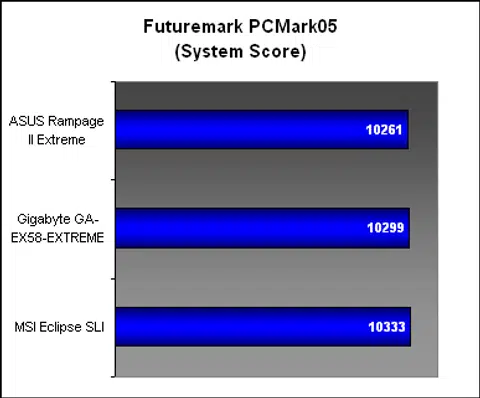
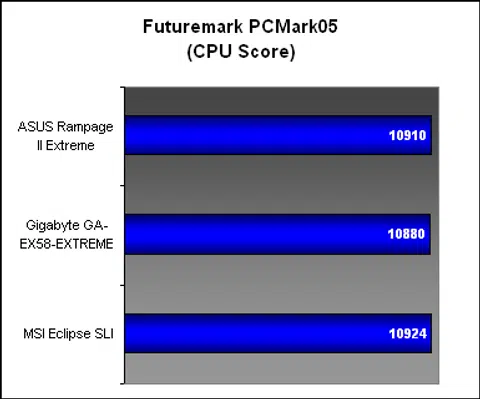
PCMark05 is another gauge of the system performance, with separate tests for the various subsections. Overall, the scores for all three boards were too close to call, with the MSI Eclipse SLI having the slightest of leads. When we looked at the subsections, the ASUS fell behind in terms of the hard drive performance while the MSI had a decent lead in the memory test. It however was behind when it came to the graphics section.
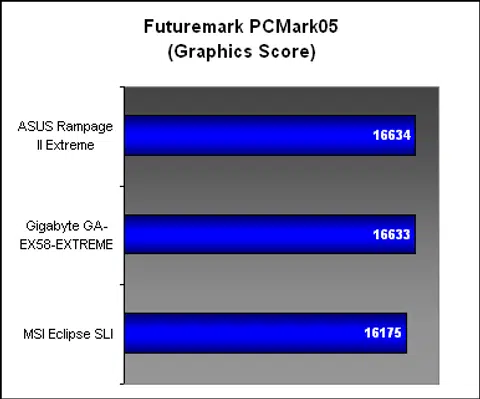
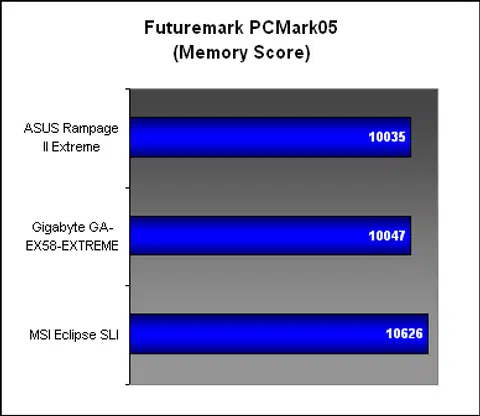
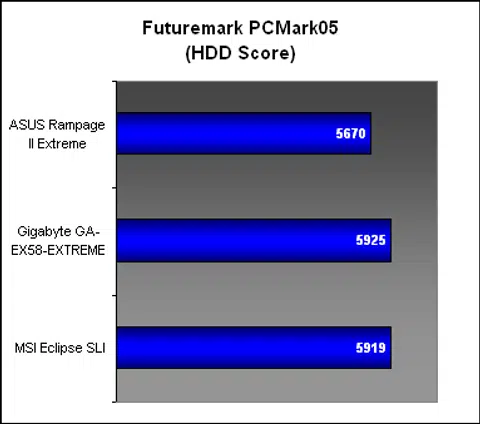
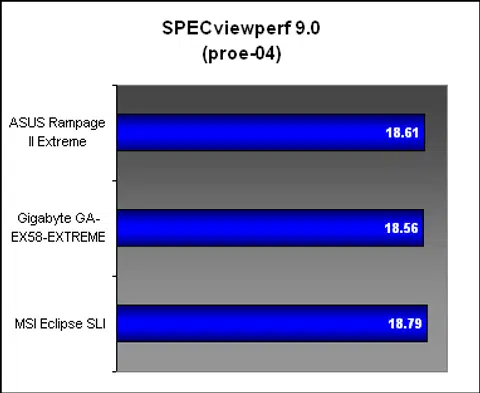
Results - SPECviewperf 9.0
In the two tests that we singled out, all the boards were equally matched here in SPECviewperf 9.0, though the Gigabyte did seem to be marginally behind the ASUS and MSI.
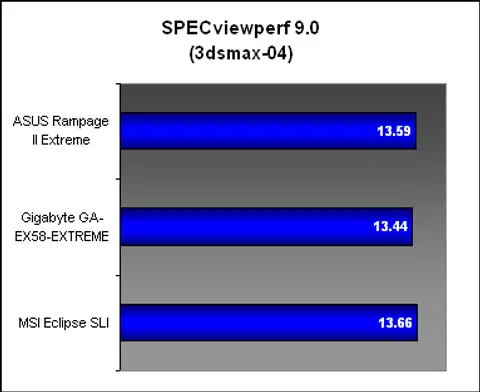
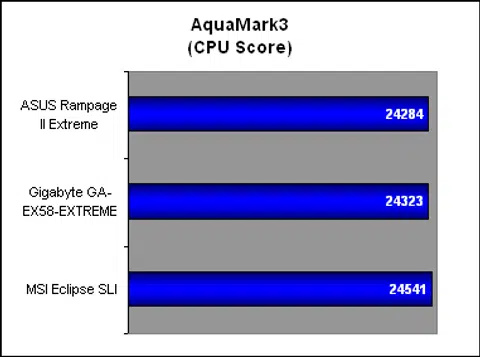
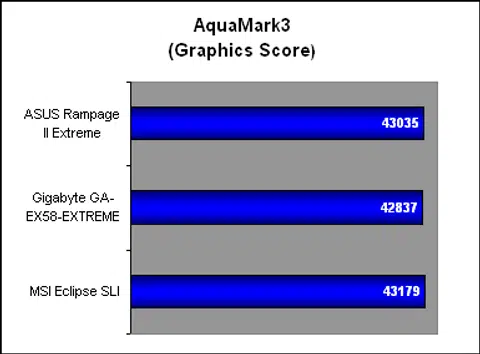
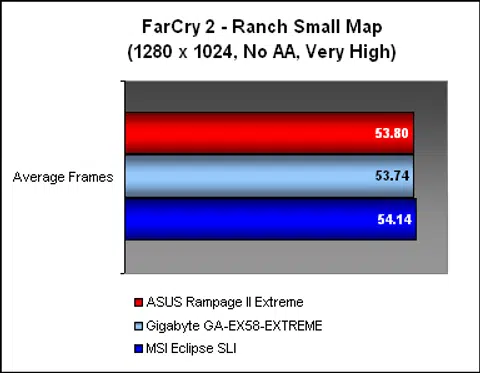
Results - AquaMark3 & FarCry 2
We used two graphics benchmarks, an old benchmark and a recent game to see if the motherboards differed when it came to games. The results however failed to find any significant differences between them.
Temperature
With all three boards having their own cooling systems, we set out to find out which version is best using the default configuration. This means no additional cooling and notably, we did not attach Gigabyte's giant heatsink. Yet, as the results below revealed, the Gigabyte still had the coolest temperature reading for the Northbridge cooler and was significantly cooler than the competition.
These were taken after running loops of 3DMark06 for at least 30 minutes and in an open testbed, which meant that passive cooling was not at optimal due to the lack of internal airflows. In a well ventilated chassis, you can expect to get better results.
Power Consumption
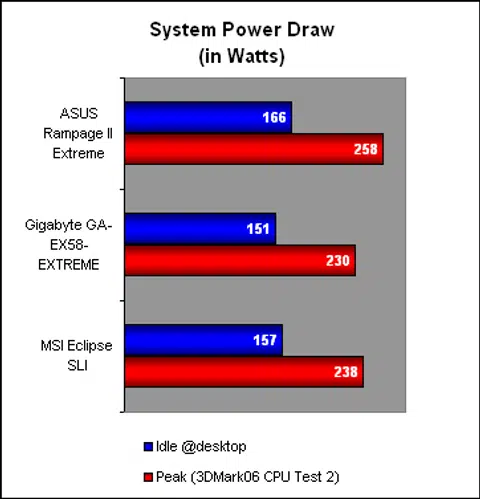
Next came our power consumption testing, where we turned on the respective energy savings technologies from the three vendors and measured both the idle and peak total system draw. The ASUS emerged as the most power hungry of the three while Gigabyte's DES Advanced was slightly better than MSI's Green Power. With the sporadic crashes that we noticed using the Green Power Center, we'll have to give this round to Gigabyte.
Conclusion
These are the most extreme motherboards available now from the top motherboard manufacturers currently for a high-end enthusiast chipset like the Intel X58. You could say that for each of them, these are prestige products, those that garner awards, enhance and build reputations with the hardcore enthusiasts and basically awe the audience with their performance and features. Therefore, the companies have thrown everything they have into it. It's a matter of face as much as anything.
Hence, we don't expect to see these boards flying off the shelves, especially not at their prices. Already, the Core i7 is targeted at the high-end enthusiast, what with the relatively expensive memory and motherboard prices. These boards take it a notch further with the ASUS Rampage II Extreme topping the charts at $398. The MSI Eclipse SLI is next at $352 and the Gigabyte GA-EX58-EXTREME as the least expensive at $328. If you had bought the lowest grade Core i7, these motherboard prices would be the same or more than the processor.
Coupled with the many overclocking and other premium features, all three boards are basically overkill for the general public. But then, they are not meant for the mainstream users. These are toys for the boys, the ones with multiple graphics cards (and multiple credit cards). For that, there's just no matching the ASUS Rampage II Extreme for its sheer number of overclocking friendly tools. This is the board for the enthusiast and they should have many rewarding hours with it. It also proved that it's not just about the features, as it had the highest base clock overclock in our test. Therefore, there was no doubt that it would receive our overclocking award.
Performance-wise, little separated these three boards and the scores were all rather close. After all, these are likely the best boards for its class. Taking that into account, the other factors, the temperature and power consumption results came into play and with that, the Gigabyte GA-EX58-EXTREME had the advantage. It was slightly better than MSI's GreenPower but it did best in the temperature segment by a large margin. Perhaps this is the Ultra Durable 3 at work. This was also done without attaching the optional and excessively large heatsink. It does lack some of the frills that we saw on the ASUS and MSI but it compensated with the lowest price of the three. The BIOS too was clean and easy to use, even with the new chipset and processor settings. To sum, of all the three, the Gigabyte was our preferred choice for daily use.
And this brings us to the MSI Eclipse SLI. One major improvement over its predecessors is the presence of a BIOS flash tool. We can't say how convenient this is for reviewers like us to update to the latest BIOS and we believe, the same too for enthusiasts. We were impressed by the number of storage options and the X-Fi audio card was certainly an extra that just about trumps the competition. Green Power worked generally except when the utility crashed on us occasionally. Just like its price, the MSI is somewhat in the middle of the ASUS and the Gigabyte, if we ranked them in terms of 'Extremeness' and those who like to dabble in a bit of overclocking now and then may find the MSI BIOS more to their liking.
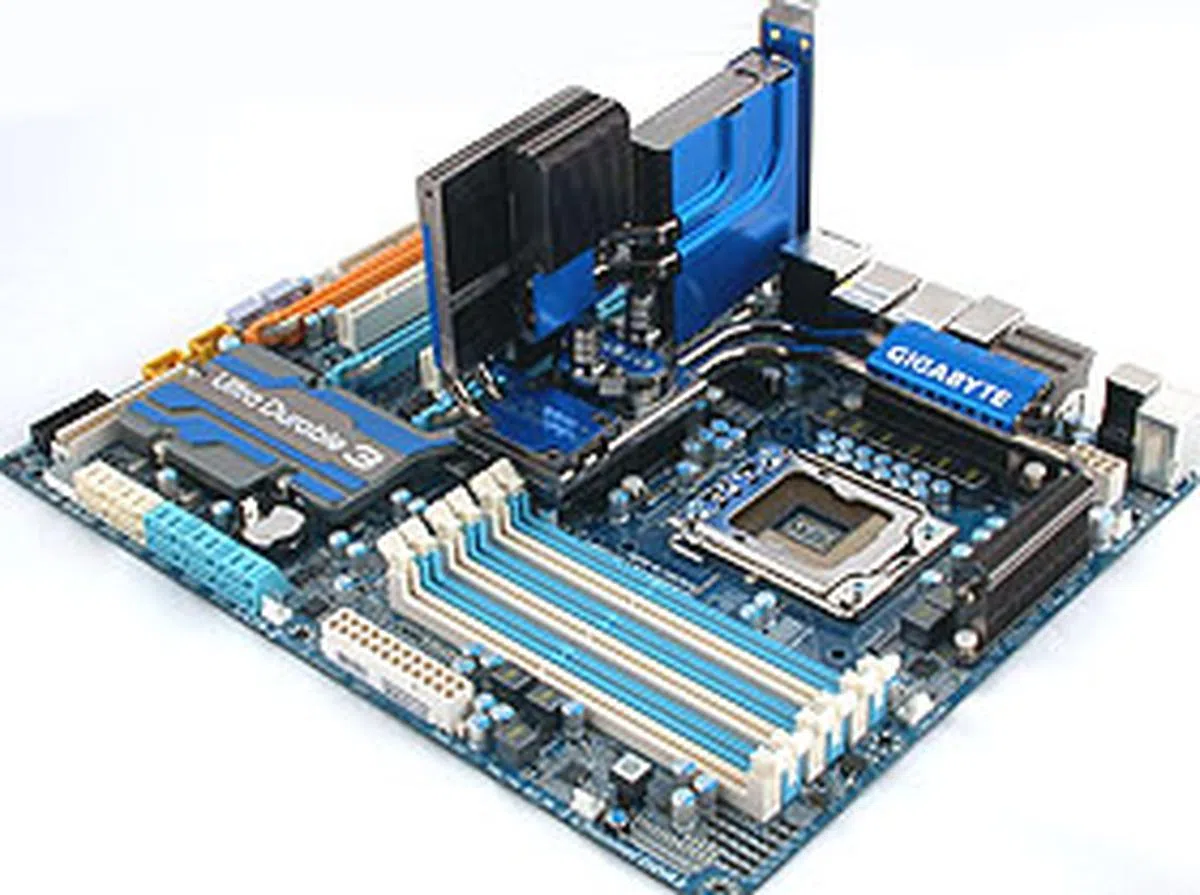
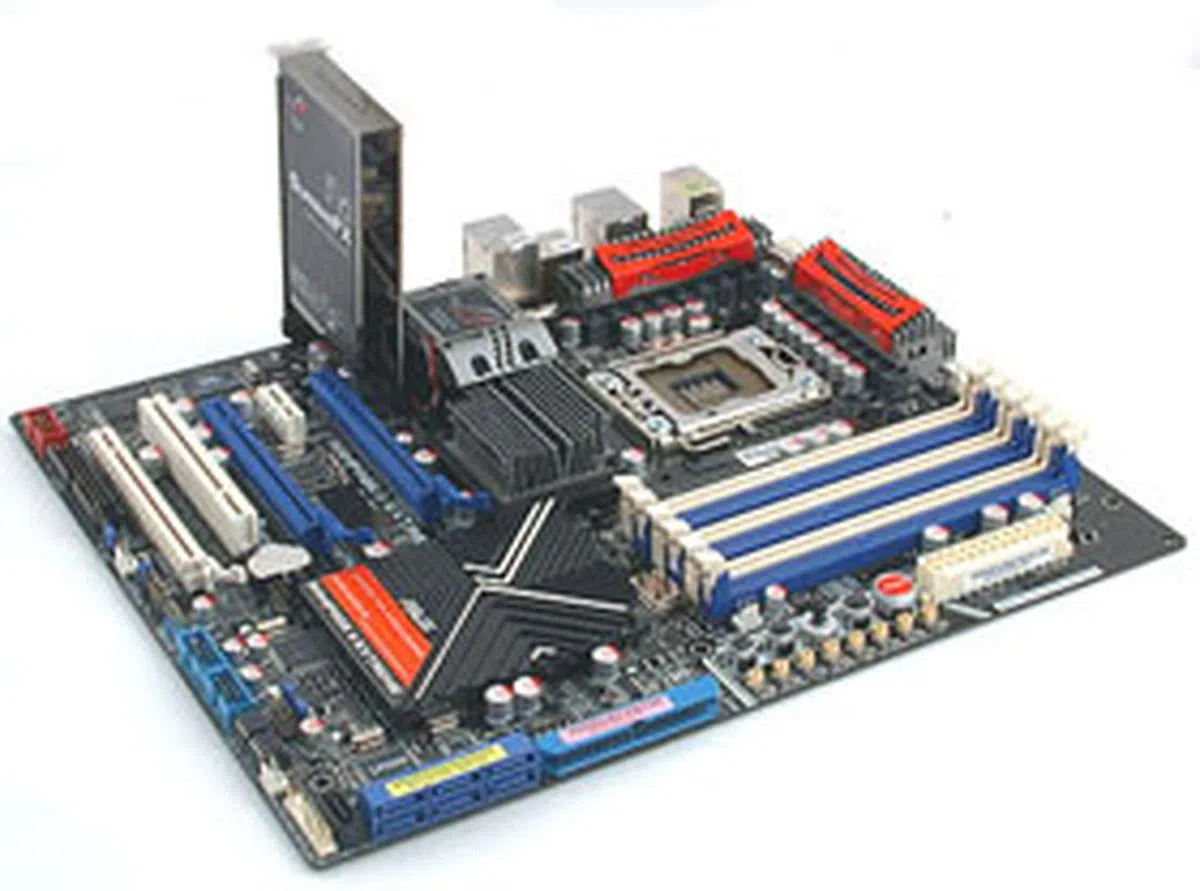
Thus, our ratings for the boards are as follows. You will do fine with any of the three, but depending on your usage and personal preferences, one may be the right board. We'll be covering more mainstream X58 boards in the near future, so stay tuned!
 | |
 | |
 |  |

Our articles may contain affiliate links. If you buy through these links, we may earn a small commission.