
Diablo III - Performance Review
After twelve years of waiting, Blizzard's Diablo III is finally out. Can your GPU handle the biggest game of the year or is it time for an upgrade? We've put a range of desktop and notebook GPUs through their paces to see how well they handle Diablo III.
Diablo III GPU Performance Review
Source: Blizzard Entertainment
After twelve years of waiting, Blizzard’s Diablo III is finally out. Can your GPU handle the biggest game of the year or is it time for an upgrade? We’ve put a range of desktop and notebook GPUs through their paces to see how well they handle Diablo III.
Back in September 2011 we tested out Diablo III’s beta on three different rigs to see how it would run. We found that any quad-core system with a decent mid-range GPU should have no problems playing the game. But now that the game has been officially released, has anything changed? Let's start off by listing the system requirements you need to take into consideration.
System Requirements
PC | Mac |
|
|
PC | Mac |
|
|
Common Requirements to All Platforms | |
|
The system requirements haven’t changed from the beta testing period. You'll notice that while the requirements are not as high as some other modern games, a mid-ranged GPU (or a high-end one from a few years back) is recommended. The question is, what kind of frame rates can you expect with a GPU like that and just how low can you go, while still retaining a visually appealing level of graphics quality and reasonably smooth game play?
Test Setup
We’ll be running two test comparisons here. One for desktop GPUs and one for Notebooks.
Desktop GPU Test Setup
For our desktop GPUs, we’ll be using our trusty gaming rig testbed:
- Intel Core i7-975 @ 3.33GHz
- Gigabyte GA-EX58-UD4P motherboard
- 3 x 1GB DDR3-1333 G.Skill RAM in triple-channel mode
- Seagate 7200.10, 200GB SATA HDD (7200 RPM)
The cards tested:
- NVIDIA GeForce GTX 670
- AMD Radeon HD 7870
- NVIDIA GeForce GTX 560 Ti
- AMD Radeon HD 6850
- AMD Radeon HD 6550
- NVIDIA GeForce GT 440
Notebook GPU Test Setup
The notebooks tested (GPUs tested in bold):
- MSI GT70 - Intel Core i7-3610QM (2.3 GHz) processor, NVIDIA GeForce GTX 670M, 16GB RAM, 128GB SSD.
- HP Pavilion DV6 (2012) - Intel Core i7-3610QM (2.3GHz) processor, Discrete NVIDIA GeForce GT 650M and Integrated Intel HD 4000 graphics, 4 GB RAM, 750GB HDD.
- Samsung Series 7 Chronos - Intel Core i7-2674QM (2.2GHz) processor, AMD Radeon HD 6750M, 8GB RAM, 500GB HDD.
- Samsung RF511 - Intel Core i7-2630QM (2.0GHz) processor, NVIDIA GeForce GT 540M, 4GB RAM, 500GB HDD.
- AMD Trinity APU Reference Notebook – AMD A10-4600M (2.3GHz) processor, Integrated AMD HD 7660G graphics, 4GB RAM, 128GB SSD.
We tested the game by creating a new Wizard character and running her through the first two and a half minutes of the game:
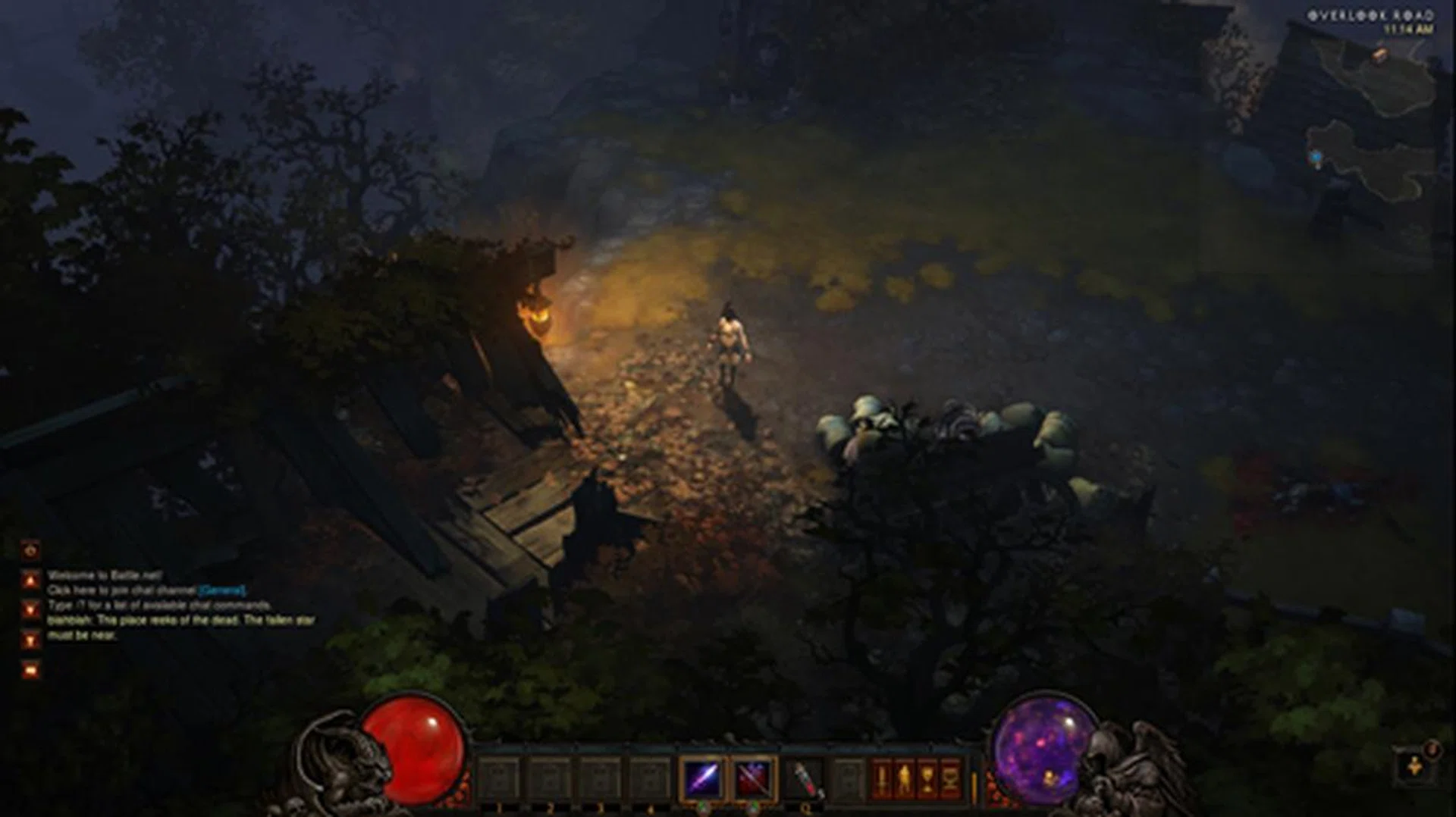
Starting from the point right after the intro video, which has only the single lighting source...
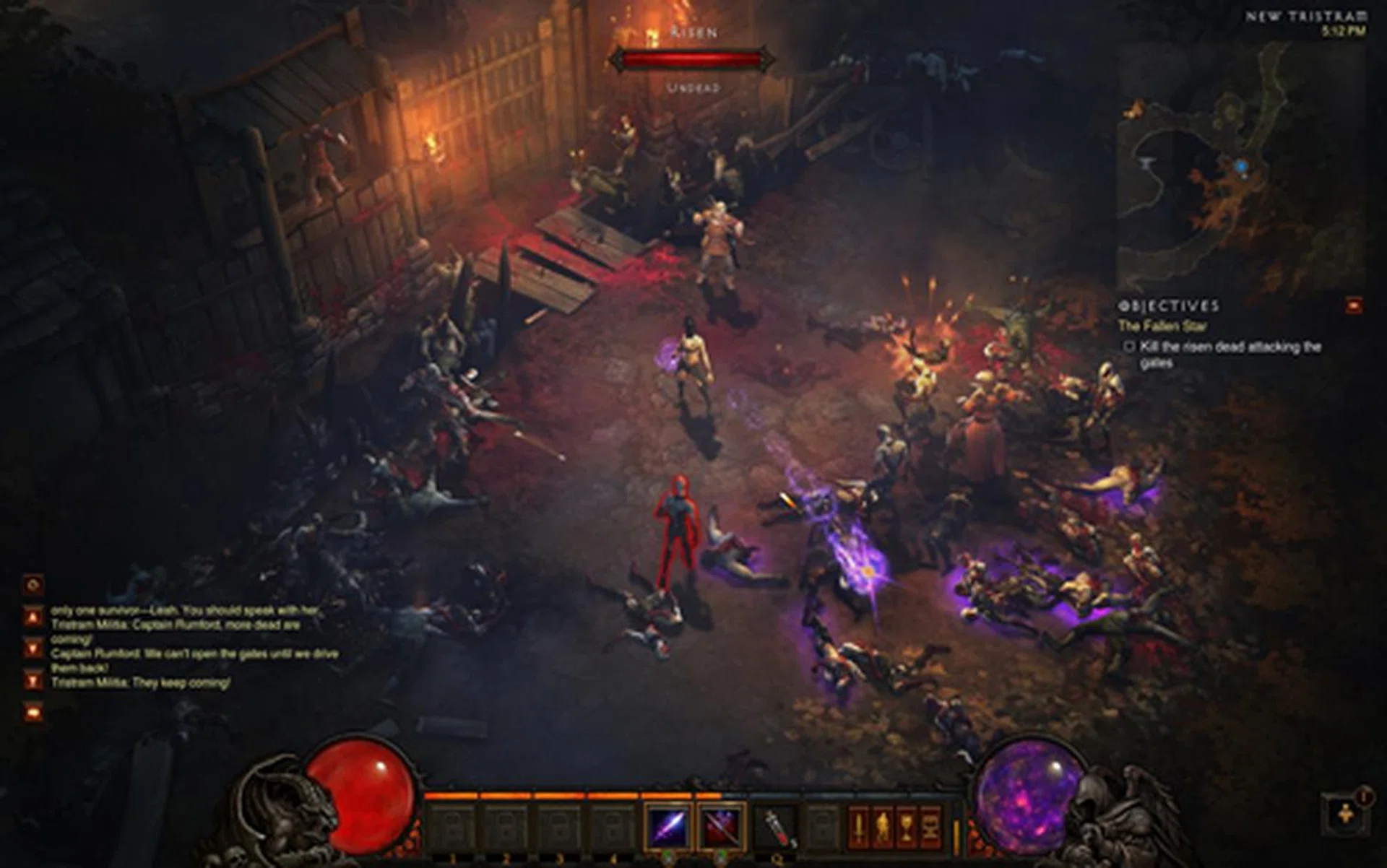
Continuing on to the zombie ambush outside the gates, which has loads of creatures attacking, lots of foliage and multiple lighting points.
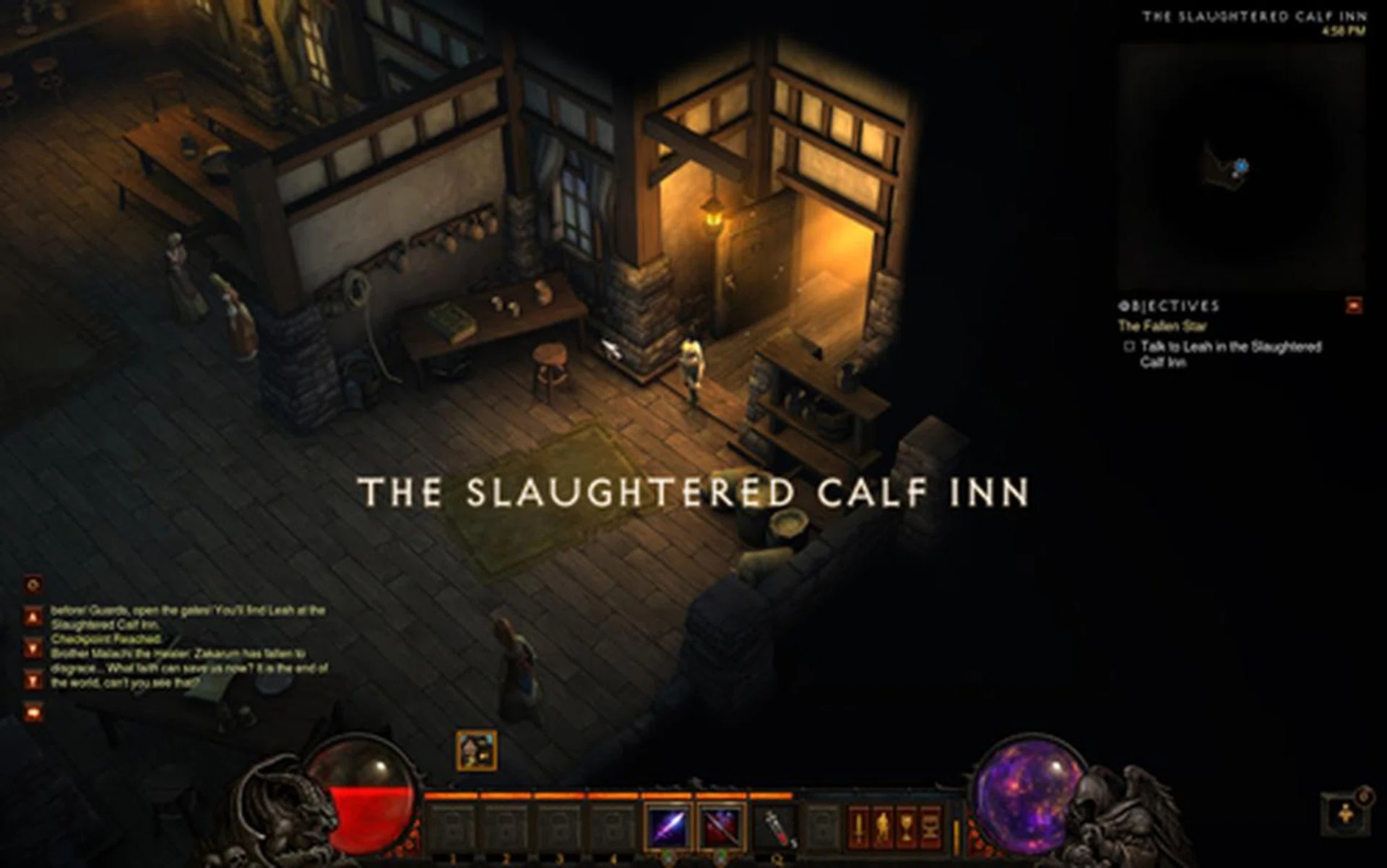
And ending at the interior of the Slaughtered Calf Inn, which has multiple NPCs and a few lighting sources.
We used FRAPs to record our average FPS, with our final score based on a total of three runs.
Desktop GPU Results
Test Settings Comparison
For our desktop GPUs, we tested all of our cards at 1920x1200 pixels resolution. Our first setting will be with all graphical options at their highest. We left Foreground and Background FPS at their default settings:
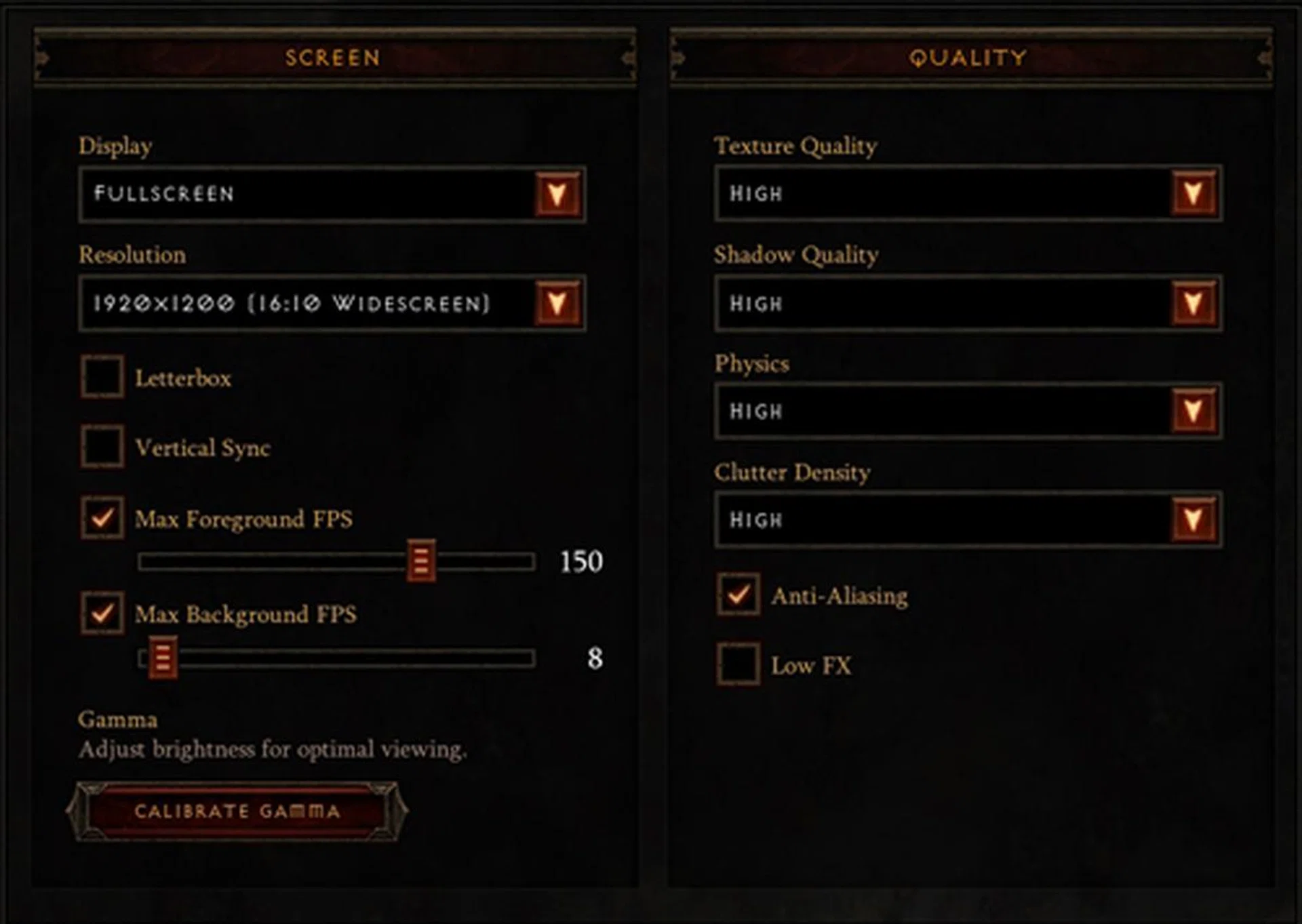
High Settings
As you can see Diablo III has fewer graphical customization options than many other games. For comparison’s sake we also lowered all settings by one step (which in some cases was Medium, and for others Low) to see how much it effected average FPS.
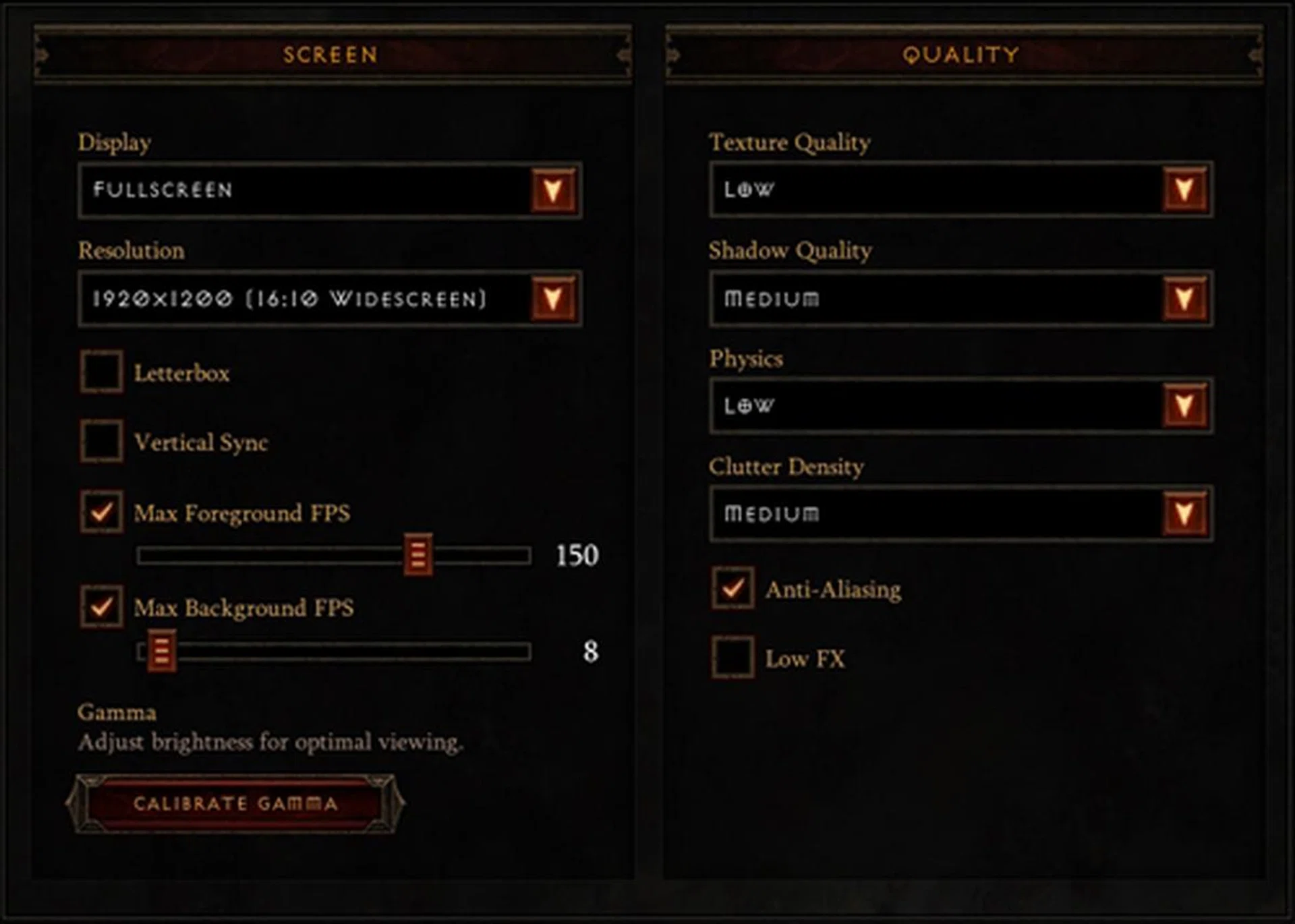
Medium/Low Settings
Here’s how the game looks at each of our settings.
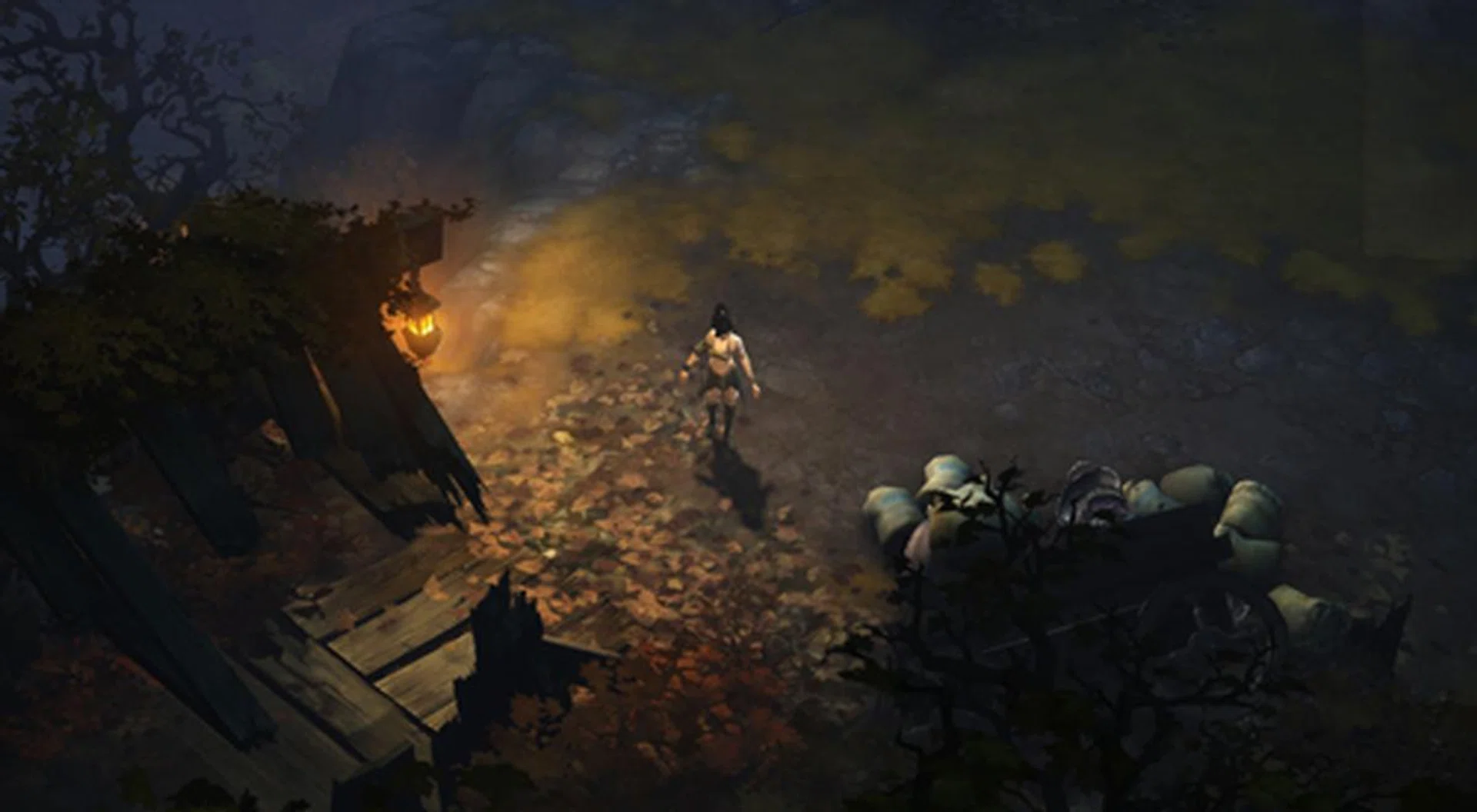
High Settings
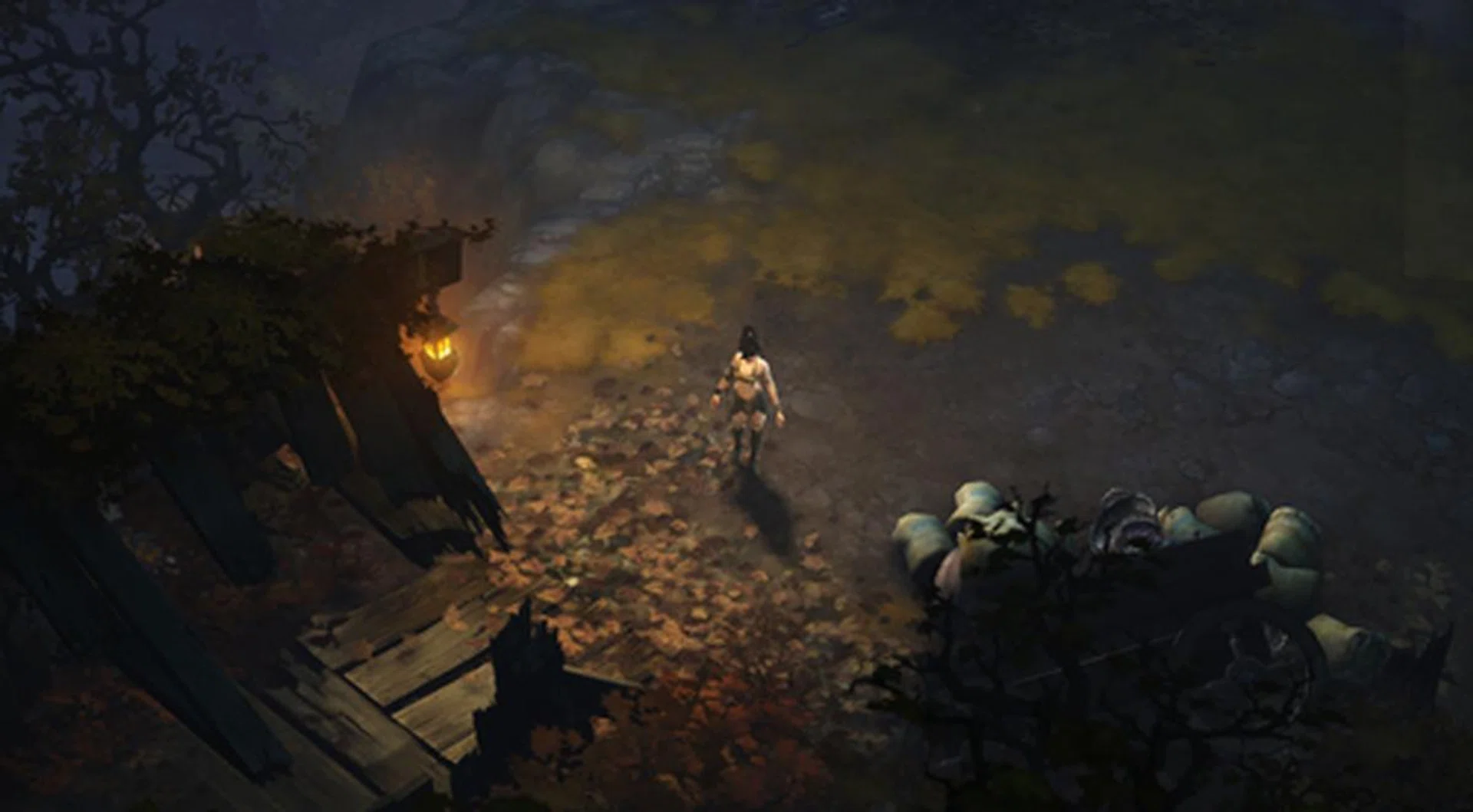
Medium/Low Settings
As you can see, there's not an immediately obvious level of difference between the two settings. Environmentally, both settings are almost identical, the biggest differences are in the character model:
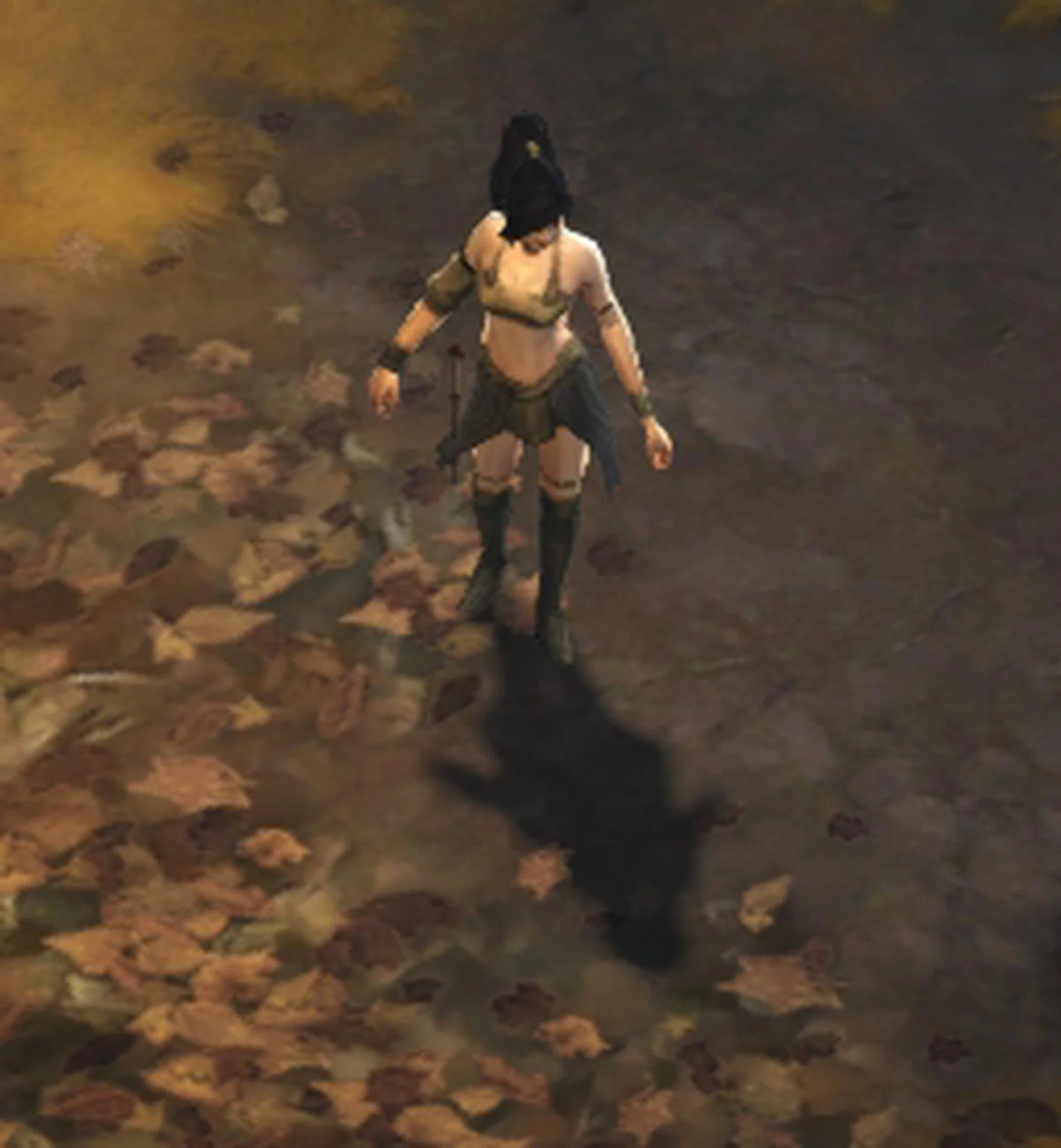
High Settings, Character close-up
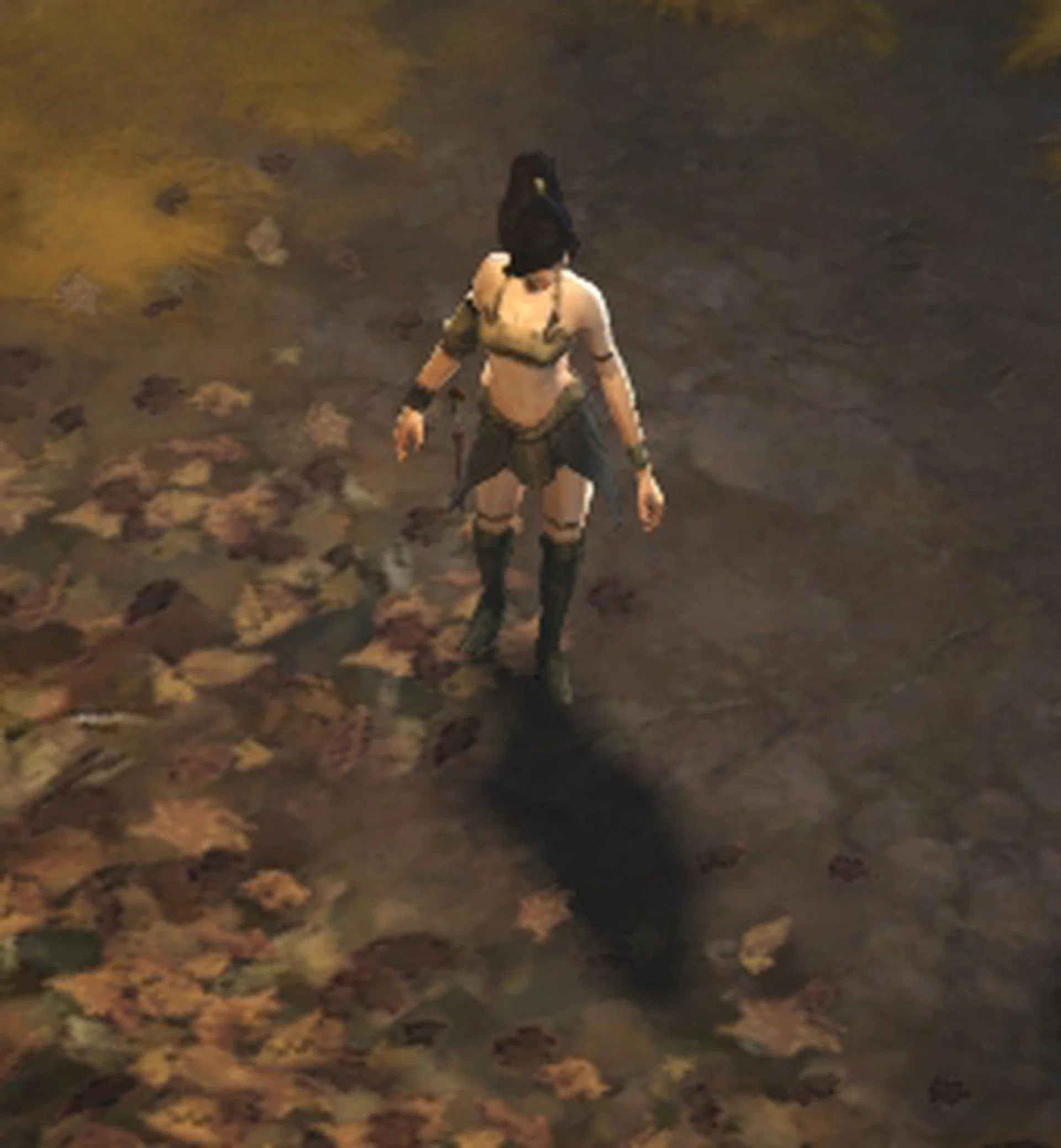
Medium/Low Settings, Character close-up
Close-up, the differences are more obvious. Overall detail on the clothing is better, and the shadow is much sharper at High Settings. Do remember though that you'll spend the majority of the game zoomed out quite far from your character, so these differences may go unnoticed to you.
Test Results
Diablo III is quite forgiving and most mid range or better graphics cards should have absolutely no problems running the game on max settings. Gamers with current or previous generation mid-high end cards have plenty of headroom available for running the game in 3D.
Unfortunately, at launch, Diablo III does not currently support Eyefinity or 3D Surround Vision - however it is expected in a future patch. When it is available, current generation cards again have plenty of headroom, and good frame rates on three monitor, and possibly even six monitor Eyefinity setups, should be quite achievable.
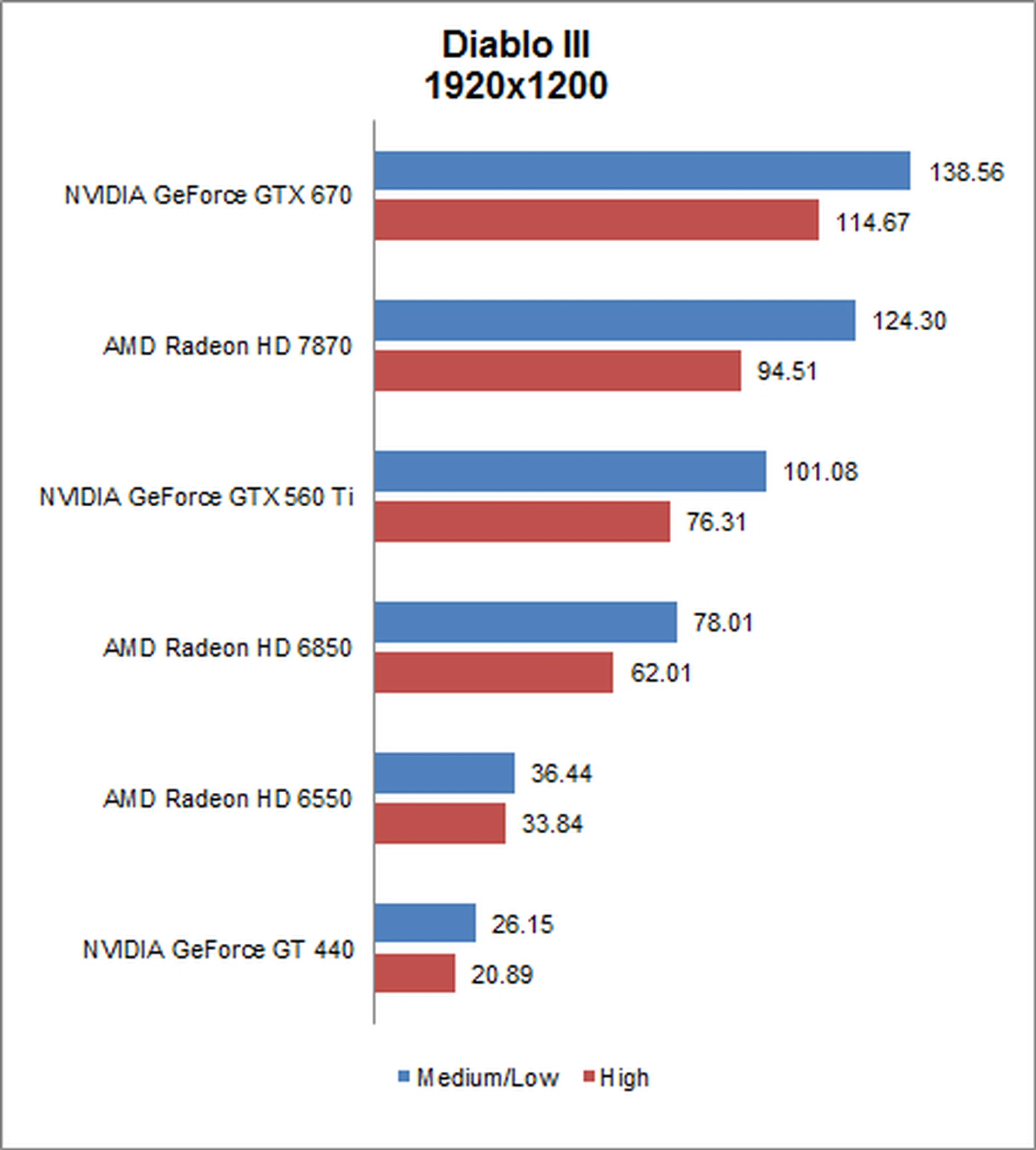
For cards such as the AMD Radeon HD 6850 which are straddling the line between 60 FPS on High settings, you may want to tweak a few of the less noticeable options (such as Clutter Density) lower, as there was still a significant jump in frame rates when we turned those settings down.
For our older and lower-end cards, we saw generally playable frame rates at the Highest settings, but not much improvement at our Medium/Low configuration. We were able to massage the scores slightly higher by toning down more quality settings, but were unable to achieve 60 FPS on any configuration.
Turning off AA, Shadows and Clutter Density resulted in some improvement, with the GeForce GT 440 climbing to 35.32 FPS, however character models started looking rather poor, so you'll have to decide if the trade off is worth it:
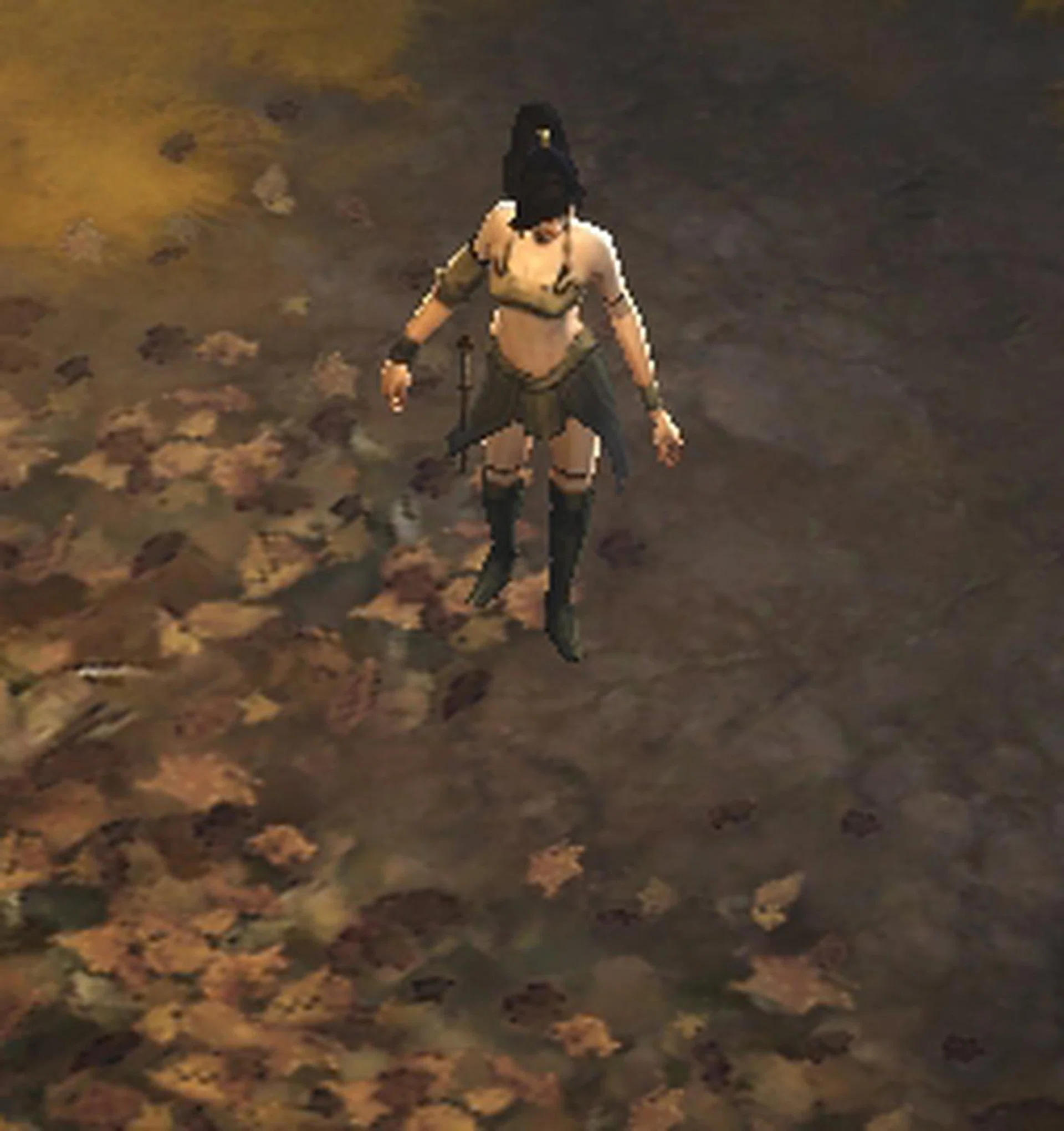
Low Settings with Shadow/AA/Clutter Density Off, Character close-up
For the GeForce GT 440 card, we found the best compromise between performance and graphical quality to be Low for all settings, with AA on, and "Low GFX" left unchecked, which gave an average FPS of 31.12.
Notebook GPU Results
Test Settings Comparison
For our notebook GPUs, while some of them (HP DV6 and MSI GT70) are capable of running at higher resolutions, to give a better understanding of how they compare against each other, we tested them all at a common resolution of 1366x768 pixels.
Like our desktop GPUs, we first tested with all graphical options at their highest, again leaving Foreground and Background FPS at their default settings:
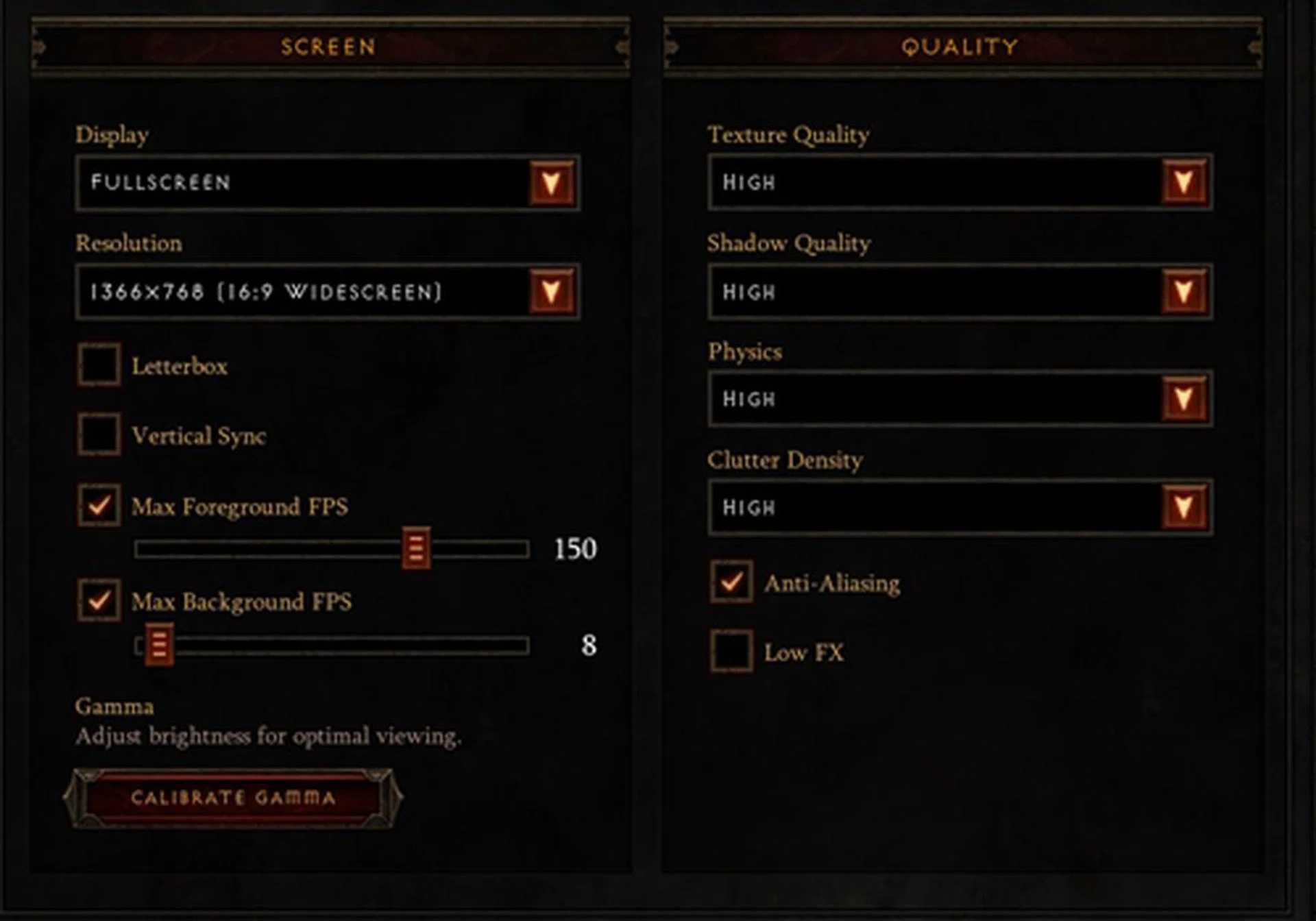
High Settings
Again, we also lowered all settings by one step (which in some cases was Medium, and for others Low) to see how much it effected average FPS.
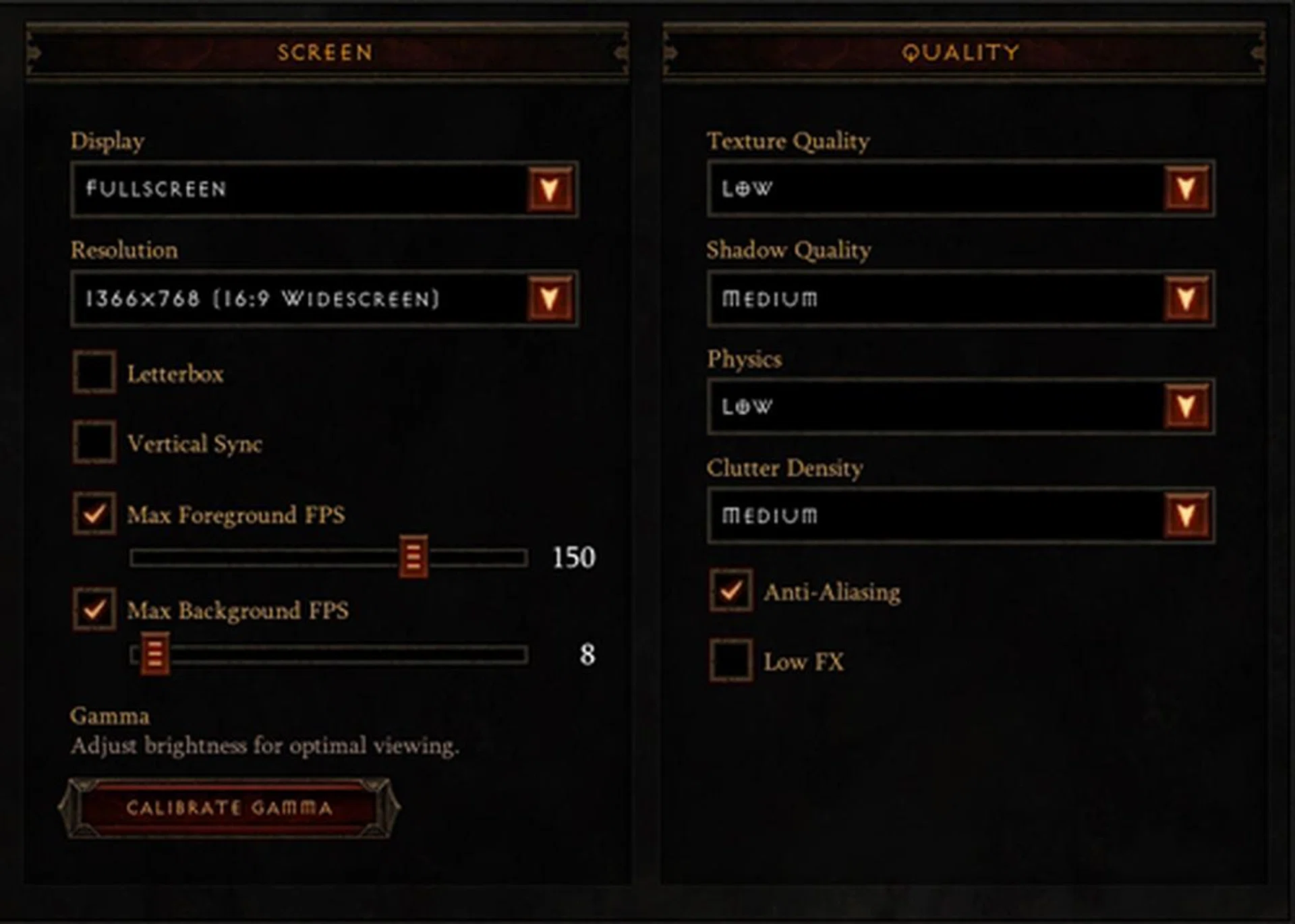
Medium/Low Settings
For a comparison of how the settings effect graphical quality, see our Desktop GPU comparison page.
Test Results
While most of our desktop GPUs easily handled the game, our notebook GPUs didn’t fare quite as well. The gaming class MSI GT70, with its current generation NVIDIA GeForce GTX 670M was the only model to attain over 60FPS at the Highest settings. At Medium/Low settings, the HP DV6’s GT 650M still looked fairly good, and was also able to average over 60 FPS.
Previous generation mid-low range GPUs fared quite badly, with both the Samsung RF511's NVIDIA GT 540M and Samsung Series 7 Chronos' AMD Radeon HD 6750M unable to reach 30 FPS at High settings. Medium settings gave a small performance boost, but both models were still prone to massive frame rate drop, and it wasn’t until we turned every quality option to Low and turned off anti-aliasing (AA) that we were able to achieve smooth gameplay.
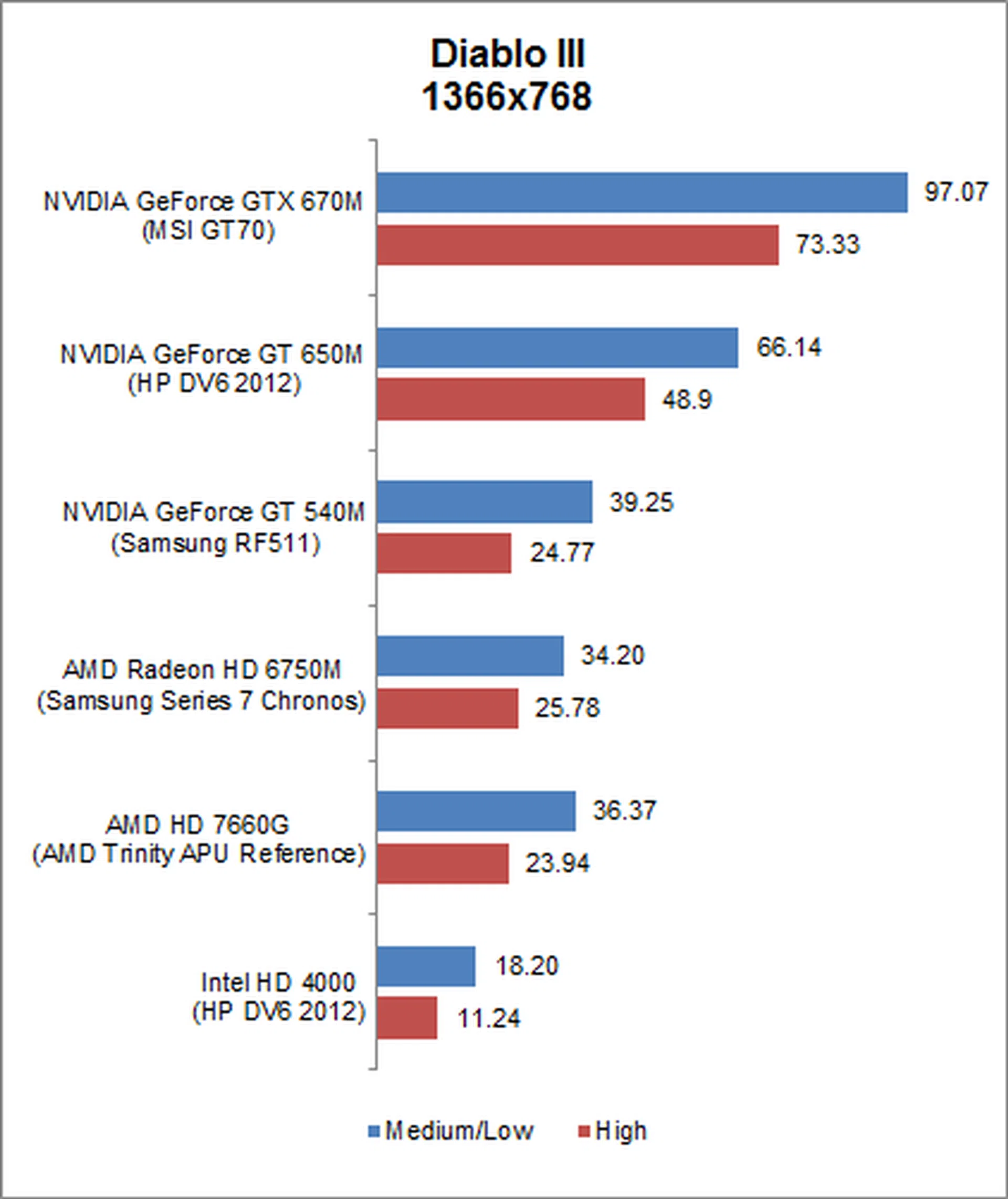
As we saw in our AMD Trinity APU feature, AMD’s HD 7660G integrated GPU is quite powerful, and we found it to be roughly on par with the previous generation discrete graphics mentioned above. However, as before, gameplay was not really smooth until all settings were set to Low with AA turned off.
Unfortunately for Ultrabook users or anyone else stuck with integrated Intel graphics, Intel's HD Graphics 4000 was not able to cut it, performing by far the worst out of all of our GPUs. While we saw some improvement lowering the settings even further, it wasn’t until we switched off AA, Shadow and Clutter Density altogether, as well as toggling on the Low FX setting that we were able to coax an average FPS of 28.20 out of the integrated Intel GPU.
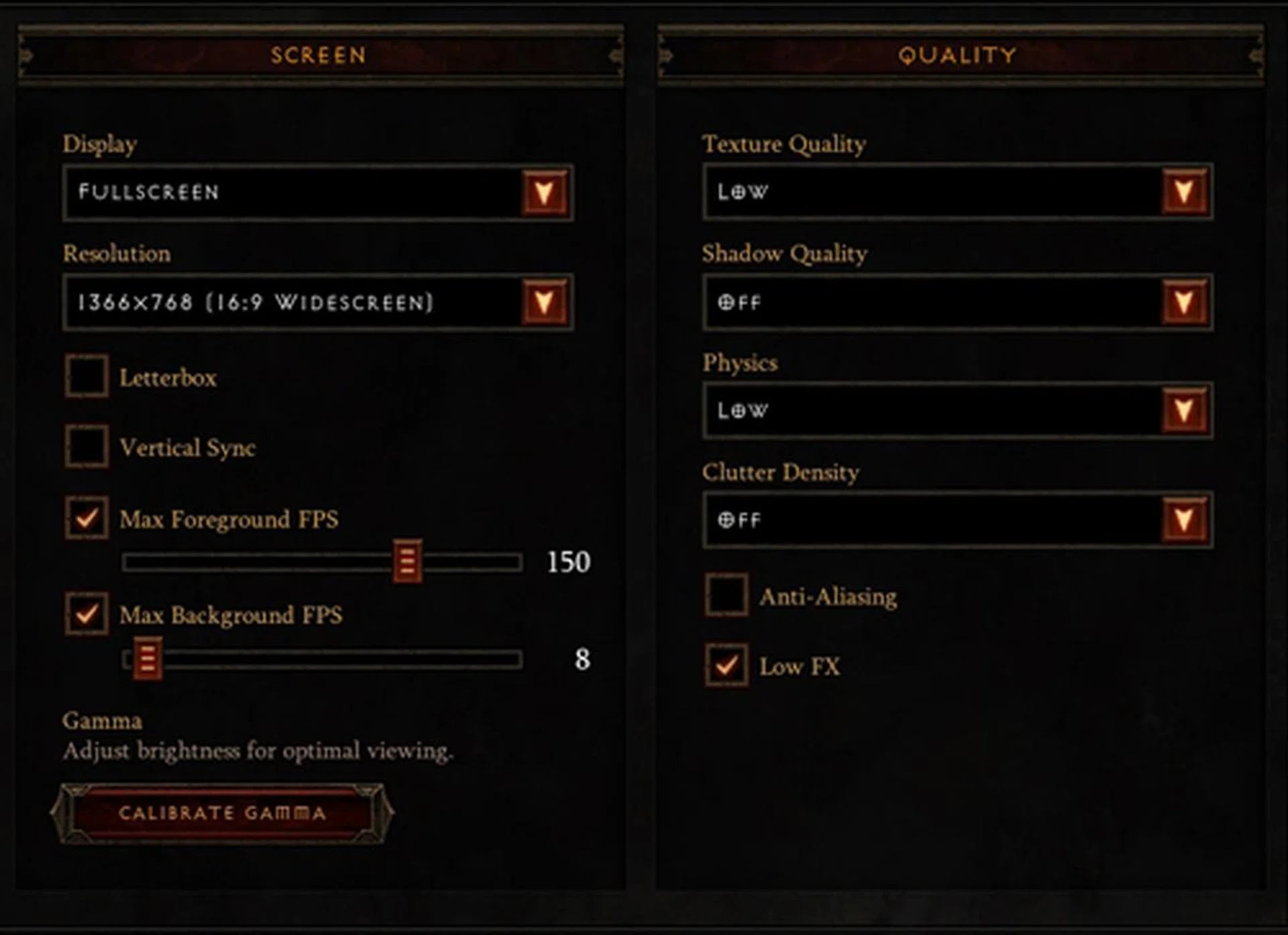
We had to use the lowest possible settings (while retaining our 1366x768 resolution) to get the Intel HD Graphics 4000 to run anywhere near a playable 30 FPS average.
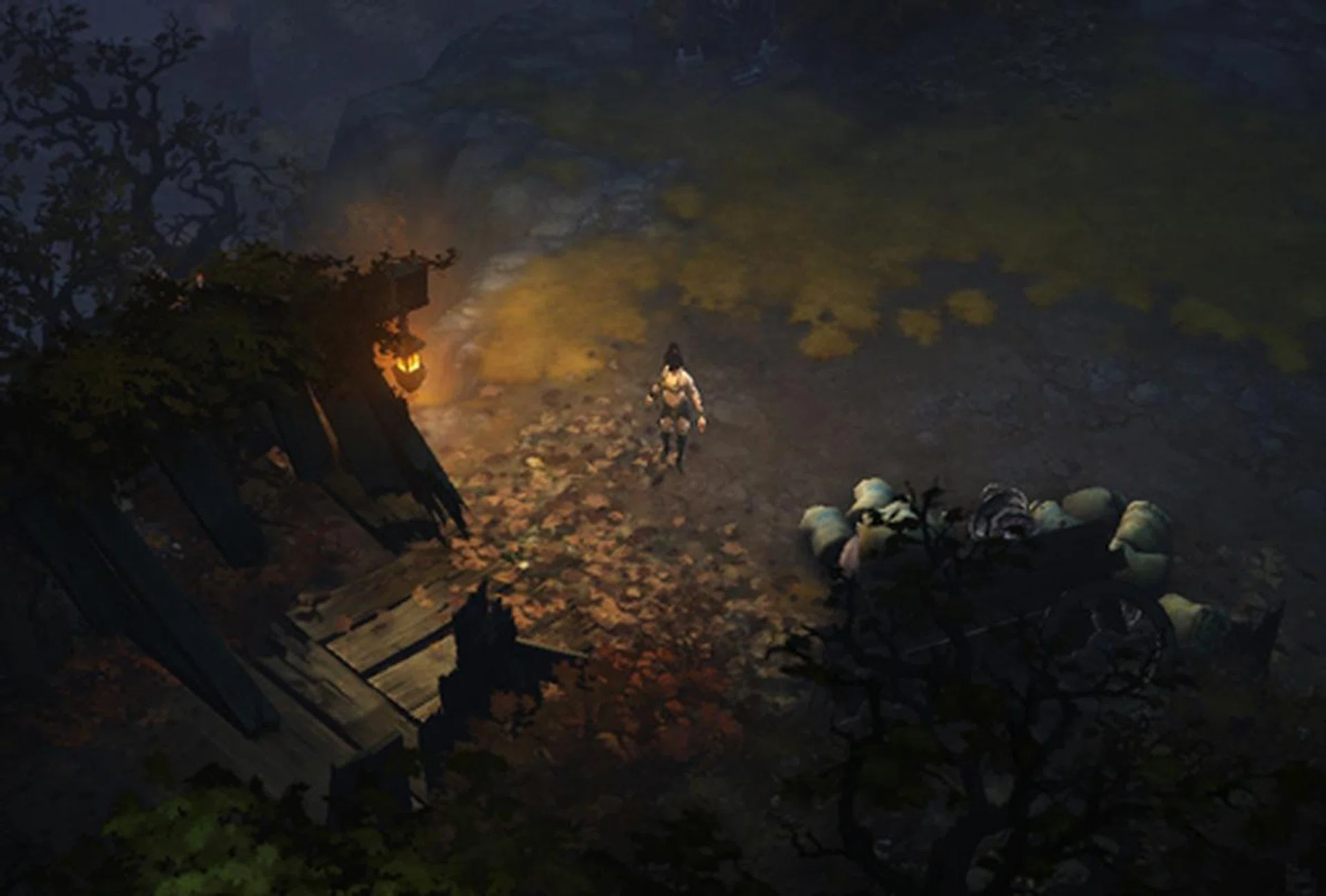
As you can see, the environment still looks passable even at such low settings, however...
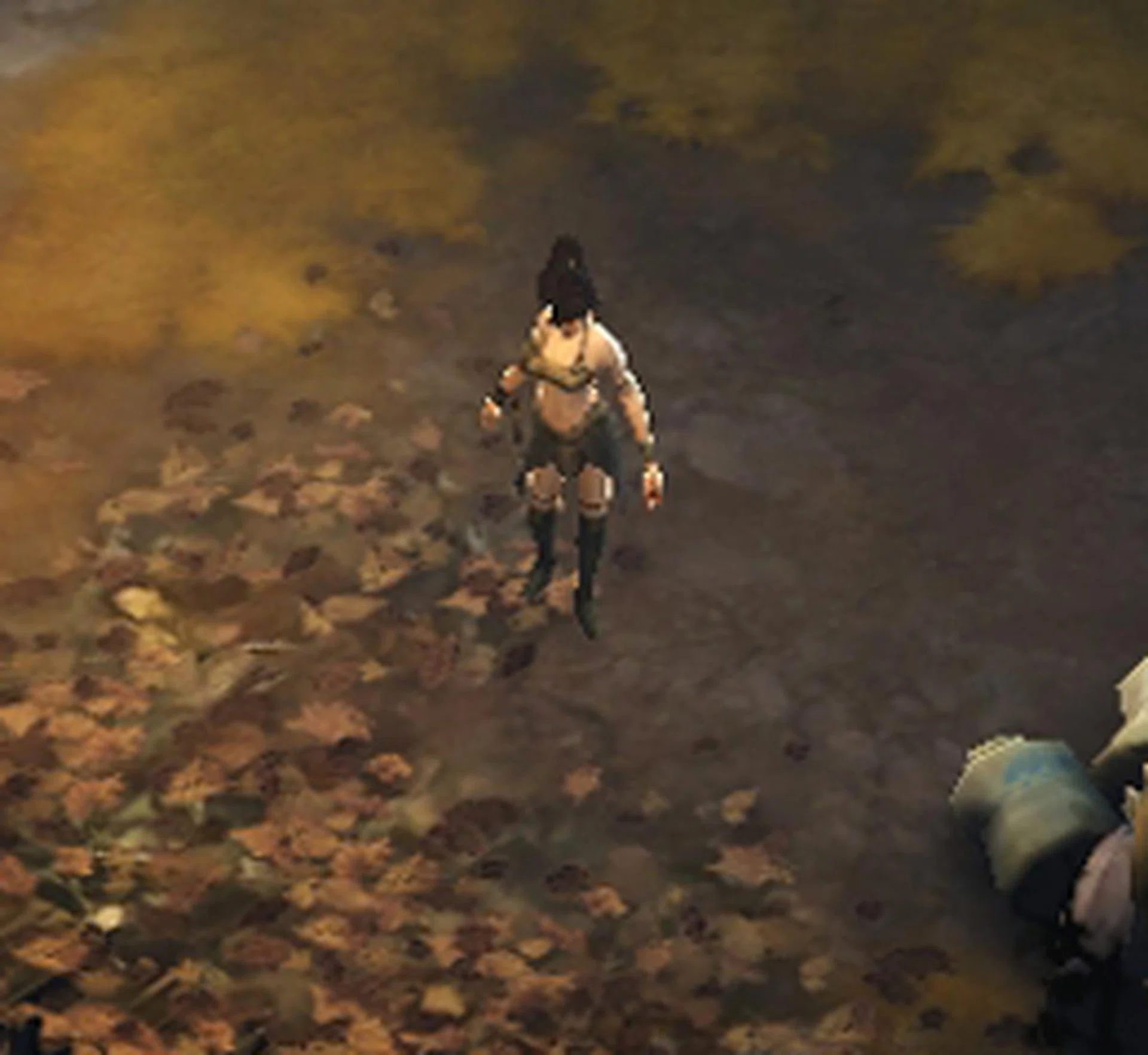
Character close-ups look quite poor.
Despite this, we still experienced very notable frame rates dips when large crowds of monsters were onscreen at the same time. However, if you really have no other option, Diablo III will technically run on an integrated Intel GPU.
Do, however, remember that we tested the Intel HD Graphics 4000 integrated GPU on the HP DV6, which is armed with a fairly powerful 2.3GHz quad-core Ivy Bridge processor. Those with dual-core Ultrabook processors or Intel HD Graphics 3000 or lower graphics engines should be prepared for even worse results.
Conclusion
Diablo III isn’t the most graphically demanding game and its most visually appealing aspect is its in-game environment - which remains fairly constant regardless of graphical settings - rather than high-texture character models. In fact, even at the highest settings, character models look quite low-res and underwhelming (as can be seen from the character select/login screen). Remember, you’ll spend almost the entirety of the game with your viewpoint zoomed out, looking at the back and top of your character’s head so highly detailed character textures are perhaps not as important as in other games.
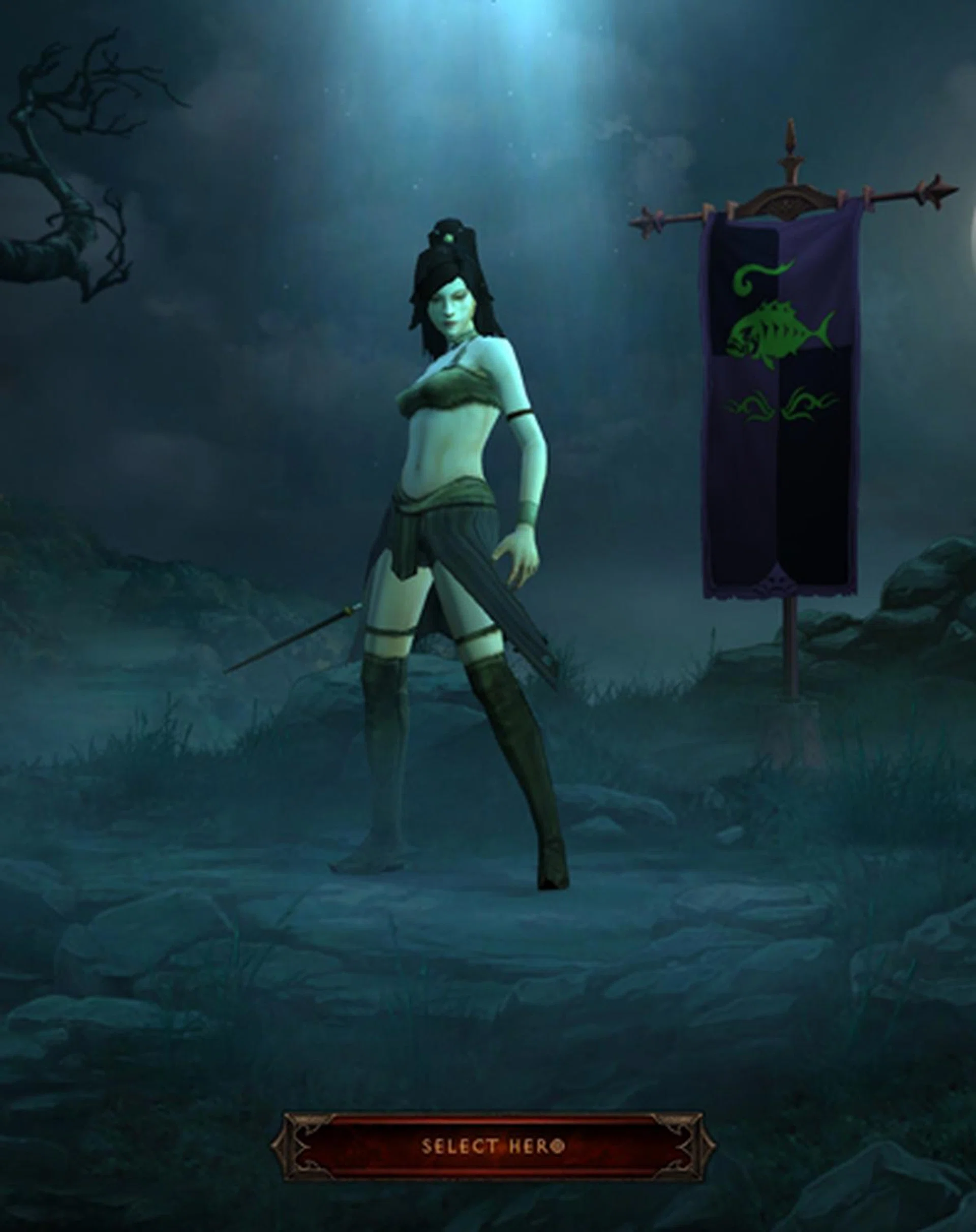
As you can see from the character select screen (shown here at the Highest possible settings), Diablo III models are quite low resolution.
Having said that, while it is possible (and definitely recommended for struggling GPUs hovering just under 60 FPS) to dial down some settings without losing much visual appeal, we do recommend that some options remain selected. Turning off anti-aliasing, for example, makes character models look particularly pixelated, while turning off Shadows will make it look like your character is floating above the ground.
For our desktop GPUs we found that most mid-range cards purchased within the last two years should have no problem playing the game, with enough headroom for 3D or multi-monitor gaming (when the patch for it is released) if desired.
Older and lower-end cards may struggle a bit, and there is a notable performance gap between the mid and lower end cards. However, if you don't mind tuning down all graphical quality options to low, the game is quite forgiving and playable frame rates should be within reach.
For our notebook GPUs, recently purchased machines with discrete graphics will perform well at High or Medium/Low settings. Slightly older models will require toning down some settings and you should also be prepared for frame rate dips occasionally. As a last alternative you can try turning on the "Low FX" setting, especially if you're having problems with low frame rates during heavy battle scenes.
For those stuck with integrated Intel graphics, it is possible to get the game to run, however you will need to play at the lowest possible settings, with Low FX toggled on. Even then, we don't really recommend it as you will still have frequent trouble in areas with lots of monsters on screen at the same time.
We hope this quick performance guide has been handy to help you understand how your system stacks up in this game and what settings you need to manipulate for better playability, perhaps even figuring out if you need to get a system upgrade or overhaul to indulge in this highly anticipated game.
Our articles may contain affiliate links. If you buy through these links, we may earn a small commission.